EasyManua.ls Logo

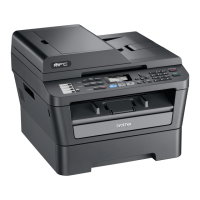
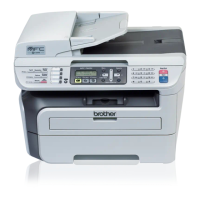
Brother MFC-7840N - User Manual

Brother MFC-7840N
194 pages
Print Icon
To Next Page IconTo Next Page
Loading...
USER’S GUIDE
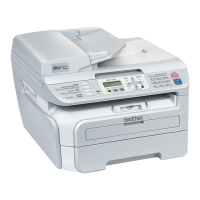
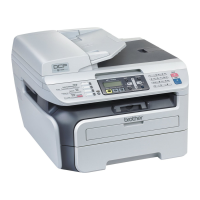
MFC-7340
MFC-7450
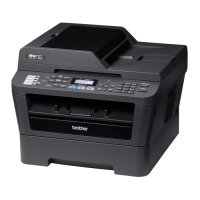
MFC-7440N
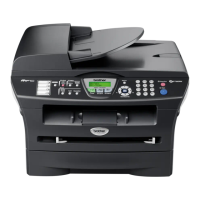
MFC-7840N
MFC-7840W
Version A
ARL/ASA/NZ

Table of Contents

Other manuals for Brother MFC-7840N

Questions and Answers

  • C
    Carlos SmithSep 4, 2025
    What to do if Brother Printer prints unexpectedly or prints garbage?
    • A
      Aaron BowersSep 4, 2025
      If your Brother printer is printing unexpectedly or printing garbage: * Pull out the paper tray and wait until the machine stops printing. Then turn off the machine and disconnect from the power for several minutes. * Check the settings in your application to make sure it is set up to work with your machine.
  • M
    Michelle ValentineAug 25, 2025
    What to do if my Brother Printer does not load paper and shows 'No Paper' or 'Paper Jam'?
    • J
      josegutierrezAug 25, 2025
      If your Brother printer is not loading paper and the LCD shows 'No Paper' or a 'Paper Jam' message, try the following: * If there is no paper, load a new stack of paper into the paper tray. * If there is paper in the tray, make sure it is straight; if it is curled, straighten it. * Try removing the paper, turning the stack over, and putting it back. * Reduce the amount of paper in the tray.
  • C
    Carol NormanAug 25, 2025
    How to fix no printout on Brother Printer?
    • D
      darlenecampbellAug 26, 2025
      If your Brother printer has no printout, check the following: * Ensure the machine is plugged in and the power switch is on. * Verify the toner cartridge and drum unit are installed correctly. * Check the interface cable connection on both the machine and your computer. * Confirm the correct printer driver is installed and chosen. * Check if the LCD shows an error message. * Make sure the machine is online.
  • L
    Lindsey GuzmanSep 12, 2025
    Why is the print condensed on my Brother MFC-7840N?
    • D
      David SmithSep 12, 2025
      Condensed print is usually caused by a poor telephone connection. Ask the other party to send the fax again.
  • C
    Christopher BeckSep 18, 2025
    What to do if Brother MFC-7840N All in One Printer says 'Document is too long'?
    • B
      Billy BennettSep 18, 2025
      If your Brother All in One Printer displays 'Document is too long', check if the document is jammed in the ADF (Automatic Document Feeder). If it is jammed, remove it.
  • K
    Karen KochSep 7, 2025
    Why isn't the network scanning, PC Fax Receive, or network printing working on my Brother Printer?
    • Z
      zmedinaSep 7, 2025
      The firewall setting on your PC may be rejecting the necessary network connection. Follow the instructions below to configure Windows® Firewall.
  • K
    Kevin BerryAug 31, 2025
    How to fix 'Toner Low' on Brother MFC-7840N?
    • E
      eatonstephanieAug 31, 2025
      If your Brother All in One Printer displays 'Toner Low', prepare a new toner cartridge. If the toner is empty, replace it.
  • J
    Jesse PerezSep 23, 2025
    How to reconnect scanner harness on Brother MFC-7840N?
    • M
      Michael EricksonSep 23, 2025
      If your Brother All in One Printer displays 'Scanner harness not connected correctly', reconnect the scanner harness correctly.
  • J
    Jessica LarsenSep 14, 2025
    Why don't headers or footers print on my Brother MFC-7840N All in One Printer, even though they appear on the screen?
    • M
      Miss Carmen PowersSep 14, 2025
      Adjust the top and bottom margins in your document to allow for this.
  • W
    William WrightAug 28, 2025
    Why does my Brother Printer produce a vertical black line in copies?
    • K
      katherine84Aug 28, 2025
      Black vertical lines on copies are typically caused by dirt or correction fluid on the glass strip, or the corona wire for printing is dirty.

Summary

Section I General

1 General information

Explains how to use the documentation and understand the machine's interface.

2 Loading paper and documents

Details how to load various types of paper and documents into the machine.

3 General setup

Guides users through initial configurations like timers, paper settings, and volume.

4 Security features

Describes security options like TX Lock, Memory Security, and Secure Function Lock.

Section II Fax

5 Sending a fax

Provides instructions on how to send faxes using the ADF or scanner glass.

6 Receiving a fax

Details how to configure receive modes and manage incoming faxes.

7 Telephone and external devices

Covers connecting and using telephones and external devices with the machine.

8 Dialling and storing numbers

Explains how to dial numbers, store contacts, and manage speed dial settings.

9 Remote fax options

Details features for managing faxes remotely, like forwarding and storage.

10 Polling

Explains how to use polling to send and receive faxes remotely.

11 Printing reports

Guides users on printing various operational and status reports.

Section III Copy

12 Making copies

Provides step-by-step instructions for copying documents.

Section IV Software

13 Software and Network features

Explains how to read guides and use software for printing and scanning.

Section V Appendixes

A Safety and legal

Outlines safety precautions, legal notices, and important compliance information.

B Troubleshooting and routine maintenance

Provides guidance on resolving common issues and performing regular maintenance.

C Menu and features

Describes how to access and use the machine's menu options and features.

D Specifications

Lists the technical specifications of the machine, including hardware and software.

E Glossary

Defines key terms and features used throughout the manual.

F Index

An alphabetical listing of topics and their corresponding page numbers for quick reference.

Brother MFC-7840N Specifications

General IconGeneral
BrandBrother
ModelMFC-7840N
CategoryAll in One Printer
LanguageEnglish

Related product manuals