EasyManua.ls Logo

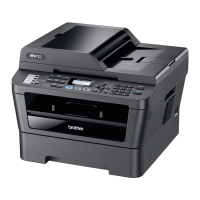
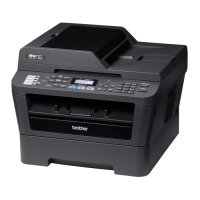
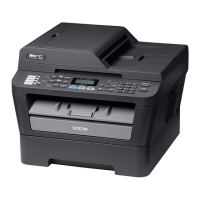
Brother MFC-7240 - User Manual

Brother MFC-7240
140 pages
Print Icon
To Next Page IconTo Next Page
Loading...
Basic User’s Guide
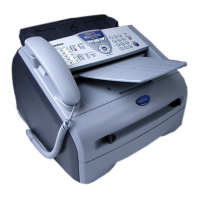
FAX-2840
FAX-2940
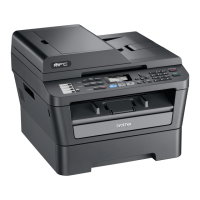
MFC-7240
Not all models are available in all countries.
Version 0
USA/CAN

Table of Contents

Other manuals for Brother MFC-7240

Questions and Answers

  • J
    Joshua FowlerSep 22, 2025
    What does 'Connection Fail' mean on Brother MFC-7240 All in One Printer?
    • P
      patricia92Sep 22, 2025
      If your Brother All in One Printer shows 'Connection Fail', it means you tried to poll a fax machine that is not in Polled Waiting mode. Check the other fax machine’s polling setup.
  • A
    Ana ClarkAug 23, 2025
    How to fix 'Toner Ended' on Brother MFC-7240 All in One Printer?
    • M
      Mrs. Karen Snyder PhDAug 23, 2025
      If your Brother All in One Printer displays 'Toner Ended', it signifies that the toner cartridge needs replacement. Although the printer will store faxes in memory while available, it's crucial to replace the toner cartridge with a new one to ensure uninterrupted printing.
  • M
    Michael KeithAug 25, 2025
    How to resolve a cartridge error on Brother All in One Printer?
    • M
      matthewwilliamsAug 25, 2025
      A 'Cartridge Error' on your Brother All in One Printer often means the toner cartridge isn't correctly installed. To resolve this, pull out the drum unit, remove the toner cartridge, and then reinstall the toner cartridge properly into the drum unit.
  • R
    Ryan WillisAug 26, 2025
    What to do if my Brother MFC-7240 says 'Replace Drum'?
    • R
      Rachel GreenAug 26, 2025
      If your Brother All in One Printer shows 'Replace Drum' or 'Drum Stop', it indicates that the drum unit needs to be replaced.
  • B
    Brian MejiaAug 27, 2025
    How do I fix a 'Drum Error' on my Brother MFC-7240 All in One Printer?
    • M
      Marissa PrattAug 27, 2025
      If your Brother All in One Printer displays 'Drum Error', it means the corona wire on the drum unit requires cleaning. Clean the corona wire on the drum unit to resolve this issue.
  • L
    Lauren DaySep 18, 2025
    What does 'Disconnected' mean on Brother MFC-7240 All in One Printer?
    • T
      Tina LopezSep 18, 2025
      If your Brother All in One Printer displays 'Disconnected', it means the other person or their fax machine stopped the call. Try sending or receiving again.
  • L
    laurenmartinezSep 15, 2025
    Why can't my Brother MFC-7240 receive a fax?
    • C
      Caroline ReedSep 15, 2025
      If your Brother All in One Printer fails to receive a fax, ensure it has a dial tone by pressing the Hook/Hold key. Check all line cord connections, ensuring the telephone line cord is plugged into the telephone wall socket and the LINE socket of the machine. If you use DSL or VoIP, contact your service provider for connection instructions.
  • M
    Michael NormanSep 16, 2025
    What causes 'Comm.Error' on Brother MFC-7240 All in One Printer?
    • E
      Erin JonesSep 16, 2025
      If your Brother All in One Printer displays 'Comm.Error', it means that poor telephone line quality caused a communication error. Try sending the fax again or connect the machine to another telephone line. If the problem continues, call the telephone company to check your telephone line.
  • D
    David KruegerSep 6, 2025
    When to replace toner on Brother Fax Machine?
    • G
      gregoryhendersonSep 7, 2025
      The 'Replace Toner' message on your Brother Fax Machine indicates that the toner cartridge is at the end of its life. If the Toner setting is set to Stop, replace the toner cartridge with a new, original Brother toner cartridge to reset the Replace Toner mode. If the Toner setting is set to Continue, the machine will continue printing until the LCD shows Toner Ended.
  • P
    Patrick AlvarezSep 3, 2025
    Why does my Brother Fax Machine say 'Cooling Down Wait for a while'?
    • J
      Julia SmithSep 3, 2025
      The 'Cooling Down Wait for a while' message on your Brother Fax Machine indicates that the drum unit or toner cartridge is too hot. Ensure the fan is spinning and the exhaust outlet isn't blocked. If the fan works, clear any obstructions around the exhaust outlet and let the machine sit turned on for several minutes without use. For FAX-2840 and MFC-7240 models: turn the power off, wait a few seconds, then turn it back on, and leave the machine on for 15 minutes. For FAX-2940 models: turn the power off, wait a few seconds, then turn it back on, and leave it on for 15 minutes.

Summary

Sending a Fax

How to Send a Fax

Step-by-step guide on how to send a fax from the machine.

Receiving a Fax

Receive Modes

Overview of different modes for receiving faxes based on line setup.

Choose the Correct Receive Mode

Guidance on selecting the appropriate fax receive mode for your setup.

Routine Maintenance

Replacing the Consumable Items

Information on replacing toner cartridges and drum units.

Replacing the Toner Cartridge

Detailed steps for replacing the toner cartridge.

Cleaning the Corona Wire

Instructions for cleaning the corona wire to improve print quality.

Troubleshooting

Identifying Your Problem

Initial steps to diagnose and resolve machine issues.

Error and Maintenance Messages

Explains common error messages and their solutions.

Document Jams

Steps to clear documents that are jammed in the machine.

Specifications

Fax

Technical specifications related to fax functionality, modem speed, and resolution.

Brother MFC-7240 Specifications

General IconGeneral
Duplex printingNo
Print technologyLaser
Maximum resolution2400 x 600 DPI
Print speed (black, normal quality, A4/US Letter)21 ppm
Copier resize25 - 400 %
Maximum copy resolution- DPI
N-in-1 copy function (N=)2, 4
Copy speed (black, normal quality, A4)21 cpm
Scan toE-mail, File, Image, OCR
Image formats supportedBMP, JPG, PNG, TIF
Maximum scan resolution19200 x 19200 DPI
Document formats supportedHTML, PDF, RTF, XLS
Optical scanning resolution600 x 2400 DPI
FaxingMono faxing
Modem speed14.4 Kbit/s
Fax transmission speed7 sec/page
Digital sender-
Maximum duty cycle10000 pages per month
Total input capacity250 sheets
Total output capacity100 sheets
Paper tray media typesCut sheet, Pre-Printed, Thick paper, Thin paper
ISO A-series sizes (A0...A9)A4, A5, A6
Maximum ISO A-series paper sizeA4
DisplayLCD
Product colorGray
Built-in displayYes
Market positioningHome & office
Standard interfacesUSB 2.0
Internal memory16 MB
AC input voltage120 V
AC input frequency50 - 60 Hz
Power consumption (standby)55 W
Power consumption (PowerSave)12 W
Power consumption (average operating)420 W
Package depth457.2 mm
Package width475 mm
Package height436.9 mm
Package weight12020 g
Weight and Dimensions IconWeight and Dimensions
Depth370.8 mm
Width373.4 mm
Height309.9 mm

Videos

How to Replace the Separation Pad on Brother MFC-7240

Related product manuals