EasyManua.ls Logo

Brother MFC-7290 - User Manual

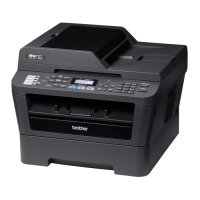
Brother MFC-7290
138 pages
Print Icon
To Next Page IconTo Next Page
Loading...
Basic User’s Guide
FAX-2890
FAX-2990
MFC-7290
Version 0
CHN-ENG

Table of Contents

Other manuals for Brother MFC-7290

Questions and Answers

  • J
    Jared RandallSep 9, 2025
    What does 'Scan Unable XX' mean on Brother Fax Machine?
    • R
      Robert JonesSep 10, 2025
      The Brother Fax Machine has a mechanical problem. Turn the power switch off, wait a few seconds, and then turn it on again. Leave the machine for 15 minutes with the power on.
  • L
    Lisa BrooksAug 25, 2025
    What does 'Toner Ended' mean on my Brother MFC-7290 All in One Printer?
    • J
      Jennifer ClarkAug 25, 2025
      If your Brother All in One Printer displays 'Toner Ended', it is time to replace the toner cartridge with a new one. Faxes will be stored in the memory while memory is available.
  • L
    Laura ScottAug 25, 2025
    What does 'Drum Stop' mean on my Brother All in One Printer?
    • M
      Michael SuttonAug 26, 2025
      If your Brother All in One Printer displays 'Drum Stop', it indicates that it is time to replace the drum unit.
  • S
    stacy03Sep 23, 2025
    What does 'Drum Error' mean on my Brother All in One Printer?
    • T
      Tanya WelchSep 23, 2025
      If your Brother All in One Printer displays 'Drum Error', the corona wire on the drum unit needs to be cleaned. Clean the corona wire on the drum unit.
  • A
    Alex ReedSep 12, 2025
    What to do if my Brother All in One Printer says 'No Paper'?
    • L
      Lynn WilliamsSep 12, 2025
      If your Brother All in One Printer displays a 'No Paper' error, it means the printer is either out of paper or the paper isn't loaded correctly. Refill the paper tray and press Start. Alternatively, remove the paper and load it again, then press Start. If the problem persists, the paper pick-up roller may need cleaning.
  • A
    ashleyweaverSep 15, 2025
    What does 'EL Error' mean on my Brother MFC-7290 All in One Printer?
    • A
      Ann SanchezSep 15, 2025
      If your Brother All in One Printer displays an 'EL Error', the machine has a mechanical problem. Open the front cover and close it again to see if this resolves the issue.
  • M
    matthew74Sep 4, 2025
    How to fix 'Size mismatch' error on Brother Fax Machine?
    • G
      gail73Sep 4, 2025
      The paper in the tray of your Brother Fax Machine is not a correct size. Load an appropriate size of paper in the tray, and re-set the “Paper Size”.
  • J
    Joseph JacksonSep 5, 2025
    What does 'Toner Low' mean on my Brother Fax Machine?
    • R
      Robert WalkerSep 5, 2025
      If the LCD shows Toner Low you can still print; however, the Brother Fax Machine is telling you that the toner cartridge is near the end of its life. Order a new toner cartridge now so a replacement will be available when the LCD shows Replace Toner or Toner Ended.
  • S
    Sherry KaiserSep 23, 2025
    Why does my Brother All in One Printer print condensed or streaky faxes?
    • M
      Michael AriasSep 23, 2025
      If your Brother All in One Printer produces condensed prints with horizontal streaks, cuts off sentences, or shows missing lines, it's usually due to a poor telephone connection. If your copy looks good, ask the other party to send the fax again.
  • J
    jacksonjacobAug 30, 2025
    What to do if Brother Fax Machine says 'Out of Memory'?
    • K
      Kelsey MccoyAug 30, 2025
      The Brother Fax Machine's memory is full. If you are faxing or copying, you can press Start to continue or Stop/Exit to wait for other operations to finish. Alternatively, clear faxes from the memory by printing them and consider turning off Fax Storage.

Summary

General Information

Using the Documentation

Guidance on how to effectively use the manual for optimal machine operation.

Accessing Other Guides

Instructions on finding and viewing the Advanced User's Guide and Software User's Guide.

Accessing Brother Support

Steps to find support resources, including web support and downloads.

Control Panel Overview

Detailed explanation of the machine's control panel buttons and their functions.

Volume Settings

How to adjust ring, beeper, and speaker volumes on the machine.

Loading Paper and Print Media

Loading Paper in Standard Tray

Instructions for loading paper into the main paper tray.

Loading Paper in Manual Feed Slot

Guidance on using the manual feed slot for various paper types.

Paper Settings

How to configure paper type and size for optimal printing.

Handling Special Paper Types

Guidelines for using special papers like envelopes and labels.

Loading Documents

Using the Automatic Document Feeder (ADF)

Instructions for loading documents into the ADF for scanning or faxing.

Sending a Fax

How to Send a Fax

Step-by-step guide for sending faxes from the machine.

Transmission Verification Report

Information about the report confirming fax transmission success or failure.

Receiving a Fax

Receive Modes

Explanation of different modes for automatically receiving faxes.

Receive Mode Settings

How to configure settings like Ring Delay and Fax Detect.

Using PC-FAX

PC-Fax Receive Setup

Instructions for setting up PC-Fax reception for Windows users.

How to Send a PC-FAX

Steps to send documents as faxes directly from a PC.

Telephone and External Devices

Connecting External Devices

Guidance on connecting external telephones and answering devices (TAD).

Using Remote Codes

How to use codes to control the machine remotely.

Dialling and Storing Numbers

How to Dial

Methods for making calls using manual dial, one-touch, or speed dial.

Storing Numbers

Procedures for saving frequently used phone or fax numbers.

Making Copies

How to Copy

Basic steps for making copies of documents.

Copy Settings

Options for customizing copy quality, size, and layout.

Printing from a Computer

Printing a Document

Instructions for installing drivers and printing from a PC.

Scanning to a Computer

Scanning to PDF using ControlCenter4

Guide to scanning documents into PDF format via ControlCenter4 software.

Configuring SCAN Key Settings

How to customize the SCAN key for specific scanning operations.

Routine Maintenance

Replacing Consumable Items

Information on when and how to replace toner cartridges and drum units.

Cleaning the Machine

Procedures for cleaning the exterior, interior, scanner glass, and document feed.

Checking Machine Status

How to view page counters and remaining life of machine parts.

Troubleshooting

Identifying and Solving Problems

General steps to diagnose and fix issues using the troubleshooting guide.

Error and Maintenance Messages

Explanations of common error messages and their solutions.

Document and Paper Jams

Procedures for clearing paper jams from various locations.

Print Quality Issues

Common print quality problems and their recommended solutions.

Menu and Features

On-Screen Programming

Guide to navigating and using the machine's menu for configuration.

Menu Table

Detailed list of menu options, settings, and their corresponding pages.

Entering Text

How to input characters for settings like Station ID.

Specifications

General Specifications

Overview of physical dimensions, power, and environmental requirements.

Document Size and Print Media

Details on supported paper sizes, types, and capacities.

Fax Specifications

Technical details related to fax functionality, modem speed, and resolution.

Consumable Items

Information on toner cartridges and drum units, including part numbers and yields.

Computer Requirements

System requirements for PC software functions and operating systems.

Brother MFC-7290 Specifications

General IconGeneral
Product TypeAll-in-One Printer
Print TechnologyLaser
FunctionalityPrint, Copy, Scan, Fax
FunctionsPrint, Copy, Scan, Fax
Print Speed (Black)20 ppm
Max. black print speed20 ppm
Print Resolution2400 x 600 dpi
Print Resolution (Black)2400 x 600 dpi
ConnectivityUSB 2.0
PC ConnectivityUSB 2.0
Paper Capacity250 sheets
Standard paper input250 sheets
Automatic Document FeederYes
Automatic document feeder capacity35 sheets
Automatic Document Feeder (ADF)35 sheets
Duplex PrintingManual
Fax Transmission Speed33.6 Kbps
Display2-Line LCD
Monthly Duty CycleUp to 10, 000 pages
Scanner Resolution600 x 1200 dpi
Media TypesPlain Paper
Supported Media SizesA4, Letter, A5, Executive

Related product manuals