EasyManua.ls Logo

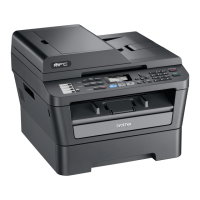
Brother MFC-7360N - User Manual

Brother MFC-7360N
256 pages
Print Icon
To Next Page IconTo Next Page
Loading...
®
Users Guide
Users Guide
PANTONE2728
Advanced User’s Guide
Safety and Legal
Basic User’s Guide

Table of Contents

Other manuals for Brother MFC-7360N

Questions and Answers

  • M
    Michael ConnerAug 30, 2025
    What does 'Toner Ended' mean on my Brother All in One Printer and how to resolve it?
    • L
      Lauren BradleyAug 31, 2025
      The 'Toner Ended' message on your Brother All in One Printer means it is time to replace the toner cartridge. Replace the toner cartridge with a new one to resolve this.
  • D
    David AdamsAug 25, 2025
    How to resolve 'Cartridge Error' on Brother Printer?
    • J
      Janet RussellAug 25, 2025
      If you are getting a 'CARTRIDGE ERROR' on your Brother printer, make sure that the drum unit and toner cartridge assembly is installed properly.
  • C
    Chad CastilloSep 23, 2025
    What does 'Size Error DX' mean on my Brother All in One Printer and how to resolve it?
    • H
      Heather GarciaSep 23, 2025
      If your Brother All in One Printer displays 'Size Error DX', it means the paper in the tray is not a suitable size for automatic duplex printing. Load A4 paper for automatic duplex printing, and then press Start.
  • D
    Diana MezaSep 4, 2025
    How to fix 'No Paper' error on Brother MFC-7360N All in One Printer?
    • L
      Leah WillisSep 4, 2025
      If your Brother All in One Printer displays a 'No Paper' error, it means the printer is out of paper or the paper is not loaded correctly in the paper tray. You can either refill the paper in the paper tray and press Start, or remove the paper and load it again, then press Start. If the problem persists, the paper pick-up roller may need cleaning.
  • N
    Nancy BarnesSep 8, 2025
    What does 'Manual Feed' mean on my Brother All in One Printer and how to solve it?
    • M
      matthewzimmermanSep 8, 2025
      If your Brother All in One Printer displays 'Manual Feed', it means Manual Feed was selected as the paper source when there was no paper in the manual feed slot. Place a sheet of paper in the manual feed slot.
  • J
    josewheelerSep 2, 2025
    What to do when a paper jam has occurred in Brother Printer?
    • R
      Ross BrowningSep 2, 2025
      If a paper jam has occurred in your Brother printer, clear the jammed paper.
  • M
    Melanie SmithAug 28, 2025
    Why does my Brother All in One Printer say 'No Paper'?
    • M
      Matthew OrtizAug 28, 2025
      If your Brother All in One Printer displays 'No Paper', it means the printer is out of paper or the paper isn't loaded correctly. You can either refill the paper tray and press Start, or remove the paper and reload it before pressing Start again. If the problem continues, the paper pick-up roller may need cleaning.
  • W
    Walter EvansSep 10, 2025
    What is drum error on Brother MFC-7360N All in One Printer?
    • D
      Debra FrazierSep 10, 2025
      A 'Drum Error' on your Brother All in One Printer means the corona wire on the drum unit needs cleaning. Clean the corona wire on the drum unit.
  • S
    stephaniemartinSep 6, 2025
    What does 'Comm.Error' mean on my Brother All in One Printer and how to solve it?
    • Y
      Yvette WatsonSep 6, 2025
      If your Brother All in One Printer displays 'Comm.Error', it means poor telephone line quality caused a communication error. Try sending the fax again or try connecting the machine to another telephone line. If the problem continues, call the telephone company and ask them to check your telephone line.
  • T
    Tara TaylorAug 27, 2025
    How to fix 'Replace Drum' error on Brother MFC-7360N?
    • A
      Aaron SmithAug 27, 2025
      If your Brother All in One Printer displays 'Replace Drum', it means it is time to replace the drum unit. Replace the drum unit.

Summary

Safety and Legal

Symbols and Conventions Used in the Documentation

Explains symbols and conventions used in the manual for warnings, cautions, and notes.

Electrical Hazards and Hot Surfaces

Details warnings about electrical hazards, hot surfaces, and handling the product safely.

Power Cord Safety

Provides safety instructions for using the power cord and extension cords.

General Information

Using the Documentation

Guidance on how to read and understand the user documentation for the machine.

Accessing Advanced Guides

Instructions on how to access the Advanced User's Guide, Software User's Guide, and Network User's Guide.

Brother Support

Information on how to access Brother support online, by phone, and through customer service.

Control Panel Overview

Control Panel Key Functions

Explains the function of each key on the control panel, including One Touch, FAX, COPY, PRINT, and LCD.

Loading Paper

Paper Settings

Instructions for setting paper type and size to ensure optimal print quality.

Paper Handling

Guidelines for handling and using special paper types like envelopes and labels.

Sending a Fax

Fax Resolution Settings

How to change fax resolution for better quality, for next fax or default settings.

Broadcasting Faxes

Instructions on how to send the same fax message to multiple recipients efficiently.

Real Time Transmission

Enables sending important documents immediately without waiting for memory transmission.

Receiving a Fax

Receive Modes

Guides on selecting the appropriate receive mode based on telephone line services.

Easy Receive Feature

Allows receiving faxes automatically even if the call is answered manually.

Remote Fax Options

Options to receive faxes remotely, including Fax Forwarding, Paging, Fax Storage, and PC-Fax Receive.

Dialing and Storing Numbers

One Touch and Speed Dial Options

Chart showing options for storing One Touch or Speed Dial numbers with IFAX and E-mail.

Storing Groups for Broadcasting

Instructions on how to set up Group numbers for sending the same fax to many recipients.

Routine Maintenance

Replacing Consumable Items

Procedures for replacing toner cartridges and drum units when indicated by the machine.

Cleaning Machine Components

Steps for cleaning the machine's exterior, scanner, and corona wire for optimal performance.

Troubleshooting

Error and Maintenance Messages

List of common error messages, their causes, and recommended actions to resolve them.

Paper Handling Difficulties

Troubleshooting tips for issues related to paper feeding, jams, and curling.

Network Difficulties

Guidance for resolving issues with network printing, scanning, and PC-Fax features.

Menu and Features

Menu Table Navigation

Explains how to navigate the menu table to program machine settings and options.

Security Features

Details on setting up TX Lock, Secure Function Lock, and Setting Lock for machine security.

Specifications

General Specifications

Provides information on printer type, memory, power source, and consumption.

Document and Paper Specifications

Details on supported document sizes, paper types, weights, and output tray capacity.

Fax and Copy Specifications

Technical details for fax capabilities, modem speed, resolution, and copy functions.

Index

Brother MFC-7360N Specifications

General IconGeneral
Duplex printingNo
Print technologyLaser
Maximum resolution2400 x 600 DPI
Time to first page (black, normal)8.5 s
Print speed (black, normal quality, A4/US Letter)24 ppm
Scan toE-mail, File, Image, OCR
Grayscale levels256
Input color depth48 bit
Image formats supportedBMP, JPG, PNG, TIF
Maximum scan resolution19200 x 19200 DPI
Optical scanning resolution600 x 2400 DPI
Copier resize25 - 400 %
PC free copyingYes
Maximum copy resolution600 x 600 DPI
Time to first copy (black, normal)11 s
Copy speed (black, normal quality, A4)24 cpm
Dimensions (WxDxH)405 x 399 x 316 mm
All-in-one functionsCopy, Fax, Print, Scan
Compatible operating systemsLinux Mac OS X 10.4.11, 10.5.x, 10.6x Windows 7, Vista, XP, 2000
FaxingMono faxing
Fax memory400 pages
Modem speed14.4 Kbit/s
Fax speed dialing (max numbers)208
Total input capacity250 sheets
Total output capacity100 sheets
Total number of input trays1
Auto document feeder (ADF) input capacity35 sheets
Internal memory32 MB
Processor familyARM
Compatible memory cardsNot supported
Sound power level (standby)30 dB
Sound pressure level (printing)53 dB
DisplayLCD
Market positioningHome & office
Display number of lines2 lines
Display number of characters16
Maximum print size216 x 356 mm
Media weight (tray 1)60 - 105g/m2
Paper tray media typesBond paper, Envelopes, Labels, Plain paper, Recycled paper
Non-ISO print media sizesExecutive
ISO A-series sizes (A0...A9)A4, A5, A6
ISO B-series sizes (B0...B9)B5, B6
JIS B-series sizes (B0...B9)B5
Maximum ISO A-series paper sizeA4
Supported network protocols (IPv4)TCP/IP (IPv4 & IPv6)
Direct printing-
Standard interfacesUSB 2.0
USB 2.0 ports quantityUSB 2.0 ports have a data transmission speed of 480 Mbps, and are backwards compatible with USB 1.1 ports. You can connect all kinds of peripheral devices to them.
Power consumption (standby)0.9 W
Power consumption (PowerSave)65 W
Power consumption (average operating)495 W
Package weight14800 g
Sustainability certificatesENERGY STAR
Maximum duty cycle10000 pages per month

Related product manuals