EasyManua.ls Logo

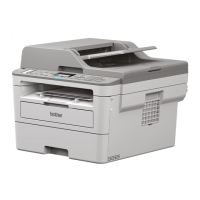
Brother MFC-B7720DN - User Manual

Brother MFC-B7720DN
2 pages
Print Icon
To Next Page IconTo Next Page
Loading...
Quick Setup Guide
Read the Product Safety Guide first, then read this Quick
Setup Guide for the correct installation procedure.
MFC-B7720DN / MFC-B7700D / DCP-B7535DW /
DCP-B7530DN / DCP-B7520DW / DCP-B7500D
1
Unpack the machine and check the components
NOTE:
•The available connection interfaces vary depending on the model.
•Use the appropriate interface cable for the connection you want to
use. (Network cable is not a standard accessory.)
USB cable
We recommend using a USB 2.0 cable (Type A/B) that is no
more than 2 metres long.
Network cable
Use a straight-through Category 5 (or greater) twisted-pair
cable.
•The illustrations in this Quick Setup Guide show the
MFC-B7720DN.
Remove the packing materials and install the drum unit and toner cartridge assembly
Load paper in the paper tray
Connect telephone line and power cord, and turn the machine on.
3
2
1
Adjust the paper
guides.
Do not exceed this mark.
Handset, Handset Cord and
Phone Line Cord
(For MFC-B7720DN/MFC-B7700D)
Brother Installation Disc Quick Setup Guide
Product Safety Guide
USB Interface Cable
Operation Videos
www.95105369.com
Installation
& Using
Videos
Load the paper in the tray with
the printing surface down.
Connect telephone line and handset cord
(Only for MFC-B7220DN/MFC-B7700D)
Secure Network Access
Your machine’s default password is on the label on
the back of the machine (preceded by “Pwd”).
We strongly recommend you change it to protect
your machine from unauthorised access.
Inbox Toner CartridgeDrum Unit
1
1
2
Remove the orange part.
Push firmly.
CHN-ENG
Version C

Other manuals for Brother MFC-B7720DN

Question and Answer IconNeed help?

Do you have a question about the Brother MFC-B7720DN and is the answer not in the manual?

Overview

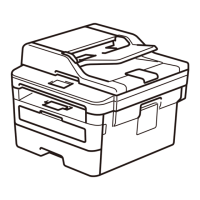
This document serves as a Quick Setup Guide for Brother multifunction devices, specifically models MFC-B7720DN, MFC-B7700D, DCP-B7535DW, DCP-B7530DN, DCP-B7520DW, and DCP-B7500D. It provides essential instructions for unpacking, initial setup, and connecting the device to a computer or mobile device.

Function Description

These Brother devices are designed to provide versatile functionality, including printing, and in the case of MFC models, faxing. The "MFC" designation indicates a Multi-Function Center, typically offering print, scan, copy, and fax capabilities, while "DCP" models generally focus on print, copy, and scan. The guide primarily focuses on the initial setup to enable printing and scanning functionalities.

Usage Features

The setup process is broken down into several intuitive steps, starting with the physical unpacking and component verification.

  1. Unpacking and Component Check: The first step involves carefully unpacking the machine and verifying that all essential components are present. These include the main unit, a Drum Unit, an Inbox Toner Cartridge, and a Brother Installation Disc. For MFC models (MFC-B7720DN/MFC-B7700D), a Handset, Handset Cord, and Phone Line Cord are also included. A USB Interface Cable is provided for direct computer connection. The guide highlights that network cables are not standard accessories and recommends specific types for optimal performance: a USB 2.0 cable (Type A/B) no longer than 2 meters, and a straight-through Category 5 (or greater) twisted-pair cable for network connections.

  2. Removing Packing Materials and Installing Drum Unit and Toner Cartridge: This crucial step ensures the device is ready for operation. Users are instructed to remove all internal packing materials, including an orange part, before installing the drum unit and toner cartridge assembly. The illustrations clearly show how to insert the toner cartridge into the drum unit and then install the combined assembly into the machine, emphasizing a firm push to secure it.

  3. Loading Paper: Proper paper loading is essential for reliable printing. The guide illustrates how to adjust the paper guides in the paper tray to fit the paper size and instructs users to load paper with the printing surface down, ensuring not to exceed the maximum fill mark.

  4. Connecting Telephone Line and Power Cord: For MFC models, connecting the telephone line and handset cord is part of the initial setup. All models require connecting the power cord to turn the machine on, initiating the device's boot-up sequence.

  5. Connecting to a Computer: The guide offers two primary methods for connecting the device to a computer:

    • Using the Installation Disc: Users can insert the provided Brother Installation Disc into their CD/DVD drive and follow the on-screen instructions.
    • Downloading Drivers and Software: Alternatively, users can download the Full Driver & Software Package from the specified Brother website (www.95105369.com). This is particularly recommended for users with recently released operating systems to ensure compatibility and access to the latest drivers. The guide provides specific instructions for both Windows® and Mac users, advising Mac users to choose the CUPS driver for full functionality.
  6. Connecting to a Mobile Device: The guide also supports connecting the device to mobile devices for printing and scanning.

    • Brother iPrint&Scan: Users can download and install the free Brother iPrint&Scan application by scanning a QR code or visiting a specific URL. This app enables printing from and scanning to mobile devices.
    • Apple AirPrint: For iOS devices, AirPrint functionality is available without needing to download additional software.
    • Mopria® Print Service: Android™ device users can download and install the Mopria® Print Service app to enable printing.
  7. Alternative Wireless Setup (for specific DCP models): For DCP-B7535DW and DCP-B7520DW models, a detailed alternative wireless setup method is provided. Users need to locate their SSID (Network Name) and Network Key (Password) from their wireless access point/router. The guide then walks through the menu navigation on the device's control panel to select the network and enter the password. Visual cues indicate a successful connection.

Maintenance Features

While this quick setup guide primarily focuses on initial installation, it implicitly touches upon maintenance aspects through the installation of consumables and recommendations for driver updates:

  • Consumable Installation: The installation of the Drum Unit and Inbox Toner Cartridge is a fundamental maintenance task that users will perform periodically as these consumables are depleted. The guide's clear instructions for this step ensure correct installation, preventing potential printing issues.
  • Firmware Updates: The guide explicitly states that "Brother regularly updates firmware to add features and apply bug fixes" and directs users to support.brother.com/up5 to check for the latest firmware. Keeping the device's firmware updated is a crucial maintenance practice to ensure optimal performance, security, and compatibility.
  • Driver and Software Updates: Similarly, the recommendation to download updated drivers and software from the Brother website, especially for newer operating systems, is a form of software maintenance that ensures the device functions correctly with the user's computer.
  • Secure Network Access: The guide highlights the importance of changing the device's default password (found on a label on the back of the machine) to protect it from unauthorized access. This is a critical security maintenance step for networked devices.
  • Troubleshooting: The "Can't Connect? Check the following:" section provides basic troubleshooting steps for connectivity issues, such as restarting the wireless access point/router, disconnecting and reconnecting cables, and restarting the machine and computer. It also directs users to www.95105369.com for FAQs and more troubleshooting information, empowering users to resolve common problems.

The guide emphasizes the availability of additional resources, including operation videos, FAQs, and manuals, on www.95105369.com, further supporting users in maintaining and troubleshooting their devices.

Brother MFC-B7720DN Specifications

General IconGeneral
Printer TypeLaser
FunctionsPrint, Copy, Scan, Fax
Print TechnologyLaser
Maximum Paper SizeA4
Scan Resolution1200 x 1200 dpi
Copy Resolution600 x 600 dpi
Fax Transmission Speed33.6 kbps
ConnectivityUSB, Ethernet, Wi-Fi
Operating System CompatibilityWindows, macOS, Linux
Print Resolution1200 x 1200 dpi
Duplex PrintingYes
Paper Capacity250 sheets
Automatic Document Feeder (ADF)Yes
Scanner TypeFlatbed
Mobile PrintingAirPrint, Google Cloud Print, Brother iPrint&Scan
Print Speed (Black)Up to 36 ppm (pages per minute)

Related product manuals