EasyManua.ls Logo

Brother MFC-B7710DN - User Manual

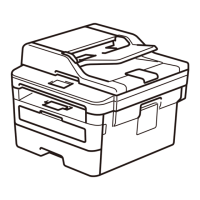
Brother MFC-B7710DN
2 pages
Print Icon
To Next Page IconTo Next Page
Loading...
Quick Setup Guide
Read the Product Safety Guide first, then read this Quick
Setup Guide for the correct installation procedure.
Not all models are available in all countries.
The latest manuals are available at the Brother Solutions
Center: support.brother.com/manuals.
MFC-B7710DN / DCP-B7500D
Unpack the machine and check the components
NOTE:
•The components included in the box may differ depending on your country.
•The available connection interfaces vary depending on the model.
•Interface cables are not included. You must purchase the correct interface cable if
you require one.
USB cable
We recommend using a USB 2.0 cable (Type A/B) that is no more than
2 metres long.
Network cable
Use a straight-through Category 5 (or greater) twisted-pair cable.
•The illustrations in this Quick Setup Guide show the MFC-B7710DN.
Remove the packing materials and install the drum unit and toner cartridge assembly
Load paper in the paper tray
Connect the power cord and turn the machine on
3
2
1
Back Front
Watch our Video FAQs for
help with setting up your
Brother machine:
support.brother.com/videos.
Adjust the paper
guides.
Do not exceed this mark.
AC Power Cord
Quick Setup Guide
Product Safety Guide
Select your country/language
(Initial setup only)
After turning the machine on, you may be required to set your country
or language (depending on your machine).
If required, follow the on-screen instructions.
4
Brother Installation Disc
Select your language (if needed)
5
Inbox Toner CartridgeDrum Unit
1
1
2
Remove the orange part.
Push firmly.
1. (for DCP models)
a. Press Menu.
b.Press▲or▼todisplay[Initial Setup], and then press OK.
c.Press▲or▼todisplay[Local Language], and then press OK.
(for MFC models) Press Menu, 0, 0.
2. Press▲or▼toselectyourlanguage,andthenpressOK.
3. Press Stop/Exit.
Secure Network Access
Your machine’s default password is on the label on the back of the
machine (preceded by “Pwd”).
We strongly recommend you change it to protect your machine
from unauthorised access.
D01VBH001-00
CEE-ENG
Version 0
Question and Answer IconNeed help?

Do you have a question about the Brother MFC-B7710DN and is the answer not in the manual?

Overview

This document provides a comprehensive guide for setting up and maintaining a Brother MFC-B7710DN or DCP-B7500D series multifunction device, which serves as a printer, scanner, and copier. The guide covers initial unpacking, component installation, basic setup, and connectivity options for both computers and mobile devices.

The device functions primarily as a monochrome laser printer, offering high-quality document printing. It also integrates scanning capabilities, allowing users to digitize documents, and copying functionality for duplicating physical papers. The "MFC" in MFC-B7710DN indicates its multifunction capabilities, including fax, while the "DCP" in DCP-B7500D typically denotes a digital copier printer without fax.

Usage Features:

The setup process is designed to be user-friendly, starting with unpacking and identifying the included components. These components typically include the drum unit, an inbox toner cartridge, an AC power cord, and an installation disc. The guide emphasizes the importance of reading the Product Safety Guide first, followed by the Quick Setup Guide for correct installation.

Initial Setup:

  1. Unpacking and Component Installation: The first step involves removing all packing materials from the machine. This includes removing an orange protective part from the drum unit and toner cartridge assembly. The drum unit and toner cartridge are then installed together into the machine. The guide includes clear illustrations to assist with this process, showing how to firmly push the assembly into place.
  2. Loading Paper: Paper is loaded into the paper tray, with instructions to adjust the paper guides to fit the paper size. A clear mark indicates the maximum paper capacity to prevent overfilling.
  3. Power Connection: The AC power cord is connected to the machine and then to a power outlet. The guide shows the location of the power input at the back of the machine.
  4. Language/Country Selection: Upon turning on the machine for the first time, users may be prompted to select their country or language. For DCP models, this involves navigating through the menu using arrow keys to find "Initial Setup" and then "Local Language." For MFC models, a shortcut (Menu, 0, 0) is provided. After selecting the language, the user confirms the choice and exits the menu.

Connectivity Options:

The device offers versatile connectivity options for both computers and mobile devices.

Computer Connectivity:

  • Wired Network Connection: The device supports a wired network connection using a straight-through Category 5 (or greater) twisted-pair cable. This allows multiple users on a network to access the printer.
  • USB Connection: A USB 2.0 cable (Type A/B), no longer than 2 metres, is recommended for direct connection to a computer.
  • Driver Installation: For Windows users, the installation disc is used to install the full driver and software package. Alternatively, drivers can be downloaded from the Brother support website. If the installation screen does not appear automatically, users are instructed to browse the CD/DVD-ROM and run "start.exe." For Mac users, drivers are downloaded from the Brother support website.
  • Troubleshooting Connectivity: If connectivity issues arise, users are advised to restart their machine and computer, and then re-attempt the connection. Further assistance is available on the Brother support website for FAQs and troubleshooting.

Mobile Device Connectivity:

  • Brother iPrint&Scan App: The device supports printing and scanning from mobile devices using the Brother iPrint&Scan application. This app can be downloaded from the App Store, Google Play, or Microsoft Store.
  • Brother SupportCenter App: For additional support and information, the Brother SupportCenter mobile app is available, providing the latest support information for Brother products.

Maintenance Features:

The guide implicitly highlights several maintenance aspects through its setup instructions:

  • Toner and Drum Unit Management: The initial installation of the toner cartridge and drum unit suggests that these are user-replaceable components. This allows for easy maintenance when toner runs out or the drum unit reaches the end of its lifespan. The guide shows how to remove the orange protective part from the toner and drum assembly, indicating a simple process for replacement.
  • Paper Loading: Clear instructions for loading paper and adjusting guides ensure proper paper handling, which is crucial for preventing paper jams and maintaining print quality. The "Do not exceed this mark" instruction for paper loading helps users avoid overfilling the tray, a common cause of feeding issues.
  • Firmware Updates: The guide mentions that Brother regularly updates firmware to add features and apply bug fixes. Users are encouraged to check the latest firmware on the Brother support website, ensuring the device remains up-to-date and performs optimally.
  • Secure Network Access: A critical maintenance feature is the emphasis on changing the machine's default password. The default password is found on a label on the back of the machine (preceded by "Pwd"). Users are strongly recommended to change it to protect the machine from unauthorized access, enhancing security.
  • Troubleshooting Resources: The availability of the Brother Solutions Center (support.brother.com/manuals) for the latest manuals, FAQs, and troubleshooting provides a valuable resource for users to address any issues that may arise during the device's operation. Video FAQs are also available on support.brother.com/videos for visual guidance on setup.

In summary, the Brother MFC-B7710DN / DCP-B7500D series device is a versatile multifunction printer designed for ease of use and reliable performance. Its features cater to both individual and network users, with robust connectivity options and clear instructions for setup and basic maintenance, ensuring a smooth user experience.

Brother MFC-B7710DN Specifications

General IconGeneral
Product TypeAll-in-One Printer
FunctionsPrint, Copy, Scan, Fax
Print TechnologyLaser
Print Resolution1200 x 1200 dpi
Duplex PrintingYes
Paper Capacity250 sheets
Maximum Paper SizeA4
Scan TypeFlatbed, ADF
Scan Resolution1200 x 1200 dpi
Copy Resolution600 x 600 dpi
Fax Transmission Speed33.6 kbps
Mobile PrintingYes
Operating System CompatibilityWindows, macOS, Linux
Memory512 MB
Processor600 MHz
Paper Input250-sheet paper tray
Paper Output100 sheets
ConnectivityEthernet
DisplayLCD

Related product manuals