To Next Page
D
daniel59Aug 30, 2025
Why does my Brother Label Maker say 'Low Battery!'?
- TThomas ParkerAug 30, 2025
The Brother Label Maker displays 'Low Battery!' when the installed batteries are getting weak.

Why does my Brother Label Maker say 'Low Battery!'?
The Brother Label Maker displays 'Low Battery!' when the installed batteries are getting weak.
How to fix a 'Cutter Error!' on Brother P-Touch PT-E300?
If your Brother Label Maker displays a 'Cutter Error!', turn it off and then on again. If tape is tangled in the cutter, remove the tape.
What does 'Replace Battery!' mean on my Brother P-Touch PT-E300?
If your Brother Label Maker displays 'Replace Battery!', it means the installed batteries are about to run out.
What does 'Text Full!' mean on my Brother P-Touch PT-E300 Label Maker?
The 'Text Full!' message on your Brother Label Maker means you've reached the maximum number of characters allowed. Edit the text to use fewer characters.
How to fix 'Recharge Li-ion Battery!' on Brother Label Maker?
The Brother Label Maker displays 'Recharge Li-ion Battery!' when the battery is low. Please charge the lithium-ion battery.
What to do if my Brother Label Maker displays 'No Text!'?
The Brother Label Maker displays 'No Text!' when there is no text, symbols or bar code data entered. Enter data before continuing.
How to solve 'Wrong Type Of Adapter Connected!' on Brother Label Maker?
The Brother Label Maker displays 'Wrong Type Of Adapter Connected!' when an incompatible AC adapter is connected. Use an appropriate AC adapter.
How to fix 'Li-ion is damaged Use other power source!' on Brother P-Touch PT-E300 Label Maker?
The Brother Label Maker displays 'Li-ion is damaged Use other power source!' when the Li-ion is damaged. Please use an AC adapter or another battery.
What does 'Incorrect Value!' mean on my Brother P-Touch PT-E300 Label Maker?
The 'Incorrect Value!' message on your Brother Label Maker means the value entered for setting the tape length is not correct. Enter a valid value for the setting.
What does 'Unit Cooling Wait XX min. before restart!' mean on Brother P-Touch PT-E300 Label Maker?
The message 'Unit Cooling Wait XX min. before restart!' on your Brother Label Maker indicates a high temperature error.
FCC compliance statement for Class B digital devices to prevent harmful interference in residential installations.
Provides contact details and support options for Brother products, including customer service and web resources.
Important safety notes and symbols for preventing injury and damage to the user and equipment.
General precautions for using the rechargeable Li-ion battery and the labeling system itself.
Explanation of symbols used throughout the manual to indicate additional information or warnings.
A guide on how to create a label with the P-touch labeling system, covering basic steps.
Lists all items included in the P-touch labeling system package for user verification.
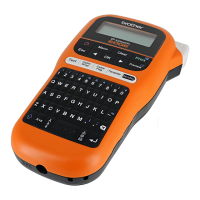
Identifies and describes the main parts and features of the P-touch labeling system.
Details the icons, indicators, and keys of the LCD display and the labeling system keyboard.
Instructions for connecting the AC adapter, installing batteries, and charging the Li-ion battery.
Step-by-step instructions on how to correctly insert a tape cassette into the system.
How to turn the labeling system on and off, and how to use the tape feed function.
Instructions on how to adjust the LCD contrast and turn the backlight on or off.
How to change the display language and select measurement units (inch/mm).
Explains how to select different labeling application types for specific label creation needs.
Guide on creating labels with one-dimensional bar codes for asset control and other uses.
Instructions for typing, editing, moving cursor, inserting, and deleting text on a label.
How to insert symbols and accented characters from various categories using functions or keyboard.
How to set font, size, width, style, frames, and auto-fit options for text.
How to specify tape feed and cut margins, and select tape feeding methods.
How to preview labels and print single pages, ranges, or multiple copies.
Steps for peeling the backing and firmly attaching the printed label to a surface.
How to save created labels to memory and recall them for later use.
How to print stored labels and remove them from the device's memory.
How to reset the system's internal memory to initial settings to clear data or resolve issues.
Procedures for cleaning the unit, print head, and tape cutter for optimal performance.
Addresses common issues like system lock-ups, blank displays, and printing problems with solutions.
Lists specific error messages displayed by the system and guidance on how to resolve them.
Details technical specifications of the P-touch labeling system's main unit, including display and power.
Lists selectable symbols, accented characters, and character formatting options.
Details available frames that can be applied to labels and settings for creating bar codes.
Lists special characters available for different bar code protocols.
 General
| Model | PT-E300 |
|---|---|
| Category | Label Maker |
| Print Technology | Thermal Transfer |
| Display | LCD |
| Tape Type | TZe |
| Keyboard | QWERTY |
| Print Resolution | 180 dpi |
| Cutter | Manual |
| Tape Sizes | 3.5mm, 6mm, 9mm, 12mm |
| Power | 6 x AA Batteries or AC Adapter |
| Labeling Applications | Cable |
| Max. Label Length | 1 m |
| Power Supply | AC Adapter or Batteries |