EasyManua.ls Logo

Brother PT-2040W - User Manual

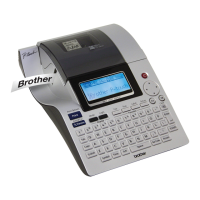
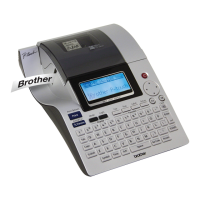
Brother PT-2040W
16 pages
Print Icon
To Next Page IconTo Next Page
Loading...
(QJOLVK
37SC/PT-2040W
8VHU·V*XLGH

Questions and Answers

  • L
    Laura RiveraAug 18, 2025
    How to fix a Brother Label Maker that is not printing correctly?
    • J
      Joshua NobleAug 18, 2025
      If your Brother Label Maker is not printing or the characters are not forming correctly, ensure the tape cassette is inserted properly and replace it if you see striped tape, which means it's at the end. Check that the cassette cover is closed correctly. Clear the format settings by pressing and selecting [Text & Format].
  • A
    ashley39Aug 21, 2025
    Why does my Brother Label Maker turn off when I try to print?
    • J
      Jeffery SmithAug 21, 2025
      If the power turns off when you try to print with your Brother Label Maker, ensure the AC adapter is correctly connected and you are using the correct adapter (AD-24ESA-01/AD-24ESAW-01). Also, check that the batteries are correctly inserted and are not weak, replacing them if needed.
  • C
    Cynthia BoydAug 23, 2025
    How to reduce margin size on Brother PT-2040W Label Maker?
    • A
      Angela CampbellAug 23, 2025
      If you are getting too much margin on both sides of the text when printing labels with your Brother Label Maker, you can manage it by setting [Half], [Narrow] or [Chain Print] for smaller margins.
  • J
    Jeremy DyerAug 26, 2025
    How to fix 'No Cassette!' error on Brother PT-2040W?
    • G
      gina26Aug 26, 2025
      To fix the 'No Cassette!' error on your Brother Label Maker, install a tape cassette.
  • A
    Ashley EllisAug 28, 2025
    Why is the display blank after I turn on my Brother Label Maker?
    • S
      Shannon CookAug 28, 2025
      If your Brother Label Maker display remains blank after turning it on, verify that the AC adapter is properly connected and that you're using the correct adapter (AD-24ESA-01/AD-24ESAW-01). Also, ensure the batteries are correctly inserted and are not weak (replace if necessary). Finally, make sure the protective film has been removed from the display.
  • T
    Troy DavisAug 30, 2025
    What to do if my Brother PT-2040W Label Maker says 'Battery Weak'?
    • D
      David AcevedoAug 30, 2025
      If your Brother Label Maker displays 'Battery Weak!', replace the alkaline batteries with new ones.
  • K
    Kathy FergusonSep 1, 2025
    What to do if my Brother Label Maker is locked?
    • M
      Matthew MillerSep 1, 2025
      If your Brother Label Maker is locked and unresponsive, you need to reset the machine.
  • D
    David JohnsonSep 4, 2025
    What does 'Check Battery!' mean on my Brother PT-2040W Label Maker?
    • D
      Dylan DavidsonSep 4, 2025
      If your Brother Label Maker displays 'Check Battery!', it means the installed batteries are running low and need to be replaced.
  • M
    Michael HernandezSep 6, 2025
    Why did the settings clear on my Brother Label Maker?
    • H
      hfoxSep 6, 2025
      If the setting on your Brother Label Maker has cleared on its own, ensure the AC adapter is correctly connected. Also, check if the batteries are weak and replace them if necessary. Note that all text and formats in the display settings will be cleared if the power is disconnected for more than five minutes.
  • R
    Ryan SmithSep 8, 2025
    What does 'Text Too Long!' mean on my Brother Label Maker?
    • A
      Anthony WigginsSep 8, 2025
      If your Brother Label Maker shows 'Text Too Long!', you should select a longer label size or choose [Auto] for a longer label length.

Summary

Safety Precautions

WARNING - Severe Injury Risks

Critical safety warnings for potential death or serious injury.

CAUTION - Minor Injury Risks

Safety advice for minor or moderate injuries.

General Precautions

Installing Power Supply

Installing a Tape Cassette

LCD and Keyboard Interface

Removing Protective LCD Film

Instructions to remove the LCD protective film before use.

Supplies and Accessories

Initial Setup and Settings

Basic Text Input and Formatting

Entering Text, Case, and Line Breaks

Input text, switch case, and create multi-line labels.

Tabs, Cursor Navigation, and Accented Characters

Insert tabs, move cursor, and input special characters.

Label Length and Clearing Data

Adjust label length and reset text/format settings.

Printing Labels

Previewing and Feeding Tape

Preview label content and feed tape for printing.

Printing Operations and Options

Execute printing, set copy count, and use mirror/numbering features.

Setting Label Margins

Margin Options and Tape Saving

Adjust label margins and use chain print for tape economy.

Chain Print and Saved Label Files

Multiple Labels with Chain Print

Print multiple labels with different text using chain print.

Saving and Managing Label Files

Store, retrieve, print, and manage custom label files.

Using Templates and Auto Format

Auto Format for Preset Lengths

Select preset label lengths for various applications.

Designing Label Fonts

Setting Font Type and Size

Choose and adjust font type and text size for labels.

Setting Font Properties and Styles

Font Width, Style, and Decorations

Adjust font width, apply styles, and add underlines/frames.

Inserting Symbols into Labels

Select and insert various symbols into label designs.

Helpful Hints and Machine Reset

Shortcuts and Operational Tips

Access functions quickly and get tips for tape feeding/cancellation.

Resetting the Machine to Defaults

Initialize settings and clear memory to restore defaults.

Troubleshooting Error Messages

Error Messages and Their Solutions

Resolve issues based on displayed error messages.

Problem Resolution Scenarios

Address issues like blank display, improper printing, or machine lock-up.

Troubleshooting Tape and Print Issues

Tape Feeding and Ribbon Problems

Resolve issues with tape jams, ribbon separation, and empty cassettes.

Print Head Cleaning and Format Reset

Maintain print head and clear all text and format settings.

FCC Compliance and Regulatory Information

Product Registration and Warranty

Brother PT-2040W Specifications

General IconGeneral
ModelPT-2040W
CategoryLabel Maker
Print TechnologyThermal Transfer
Maximum Resolution180 dpi
KeyboardQWERTY
DisplayLCD
Print Speed20 mm/sec
ConnectivityUSB, Wireless
Tape Width6mm, 9mm, 12mm, 18mm
Power SourceAC Adapter
Dimensions (W x D x H)86 mm
Print Width18mm

Related product manuals