EasyManua.ls Logo

Brother PT-9700PC - User Manual

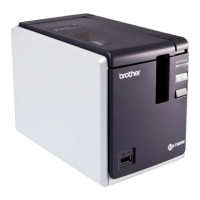
Brother PT-9700PC
60 pages
Print Icon
To Next Page IconTo Next Page
Loading...
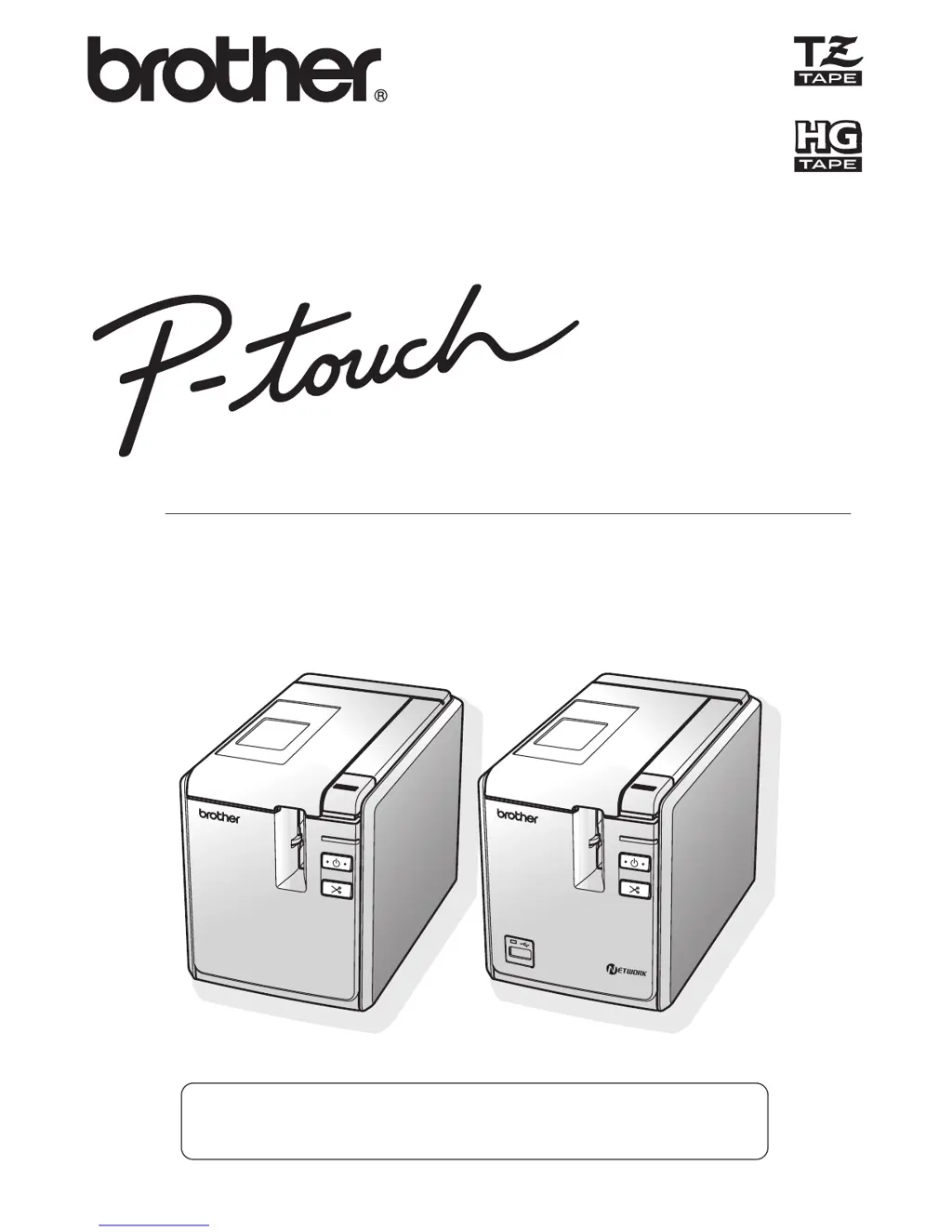
Users Guide
9 7OOPC
/
98OOPCN
If you encounter any problems with your product, visit our Web site:
http://solutions.brother.com/
S
T
ATUS
S
T
A
TUS

Other manuals for Brother PT-9700PC

Questions and Answers

  • S
    sheenacastilloAug 16, 2025
    How to fix Brother PT-9700PC when it does not print?
    • B
      Benjamin SextonAug 16, 2025
      If your Brother Label Maker is not printing and you're getting an error, make sure the interface cable is correctly connected. Also, check that the tape cassette is properly installed and that the tape compartment cover is fully closed.
  • J
    Jonathon NicholsAug 18, 2025
    How to reset Brother Label Maker?
    • K
      kevin95Aug 19, 2025
      To reset your Brother Label Maker, turn it off by holding the power button. Then, hold down the power button again for two seconds. While still holding the power button, press the Feed/Cut button six times. This will reset the printer, delete all transferred data, and restore all settings to factory defaults.
  • S
    Sarah CowanAug 22, 2025
    Why the power button does not light up on Brother PT-9700PC Label Maker?
    • J
      Joshua RichmondAug 22, 2025
      If the power button on your Brother Label Maker doesn't light up or flash, first check that the main power switch on the back of the printer is turned on. Next, ensure that the power supply and adapter cord are correctly connected. If it still doesn't light up, contact the retail outlet where you bought the printer or your local authorized service center.
  • A
    Alexandria PriceAug 25, 2025
    Why printed label contains a blank horizontal line on Brother Label Maker?
    • U
      uperryAug 25, 2025
      If your printed label from the Brother Label Maker has a blank horizontal line, it might be due to dust on the print head. Clean the print head and head roller.
  • L
    lynnbaileyAug 28, 2025
    How to cancel printing job on Brother PT-9700PC?
    • J
      jamiebrownAug 28, 2025
      To cancel the current printing job on your Brother Label Maker, make sure the printer is on, and then briefly press the power button on the front of the printer.
  • T
    twatsonAug 30, 2025
    How to install the second Brother PT-9700PC?
    • E
      Elizabeth BishopAug 31, 2025
      To install the second Brother Label Maker, here’s what you need to know: * With a USB connection: When you connect the printer to the computer using a USB cable, the driver for the second printer is automatically installed through Plug and Play. * With a Peer-to-Peer connection (PT-9800PCN only): If one PT-9800PCN is already installed, after the second printer is connected to the LAN, the installer starts up, and the printer driver is installed. * If multiple printers are to be installed simultaneously: When the printers are connected to the LAN, the installer starts up, and the printer drivers are installed.
  • M
    Michael GraySep 3, 2025
    What to do if a data transmission error appears on the computer using Brother Label Maker?
    • K
      Kimberly CruzSep 3, 2025
      If a data transmission error appears on your computer while using the Brother Label Maker, there might be a few reasons: * The wrong port may be selected. For Windows, select the correct port from the “Print to the following port” list in the printer Properties dialog box. For a USB connection, select “USB00n”. * Someone might be printing via the network. If other users are printing large amounts of data, your print job might be delayed. Try restarting your print job after the other jobs are completed.
  • F
    fholmesSep 5, 2025
    What to do if data cannot be sent from a device plugged into the USB Direct Interface on Brother PT-9700PC Label Maker?
    • M
      Mr. Brad CampbellSep 5, 2025
      If you're having trouble sending data from a device plugged into the USB Direct Interface on your Brother Label Maker (PT-9800PCN only), it could be due to a couple of reasons: * The connected device might be incompatible with the PT-9800PCN. If the LED display on the USB Direct Interface is flashing red, this could be the case, or the device may consume too much power. * The buffer of the PT-9800PCN might be full. If the LED flashes red while using connected devices, stop the data transmission, wait for the buffered data to process, and then unplug and replug the device.
  • W
    William WilliamsSep 8, 2025
    Why baud rate cannot be set on Brother PT-9700PC?
    • B
      Brooke SanchezSep 9, 2025
      If you can't set the baud rate using the Change Baud Rate Wizard or Brother printer utilities, it could be due to these reasons: * Error 99: The computer can't detect the printer. Make sure the printer is on, the interface cable is correctly connected, and the COM port where the printer is connected is the same COM port selected in the Change Baud Rate Wizard. * Error 1 or Error 5: The serial port of the computer can't be used. If another serial connection device is using the same COM port, labels can't be printed. Change the COM port for the serial connection device or connect the printer to a COM port that isn't being used.
  • M
    maureenedwardsSep 12, 2025
    What to do if labels are not ejected correctly from Brother Label Maker?
    • R
      raymond18Sep 12, 2025
      If the labels are not ejected correctly from your Brother Label Maker after being cut, the cutter blade may be dirty. Clean the cutter.

Summary

Introduction and Compliance

International ENERGY STAR Compliance

Statement regarding the product's compliance with ENERGY STAR guidelines for energy efficiency.

Publication and Trademark Information

Trademarks and Copyrights

Lists trademarks and copyrights associated with the printer and its software.

Safety Precautions

AC Adapter Safety Guidelines

Essential guidelines to prevent fire, damage, electric shock, or injury when using the AC adapter.

Printer and Cutter Safety

Printer Safety Warnings

Precautions for preventing injury and damage related to the printer, including heat and water exposure.

Cutter and Adapter Precautions

Guidelines for safe operation of the tape cutter and AC adapter to avoid minor injury and damage.

General Precautions

Unpacking the Printer

Printer Description and Indicators

PT-9700 PC Model Overview

Detailed description of the PT-9700PC model's front and rear views and components.

PT-9800 PCN Model Overview

Detailed description of the PT-9800PCN model's front and rear views and components.

LED Status Indicators

Printer LED Lamp Conditions

Explanation of printer LED lamp states (Power and STATUS) and their corresponding conditions and remedies.

USB Direct Interface LED Status

Explanation of LED lamp conditions on the USB Direct Interface for the PT-9800PCN model.

Getting Started with Your Printer

Connecting the Printer

Steps to connect the printer to the power source and a computer.

Installing Printer Software

Instructions for installing the printer driver and label design software.

Creating Labels

Guidance on designing and creating labels using the provided software.

Printer Connectivity

Connecting to the Power Source

Step-by-step instructions for connecting the printer to the power outlet and adapter.

Connecting to a Computer

Interface Cable Usage

USB Cable

Information regarding the use of the included USB interface cable.

Serial (RS-232 C) Cable

Details on serial cable pin assignments and usage for Windows.

Network Cable

Information on using network cables for the PT-9800PCN model.

Tape Cassette Installation

Authorized Tape Types

Lists the compatible Brother TZ and HG tape types for the printer.

Installing the Tape Cassette

Step-by-step instructions for inserting a tape cassette into the printer.

Software Installation for PT-9700 PC

Windows OS Installation Guide

Instructions for installing the printer software on Microsoft Windows operating systems.

Accessing Users Guide and Reader

Guidance on displaying the User's Guide PDF and downloading Adobe Reader.

Software Installation for PT-9700 PC (Mac OS)

Mac OS Installation Guide

Instructions for installing the printer software on Mac OS.

Software Installation for PT-9800 PCN

Windows OS Installation Guide

Instructions for installing software on Microsoft Windows for PT-9800PCN.

Custom and Utility Installation

Details on custom installation options and utility software like BRAdmin Light.

BRAdmin Light Utility Installation

IP Address Configuration with BRAdmin Light

Steps to configure IP address, subnet mask, and gateway using BRAdmin Light.

Software Installation for PT-9800 PCN (Mac OS)

Mac OS Installation Guide

Instructions for installing software on Mac OS for PT-9800PCN.

Network Printer Setup (Mac OS)

Simple Network Configuration

Steps for setting up the printer on a network using simple configuration.

BRAdmin Light Utility Setup

Guide to installing and configuring the BRAdmin Light utility for network setup.

Network Printer Setup (Mac OS Manual)

Manual Network Configuration

Steps for setting up the printer on a network using manual configuration.

BRAdmin Light IP Configuration

Uninstalling Software and Drivers

Uninstalling P-touch Editor

Procedure to remove the P-touch Editor software from your computer.

Uninstalling Printer Driver

Procedure to remove the printer driver from your computer.

Advanced Printer Functions

High Speed and Resolution Printing

How to adjust print speed and resolution using HG tape for faster or higher quality output.

Distributed Printing

Distributing print jobs across multiple printers to reduce total printing time.

Bar Code Reader Printing

Printing labels using a bar code reader without a computer connection.

P-touch Editor Lite LAN Usage

Creating and printing simple labels using the P-touch Editor Lite LAN feature.

Printing Printer Settings

How to print a list of the current printer and network settings.

Distributed Printing Setup

Bar Code Template Print (BTP) Function

BTP Preparation

Connecting a bar code reader and preparing label templates for printing.

Preset Template Printing

Printing identical labels by scanning bar codes for frequently used layouts.

Bar Code Printing

Printing bar codes using templates and reader protocols.

Database-Assisted Label Printing

Printing labels by linking database fields to label objects via bar codes.

Preset Template Printing Procedure

Bar Code Printing Procedure

Database-Assisted Label Printing Procedure

P-touch Editor Lite LAN Usage

Printing Printer Settings

Serial Interface Settings (Windows)

Setting Computer Baud Rate

Procedure to set the computer's baud rate for serial communication.

Setting Printer Baud Rate

Procedure to set the printer's baud rate for serial communication.

Printer Maintenance

Exterior Cleaning

Instructions for cleaning the printer's exterior casing with a soft cloth.

Print Head and Roller Cleaning

How to clean the print head and roller to ensure print quality.

Tape Cutter Cleaning

Procedure for cleaning the tape cutter blades to prevent jamming.

Troubleshooting Common Issues

Problem and Solution Guide

A list of common printer problems and their corresponding solutions.

Product Specifications

Appendix: BTP Function Procedure

General BTP Procedure

Overview of the general steps for using the Bar Code Template Print function.

Bar Code Specification Settings

Printer Accessories

Brother PT-9700PC Specifications

General IconGeneral
Print technologyDirect thermal
Vertical printingYes
Maximum resolution720 x 360 DPI
Product colorWhite
Keyboard layoutABC
Standard interfacesUSB 2.0
USB 2.0 ports quantity1
Minimum RAM100 MB
Minimum storage drive space70 MB
Compatible operating systemsMicrosoft Windows 2000 Prof. (SP4), XP, Vista, Windows 7, Mac OS X 10.4 - 10.6
Tape size36 mm
Label typeTZ / AL / HZ
Power supply typeAC adaptor (AD9100ES) (Enclosed)
Print sizes included20
Maximum label length1 m
Tape cuttingAutomatic
Number of styles10
Built-in barcodesPOSTNET, UPC-A, UPC-E
Bundled softwareP-touch Editor 5.0
Package weight3.190 g
Weight and Dimensions IconWeight and Dimensions
Depth193 mm
Width116 mm
Height140 mm
Weight1600 g

Related product manuals