EasyManua.ls Logo

Brother TN 2310 - User Manual

Brother TN 2310
8 pages
Print Icon
To Next Page IconTo Next Page
Loading...
Please read instructions from start to finish
before you start your refill.
© Zinetic.co.uk. All Rights Reserved
INSTRUCTIONS FOR REFILLING BROTHER TN 2310 / 2320 (EUROPE)
Compatible with: DCP-L2500D, DCP-L2520D, DCP-L2520DW, DCP-L2540DN, DCP-L2540DW, DCP-L2560DW,
HL-L2300D, HL-L2305W, HL-L2320D, HL-L2340DW, HL-L2360DN, HL-L2360DW, HL-L2365DW, HL-L2380DW,
MFC-L2700D, MFC-L2700DW, MFC-L2703DW, MFC-L2720DW, MFC-L2740DW
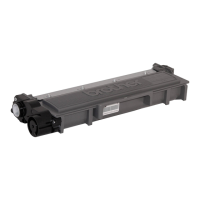
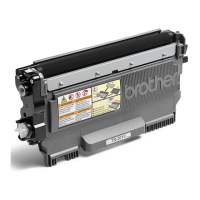
There are two different toner cartridges available for these machines: the TN2310 is rated for 1,200 pages,
and the TN2320 is rated for 2,600 pages. The drum unit, which will be covered in separate instructions, is
rated for 12,000 pages. There are different part numbers for these cartridges depending on your region
.
When to refill? Toner Low? Replace toner? Or when you decide?
The printer asks for the toner cartridge to be changed before all of the toner has been used. This is a
waste of toner and your money. Do not change or refill the cartridge until you are ready.
When the printer tells you to change the cartridge you can put the printer into Continue Modethis will
force the printer to use up all of the remaining toner in cartridge!
How you reset the printer using “continue mode” will depend on which printer version you have. Details
below.
Resetting Multifunction Printers (continue mode)
DCP / MFC Series:
The Replace Toner message is displayed on the LCD or in the Status Monitor when Brother thinks you should
change the toner cartridge.
Follow the instructions below to turn on continue mode.
Print until the print quality is no longer acceptable or you cannot print. Then follow the refill
instructions.
Question and Answer IconNeed help?

Do you have a question about the Brother TN 2310 and is the answer not in the manual?

Summary

Instructions for Refilling Brother TN 2310; 2320 (Europe)

When to Refill Toner

Guidance on when to replace or refill the toner cartridge, advising against premature replacement.

Resetting Multifunction Printers (Continue Mode)

Procedure for resetting Brother DCP/MFC series printers to continue mode to use remaining toner.

Resetting HL Series (Continue Mode)

Override Toner Warnings via LEDs or Computer

Instructions for overriding toner low warnings on HL series printers using LEDs or computer prompts.

Resetting Specific HL Models

Specific steps to reset Brother HL-L2340dw, HL-L2360dn, and HL-L2365dw printers.

Additional Information for HL Printers

Further instructions for specific Brother HL printer models like L2340DW, L2360DN, L2365DW.

Refilling the Cartridge

Prepare Cartridge for Refill

Initial steps to prepare the toner cartridge for refilling, including switching off the printer and removing the cartridge.

Removing the Fill Plug

Toner Cartridge Fill Plug Removal

Detailed steps on how to carefully pry and remove the toner cartridge fill plug.

Toner Refill Process

Toner Dumping and Preparation

Instructions for dumping old toner and preparing the new toner bottle for refilling.

Filling the Cartridge with New Toner

Steps for pouring new toner into the cartridge using the provided spout, advising care to avoid spills.

Reassembling the Toner Cartridge

Replace Cartridge Components

Steps to replace the plug, gears, and spring back into the toner cartridge securely.

Safety Information and Disclaimer

Toner Powder Handling Precautions

Safety guidelines for handling toner powder, covering inhalation, skin, eye contact, and ingestion.

Product Use Disclaimer

Disclaimer regarding the accuracy of provided information and absence of manufacturer endorsement.

Summary

Instructions for Refilling Brother TN 2310; 2320 (Europe)

When to Refill Toner

Guidance on when to replace or refill the toner cartridge, advising against premature replacement.

Resetting Multifunction Printers (Continue Mode)

Procedure for resetting Brother DCP/MFC series printers to continue mode to use remaining toner.

Resetting HL Series (Continue Mode)

Override Toner Warnings via LEDs or Computer

Instructions for overriding toner low warnings on HL series printers using LEDs or computer prompts.

Resetting Specific HL Models

Specific steps to reset Brother HL-L2340dw, HL-L2360dn, and HL-L2365dw printers.

Additional Information for HL Printers

Further instructions for specific Brother HL printer models like L2340DW, L2360DN, L2365DW.

Refilling the Cartridge

Prepare Cartridge for Refill

Initial steps to prepare the toner cartridge for refilling, including switching off the printer and removing the cartridge.

Removing the Fill Plug

Toner Cartridge Fill Plug Removal

Detailed steps on how to carefully pry and remove the toner cartridge fill plug.

Toner Refill Process

Toner Dumping and Preparation

Instructions for dumping old toner and preparing the new toner bottle for refilling.

Filling the Cartridge with New Toner

Steps for pouring new toner into the cartridge using the provided spout, advising care to avoid spills.

Reassembling the Toner Cartridge

Replace Cartridge Components

Steps to replace the plug, gears, and spring back into the toner cartridge securely.

Safety Information and Disclaimer

Toner Powder Handling Precautions

Safety guidelines for handling toner powder, covering inhalation, skin, eye contact, and ingestion.

Product Use Disclaimer

Disclaimer regarding the accuracy of provided information and absence of manufacturer endorsement.

Overview

This document provides comprehensive instructions for refilling Brother TN 2310 / 2320 toner cartridges, specifically for European models. It covers compatibility, cartridge specifications, when to refill, and detailed steps for resetting the printer and refilling the cartridge, along with safety information.

Function Description

The document serves as a guide for users to manually refill their Brother TN 2310 / 2320 toner cartridges, rather than purchasing new ones, to save money and reduce waste. It outlines the process for both Multifunction Printers (DCP/MFC Series) and HL Series printers, detailing how to enable "Continue Mode" to fully utilize remaining toner before refilling. The core function is to empower users to extend the life of their toner cartridges by providing step-by-step instructions for disassembly, toner replacement, and reassembly, ensuring proper functionality after the refill.

Important Technical Specifications

  • Toner Cartridge Models: Brother TN 2310 and TN 2320 (European models).
  • Page Yield:
    • TN 2310: Rated for 1,200 pages.
    • TN 2320: Rated for 2,600 pages.
  • Drum Unit: Rated for 12,000 pages (separate instructions for drum unit maintenance).
  • Compatible Printer Models:
    • DCP-L2500D, DCP-L2520D, DCP-L2520DW, DCP-L2540DN, DCP-L2540DW, DCP-L2560DW
    • HL-L2300D, HL-L2305W, HL-L2320D, HL-L2340DW, HL-L2360DN, HL-L2360DW, HL-L2365DW, HL-L2380DW
    • MFC-L2700D, MFC-L2700DW, MFC-L2703DW, MFC-L2720DW, MFC-L2740DW
  • Toner Type: Toner powder (nuisance dust, not to be inhaled, avoided contact with eyes and skin, not to be ingested).

Usage Features

  • "Continue Mode" Activation: The document provides specific instructions for activating "Continue Mode" on both DCP/MFC Series and HL Series printers. This feature allows the printer to continue printing even when it indicates "Toner Low" or "Replace Toner," ensuring that all usable toner is consumed before refilling.
    • DCP/MFC Series: Involves navigating the printer's menu: Menu > General Setup > Replace Toner > Continue > OK > Stop/Exit. An alternative method is provided: Settings > All Settings > General Setup > Replace Toner > Continue.
    • HL Series: For HL-L2340dw, HL-L2360dn, and HL-L2365dw, the primary method is to press the "Go" button seven times in quick succession. If this fails, a menu-based approach is described: navigate to General Setup > Replace Toner > Continue/Stop > Go.
  • Visual Indicators: The document explains how printers indicate low toner, including LCD messages ("Replace Toner") and LED lights (Toner light on). For HL Series, it also mentions computer pop-up messages.
  • Refill Timing: Users are advised to refill when print quality becomes unacceptable or when they decide to, rather than immediately when the printer prompts for a toner change, to maximize toner usage.
  • Step-by-Step Refill Process: The guide breaks down the refill process into 17 clear steps, accompanied by illustrative images:
    1. Switch printer off.
    2. Remove cartridge and drum from printer, separate them, and replace the drum unit into the printer. Place the cartridge on newspaper.
    3. (Optional) Replace the plastic cover to protect the cartridge.
    4. Remove two screws.
    5. Carefully remove the plastic end cover to reveal gears and the refill cap. (Notes that starter cartridges may be missing the reset gear).
    6. Remove the spring and store safely.
    7. Remove three white gears and store safely.
    8. Carefully remove the fill plug from the toner cartridge by prying it up from all sides using a blunt metal instrument.
    9. WARNING: Dump all old toner from the cartridge before refilling to prevent print defects from mixing old and new toner. This step is crucial.
    10. Shake the new toner bottle vigorously for 30 seconds. Remove the plug and seal.
    11. Fit the toner pouring spout securely to the bottle.
    12. Insert the spout into the hole of the cartridge.
    13. Carefully upend the cartridge and allow toner to slowly pour in without squeezing the bottle.
    14. Carefully lower the cartridge and bottle to allow toner to settle.
    15. Repeat pouring stages (A, B, C) with 10-second breaks if necessary.
    16. Replace the plug in the toner cartridge with the new cap, ensuring it is fitted securely. (Mentions replacements for damaged plugs are available with a reset gear).
    17. Replace the three gears in their exact positions.
    18. Replace the spring.
    19. Replace the plastic cover and secure it with two screws.

Maintenance Features

  • Toner Dumping: A critical maintenance step is the complete removal of old toner from the cartridge before refilling. This prevents print defects that can arise from mixing different toner formulations. The document emphasizes performing this step every refill.
  • Reusable Spouts: The toner pouring spouts are noted as reusable, promoting sustainability and cost-effectiveness for future refills.
  • Reset Gear: The instructions mention that if the plug is damaged, replacements are available that include the reset gear, which is essential for the cartridge to function correctly after refilling.
  • Safety Information: The document includes important safety guidelines for handling toner powder:
    • Treat as nuisance dust.
    • Not for use by children.
    • Avoid inhalation, eye, and skin contact.
    • Do not ingest.
    • Inhalation: May cause slight irritation of the respiratory tract; consult a doctor.
    • Eye contact: Dust may cause irritation by mechanical abrasion; consult a doctor.
    • Skin contact: Wash with soap and cold running water.
    • Ingestion: No known hazard.
    • Carcinogenicity/Mutagenicity: N/A, AMES test negative.
  • Disclaimer: Zinetic provides safety information based on manufacturer data and disclaims warranty on accuracy or completeness, emphasizing user responsibility for safety precautions and compliance with local laws. It also clarifies that Zinetic is not associated with or endorsed by printer manufacturers, and all trade names are acknowledged.

The overall design of the manual is practical, aiming to guide users through a somewhat intricate process with clarity and visual aids, ensuring a successful and safe refill experience.

Brother TN 2310 Specifications

General IconGeneral
BrandBrother
ModelTN 2310
CategoryPrinter Accessories
LanguageEnglish

Videos

How to Refill and Reset Brother TN-2310 Toner

Related product manuals