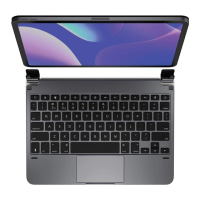
Need help?
Do you have a question about the Brydge 10.5 Go+ and is the answer not in the manual?
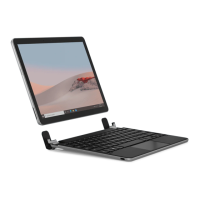
Place Brydge upright, insert Surface Go one side at a time, with Wake/Volume buttons on top.
Ensure Brydge is flat. Place hand near back of keyboard and pull Surface Go up, one side at a time.
Press and hold Fn + Delete keys. Green light indicates power.
Press and hold Fn + Delete keys for 2 seconds. Red light blinks to indicate power off.
Turn on Brydge (Fn+Del), hold Bluetooth key 3s. Delete key light flashes blue.
On Surface Go: Start > Settings > Devices > Bluetooth & other devices > Add device > Bluetooth.
Type the PIN on your Brydge 10.5 Go+ and press Enter.
Go to Windows > Settings > Devices > Bluetooth & other devices, check 'Brydge 10.5 Go+' battery.
Insert charging cable into keyboard and power source. Solid red LED on Delete key indicates charging.
Brydge enters sleep after 15 mins non-use. Press any key to wake. Closing devices puts Surface Go to sleep.
Left Click: Tap or click touchpad left side. Right Click: Tap or click touchpad right side.
Zoom In: 2-finger stretch. Zoom Out: 2-finger pinch. Scroll: 2-finger swipe (up, down, left, right).
Task View: 3-finger swipe (left/right). Show Desktop: 3-finger swipe down.
Open Cortana: 3-finger tap. Switch Virtual Desktop: 4-finger swipe (left/right).
Open Action Center: 4-finger tap.
Disable/Enable Touchpad: Fn + Alt. Switch Language: Win + Spacebar.
Copy: Ctrl+C, Cut: Ctrl+X, Paste: Ctrl+V, Underline: Ctrl+U, Italic: Ctrl+I.
Help: Fn+F1, Undo: Ctrl+Z, Task View: Alt+Tab, Page Up: Fn+Up, Page Down: Fn+Down, Home: Fn+Left, End: Fn+Right.
1-year limited warranty. Non-transferable, for original end-user. Excludes products from unauthorized online vendors.
Contact Brydge for repair or replacement. Free return shipping in the US. Reimbursement for international returns.
 General
| Type | Bluetooth Keyboard |
|---|---|
| Battery Life | Up to 12 months |
| Material | Aluminum |
| Keyboard Layout | QWERTY |
| Color | Silver |
| Compatibility | iPad Pro 10.5-inch |
| Connectivity | Bluetooth |
| Backlit Keys | Yes |

 To Next Page