Need help?
Do you have a question about the Brydge 12.9 Pro+ and is the answer not in the manual?
Press the power key for one second until the LED flashes green to turn on.
Press and hold the power key for three seconds until the LED flashes red to turn off.
Press and hold the Bluetooth key for three seconds until the LED flashes blue to pair.
Guide to enable AssistiveTouch via Settings > Accessibility > Touch.
Adjust trackpad settings by going to Settings > Accessibility > Touch > AssistiveTouch > Devices.
Toggle off 'Always Show Menu' to hide the AssistiveTouch menu with a pointer device.
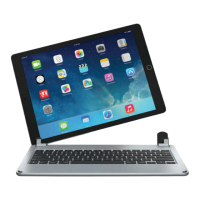
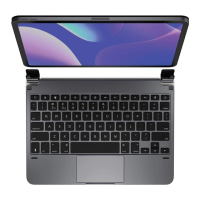
Instructions for inserting the iPad into the Brydge keyboard hinges with the home button on the right.
Instructions for removing the iPad from the keyboard by pulling up one side at a time.
Check battery life in Today View or by adding the Batteries widget.
Connect the charging cable to the keyboard and a power source; a solid red LED indicates charging.
 General
| Numeric keypad | No |
|---|---|
| Keyboard layout | QWERTY |
| Pointing device | Trackpad |
| Keyboard language | English |
| Backlight | Yes |
| Compatibility | iPad Pro 12.9\ |
| Product color | Gray |
| Housing material | Aluminum |
| Brand compatibility | Apple |
| Maximum screen size | 12.9 \ |
| Device interface | Bluetooth |
| Bluetooth version | 5.0 |
| Connectivity technology | Wireless |
| Power source | Battery |
| Battery lifetime | 0.25 year(s) |
| Keyboard form factor | Mini |
 Weight and Dimensions
| Depth | 214.9 mm |
|---|---|
| Width | 280.6 mm |
| Height | 6.8 mm |
| Weight | 690 g |

 To Next Page