Need help?
Do you have a question about the BT Vision+ and is the answer not in the manual?
Initial setup steps and essential information for BT TV.
Contact details and resources for assistance.
A summary of the key steps for setting up BT TV.
Instructions for connecting the BT Home Hub, aerial, and TV.
Verifying box contents, broadband, and aerial requirements.
Advice on positioning the BT Vision+ box and initial connections.
Using Ethernet cable or Powerline adapters for network setup.
Guiding the connection of the aerial and TV via HDMI or SCART.
Steps for powering the box and managing software updates.
Finalizing the setup process using on-screen prompts.
Setting up the remote and activating extra TV channels.
Overview of the BT TV system and how to navigate it.
Detailed explanation of remote control buttons.
Methods for finding, recording, and watching programmes.
Using playback controls and accessing On Demand content.
Understanding the main menu, TV Guide, and search.
Detailed explanation of each remote control button.
Navigating content listings and using the search function.
Instructions for recording live programmes and series.
Using pause/rewind and accessing On Demand content.
Bookmarking, playlists, favourites, and parental controls.
Viewing trailers and strategies for watching series.
Programming the remote for TV control and troubleshooting.
A summary of available help sections for BT TV.
Information on how to get help via phone and online.
Steps to fix common problems during BT TV setup.
Procedures for restarting the hub, box, and checking connections.
Factors affecting digital TV signal strength and quality.
Recommendations for aerials and cables for optimal reception.
Performing channel scans and checking aerial alignment.
Diagnosing and resolving distorted picture or sound.
Monitoring signal readings for individual channels.
Steps to fix common On Demand service errors.
Information on extra channel packages and how to find them.
Steps to resolve issues with unavailable channels or speed impacts.
When a card is needed and how to insert it correctly.
Creating and using PINs for security and content locking.
Restricting access to age-rated or specific channels.
Customizing display dimensions, resolution, and accessibility features.
Understanding power modes and how to activate standby.
Using the remote's help, contacting service, and technical support.
Tips for remote control, recording features, and BBC iPlayer.
Essential safety guidelines for operating the equipment.
Warnings and instructions for mains plug and fuse.
Details on the product guarantee and how to get support.
Information on equipment recycling, packaging, and legal notices.
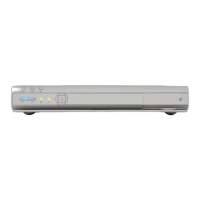
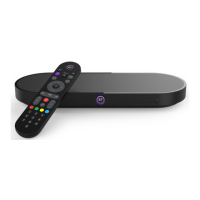
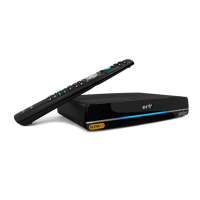
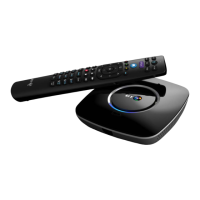
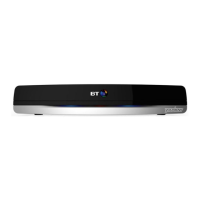
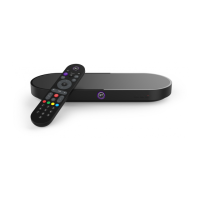
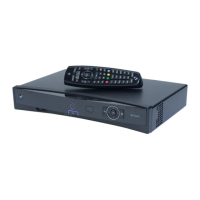
This document describes the BT TV (BT Vision+) set-top box, a device designed to provide digital television services, including live TV, on-demand content, and recording capabilities. It integrates with your existing home entertainment system and broadband connection to deliver a comprehensive viewing experience.
The BT TV box serves as a central hub for your television entertainment. Its primary function is to receive and decode digital TV signals, allowing you to watch a wide range of channels. Beyond live broadcasting, it offers extensive on-demand programming, enabling you to watch shows and movies at your convenience. The box also features recording capabilities, allowing you to save live TV programmes to watch later. It supports high-definition (HD) content, provided your TV and broadband connection are compatible. The device is designed for indoor use and requires a digital TV aerial for receiving terrestrial channels and a BT Home Hub for broadband-dependent services like Extra TV channels and On Demand content.
Setting up the BT TV box involves a few key steps. First, ensure your broadband is active and stable. The box connects to your BT Home Hub via an Ethernet cable. For optimal and reliable connection, it's recommended to connect the box directly to the Hub if they are in the same room. If the Hub is in another room and you haven't ordered Extra TV channels, Powerline adapters can be used to extend the network connection through your home's electrical wiring. Next, connect your digital TV aerial to the "RF In" socket on the BT TV box, and then connect the "RF Out" socket to your TV's "RF In" socket. For picture and sound, connect the BT TV box to your television using an HDMI cable for the best quality, especially for HD content. If your TV lacks an HDMI port, a SCART cable can be used for standard definition. Finally, plug the BT TV box into a mains power socket and turn it on. The initial startup may take up to 30 minutes, especially if a software update is required. Follow the on-screen instructions to complete the setup, including channel scanning and remote control pairing.
The BT TV remote control is intuitive and designed for easy navigation. It features dedicated buttons for accessing the main menu ("BT Vision"), TV Guide, On Demand content, and search functions. Arrow buttons allow you to move through menus and listings, while the "Select" button confirms your choices. Volume and channel controls are standard. Special buttons like "Record" (R) enable instant recording of live programmes or scheduling recordings from the TV Guide. The remote also includes "Pause" (II), "Rewind" (K), and "Fast Forward" (►) buttons for controlling playback of live TV and recorded content. Coloured buttons often correspond to on-screen prompts for specific actions. The "AD" button toggles Audio Description, and "SUB" toggles Subtitles, enhancing accessibility.
You can find programmes through the "TV Guide" for a comprehensive listing of available digital and broadband channels. The "Search" function allows you to look for specific programmes, On Demand content, or help articles. "My TV" provides quick access to currently watching programmes, bookmarks, playlists, downloads, and messages. "Recordings" lists all recorded, recording, or scheduled programmes. "Catch Up" offers shows you might have missed, and "On Demand" provides a library of movies and series. "Favourites" allows you to keep track of your preferred channels for quick access.
The BT TV box allows you to record live TV programmes. You can record a show you're currently watching with a single press of the "Record" button, or schedule recordings from the TV Guide. It also supports series recording. The box can record two live programmes simultaneously, or record one while you watch another live programme, a previously recorded show, or On Demand content. The box has sufficient storage for over 80 hours of programmes and will automatically manage space by deleting older recordings as needed. You can protect important recordings from automatic deletion. Live TV can be paused for up to 90 minutes, and you can rewind or fast-forward through paused or recorded content.
The "On Demand" section provides access to a vast library of shows and movies. Programmes without a price are included in your subscription, while others may require payment, which will be confirmed before purchase and appear on your bill. Free trailers are often available for films. For series, you can choose to "Play All" to watch episodes back-to-back. You can also create "Bookmarks" for programmes you want to watch later and organize content into "Playlists" (especially for Kids and Music content). The system also provides "Recommendations" based on your viewing habits.
To ensure a safe viewing environment, Parental Controls allow you to manage what children can watch. You can set a PIN during initial setup and modify it later. Age ratings can be applied to lock programmes based on their content, requiring a PIN for access. Channels can also be PIN-protected or hidden from the TV Guide.
If you've subscribed to Extra TV channels (e.g., Entertainment, Sky Sports, Sky Movies), these are delivered via your broadband connection. They are identified by a specific symbol in the TV Guide. For these channels, a direct Ethernet connection to your BT Home Hub is required; Powerline adapters are not supported.
A viewing card is typically needed if you want to watch BT Sport through your aerial and cannot receive it via your broadband connection. The card needs to be inserted into the slot on the BT TV box with the arrow facing the box and the chip facing upwards.
The BT TV box offers different power-saving modes. "Full power" (blue light) indicates the box is on and in use. "Standby" (purple light) allows for scheduled recordings and software updates. "Low power/Off mode" (red light) effectively turns the box off, preventing any recordings. To enter standby, press the power button on the remote or the box. To enter low power mode, press and hold the power button on the box until the light flashes red.
The device includes a "Help & Settings" menu with various options, including video guides, channel scanning, signal strength checks, and accessibility settings. For common issues like distorted sound or picture, it's recommended to check cable connections, aerial alignment, and signal strength. If problems persist, restarting the BT Home Hub and BT TV box can often resolve them. BT provides online help resources and customer support numbers for technical assistance.
The BT TV box automatically detects and installs software updates from time to time. These updates ensure optimal performance and introduce new features. During an update, the box may restart several times, and it's important to allow the process to complete before continuing with setup or use.
For cleaning the device, use a soft, damp (not wet) cloth. Avoid abrasive cloths and aerosol cleaners.
The remote control requires two 1.5V AAA batteries. To replace them, remove the battery cover, insert new batteries with the correct polarity, and replace the cover.
The BT TV box, remote control, and Powerline adapters are classified as Electrical or Electronic Equipment and should not be disposed of with normal household waste. Consult your local council for proper recycling methods to minimize environmental impact and handle hazardous substances safely. The packaging cardboard is recyclable.
 General
| Hard Drive Size | 160GB |
|---|---|
| Recording Capacity | Up to 80 hours |
| HDMI | Yes |
| SCART | Yes |
| Video Output | HDMI, SCART |
| Recording | Yes |
| Remote Control | Yes |
| Connectivity | Ethernet |
| Audio Output | Digital Optical |
| Storage | Internal Hard Drive |
| On-demand Services | BT Vision (later BT TV) |
| Catch-up TV | Via BT Vision (later BT TV) |

 To Next Page