36
If you require any technical guidance or find that your product is not operating as intended, a simple solution can often be found in the
Using your tablet
Using your Bush Eluma B2 8" Tablet
Let’s get started
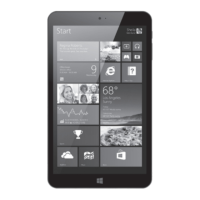
Start screen tiles customisation
Pinning icons
Press and hold the icon you want to move from your apps list until Pin to start appears. Tap
Pin to start to copy the app icon to your Start screen.
Moving icons
If you want to move it, press and hold it and drag it to where you want it and drop it. Then
tap the screen in a blank area to fix it.
Shrinking and unpinning icons
To shrink an icon, press and hold it and tap on Resize to select from dierent size options.
On-screen keyboard
The device has an on-screen keyboard that appears when you need it.
- Tap the screen in a place where text can be entered and the on-screen keyboard should
appear.
- If you’re in the desktop, tap the keyboard icon
on the desktop taskbar (lower-right
corner) to open the on-screen keyboard.
- To manually open the on-screen keyboard (without tapping an area where you can type),
- open the Settings charm, tap Keyboard > Touch keyboard and handwriting panel.



 To Next Page