35
or online at www.bush-support.com If you still require further assistance, call one of our experts on 0345 604 0105.
Move
Press the BLUE button and then press the
buttons
to move to the selected channel. Press the BLUE to
confirm.
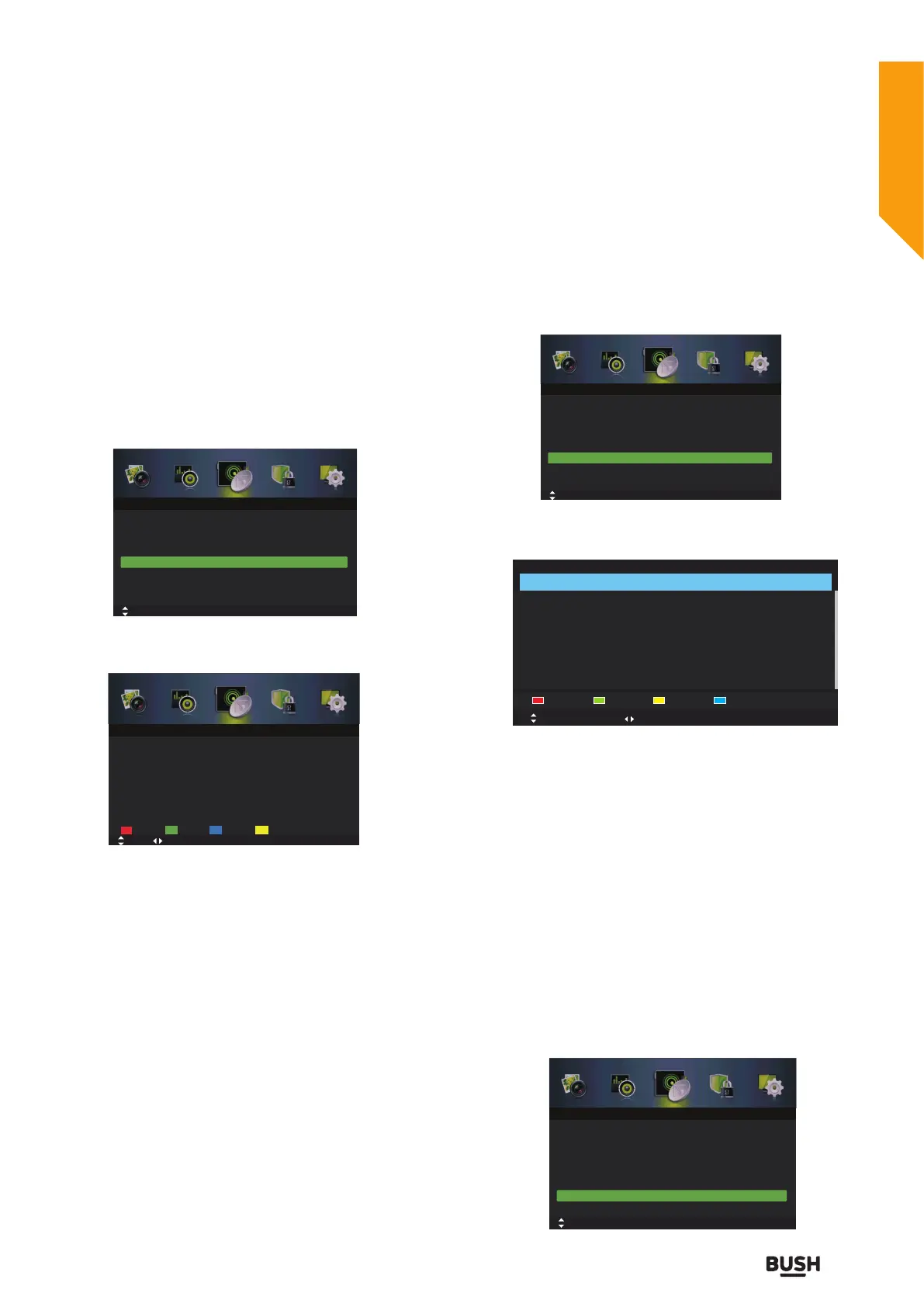
Channel Edit (ATV mode)
1. Press the MENU button to display the main menu.
Press the
buttons to select Channel in the main
menu, then press the
or OK button, it will highlight
the first option.
2. Press the
buttons to select Channel Edit and
then press the OK button to enter submenu.
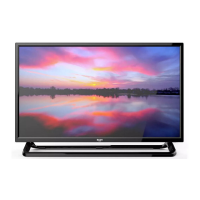
Delete
Press the RED button to delete the selected channel.
Skip
Press the GREEN button to select the channels that you
want to skip when you are selecting channels. Press the
GREEN button again to undo it.
Move
Press the BLUE button and then press the
buttons
to move to the selected channel. Press the BLUE to
confirm.Press the
buttons to select: Auto / PAL.
Rename
Press the YELLOW button to rename the selected
channel. Press the
buttons to select the characters
to represent the station name. Press the
buttons
to move to the next character and then press the OK
button again to confirm the new name.
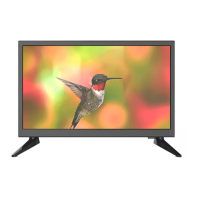
Favorite Manager
1. Press the MENU button to display the main menu.
Press the
buttons to select Channel in the main
menu, then press the
or OK button, it will highlight
the first option.
2. Press the
buttons to select Favorite Manager and
then press the OK button to enter submenu.
Press the RED,GREEN,YELLOW,BLUE button to set the
channel that you are currently watching as set the Favori
te1,Favorite2,Favorite3,Favorite4 programmes.
TIPS:
• Press the FAV/FAV+/FAV- button to set the Favorite List.
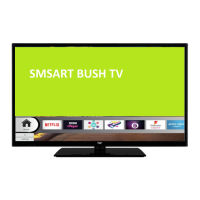
Common Interface (DTV mode)
To view the module information.
1. Press the MENU button to display the main menu.
Press the
buttons to select Channel in the main
menu, then press the
or OK button.
2. Press the
buttons to select Common Interface
and then press the OK button.
Auto Scan
Tuner Type Cable
Off
Manual Scan
Channel Edit
Auto Channel Update
Common Interface
Favorite Manager
Signal Information
Move
OK: Select MENU: Return EXIT: Exit
Channel
Delete
Move MENU: Return EXIT: Exit
Channel Edit
Skip RenameMove
Auto Scan
Tuner Type Cable
Off
Manual Scan
Channel Edit
Auto Channel Update
Common Interface
Favorite Manager
Signal Information
Move
OK: Select MENU: Return EXIT: Exit
Channel
Favorite Manager
NO. Program Name Fav1 Fav2 Fav3 Fav4 Type
Favorite1 Favorite2 Favorite3 Favorite4
Move Page
EXIT: Exit MENU: Return
Auto Scan
Tuner Type Cable
Off
Manual Scan
Channel Edit
Auto Channel Update
Common Interface
Favorite Manager
Signal Information
Move
OK: Select MENU: Return EXIT: Exit
Channel
Standard features
Simple everyday use
Standard features


 To Next Page