46
If you require any technical guidance or find that your product is not operating as intended, a simple solution can often be found in the Troubleshooting section of these instructions,
Playing Multimedia Discs
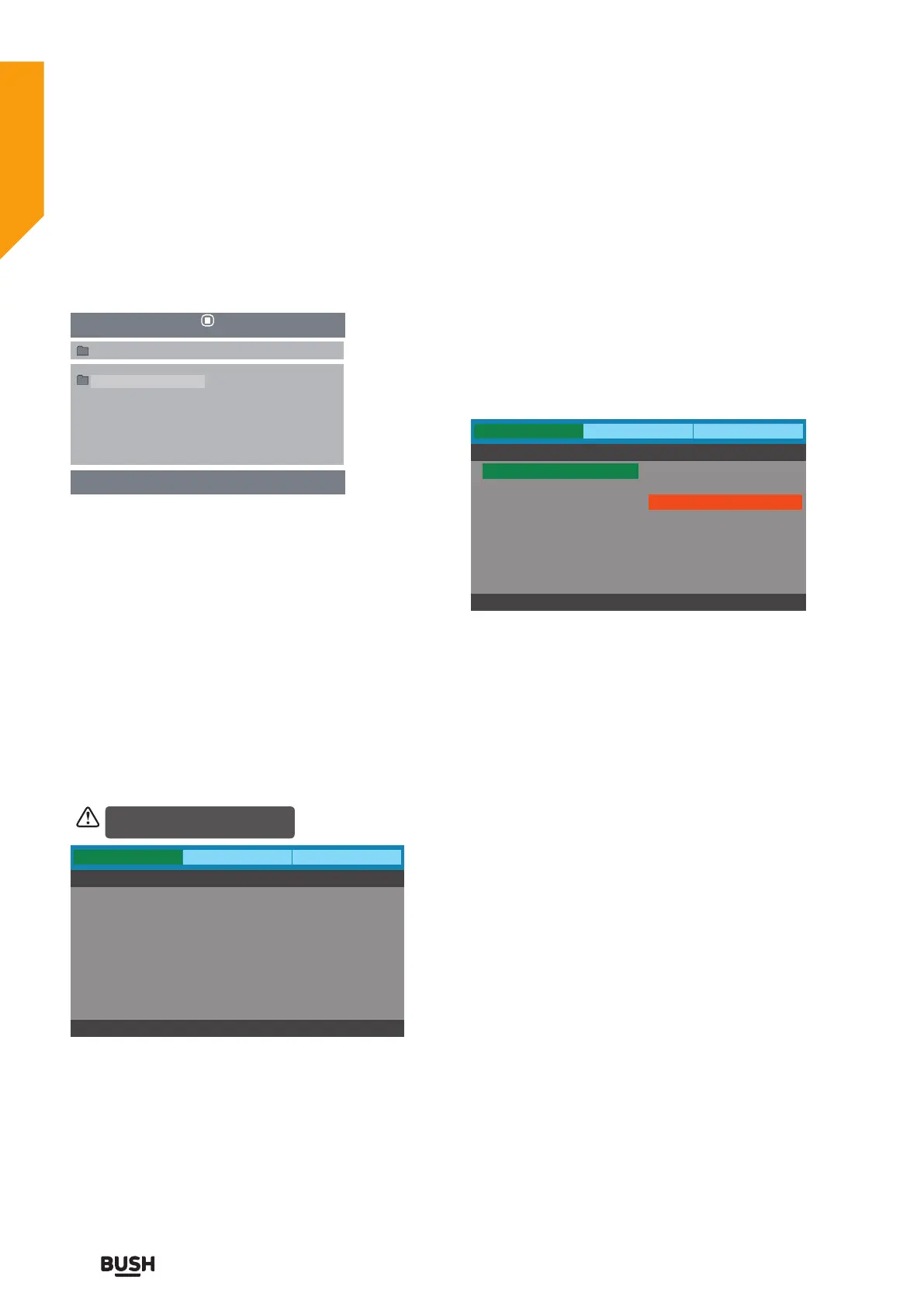
After loading the multimedia disc, the disc contents will
automatically be displayed and sorted.
1.
Press the
buttons to navigate through the
folders and files.
2. Press the 0-9 buttons to select the contents directly
3.
When playing or pausing with picture playback, you
may use the
buttons to flip / rotate the picture.
DVD SYSTEM MENU
In the DVD mode, press the SET-UP button on the
remote control to activate the DVD player OSD menu.
Press the
buttons to select General/Audio/
Preference, and then press the
buttons or OK
button to enter the highlighted sub-menu. Press the
SET-UP button to exit the menu.
Go To General Setup Page
In the DVD mode, press the SET-UP button on the
remote control to activate the DVD player OSD menu.
Press the
buttons to select General , and then press
the
buttons or OK button to enter the highlighted
sub-menu. Press the SET-UP button to exit the menu.
TV Display
• 4:3 Pan Scan: Choosing this setting if your DVD
player is connected to a normal ratio TV. You can
fill the movie to the entire screen of your TV. This
might mean that parts of the picture (the left and
right edges) won’t be seen.
• 4:3 Letter Box: Choosing this setting if your DVD
player is connected to a normal ratio TV. You’ll see
the movies in their original aspect ratio (height-to-
width ratio). You’ll see the entire frame of the movie,
but it will take up a smaller portion of the screen
vertically. The movie might appear with black bars at
the top and bottom of the screen.
• 16: 9: Choose this setting if your DVD player is
connected to a wide screen TV. If you choose this
setting and you don’t have a wide screen TV, the
images on the screen may appear distorted due to
vertical compression.
Using the DVD Features
Let’s get started
In Setup mode, the disc playback
function will not be available.
00:00 00:00
001/004 DISC
File
General
- - General Setup Page - -
Go To General Setup Page
Audio Preference
TV Display
OSD Language
Screen Saver
Last Memory
W ide
Eng
On
Off
General
- - General Setup Page - -
Set TV Display Mode
Audio Preference
4:3 LetterBox
4:3 PanScan
16:9
TV Display
OSD Language
Screen Saver
Last Memory
W ide
Eng
On
Off
Using the DVD Features



 To Next Page