11
Connecting the USB-C SOHO Dock
to your computer (AC-Powered)
NOTE
Always use the supplied USB-C cable or a USB-C cable that is 10Gb/s. If you’re using a
Mac, do not use the Mac’s USB-C charging cable in order to connect the USB-C SOHO
Dock to the host computer as this cable does not provide 10Gb/s performance.
Only used a Certied PD Type-C Power Adapter with the SOHO Dock. If you are unsure
what adapter to use, please contact CalDigit Support.
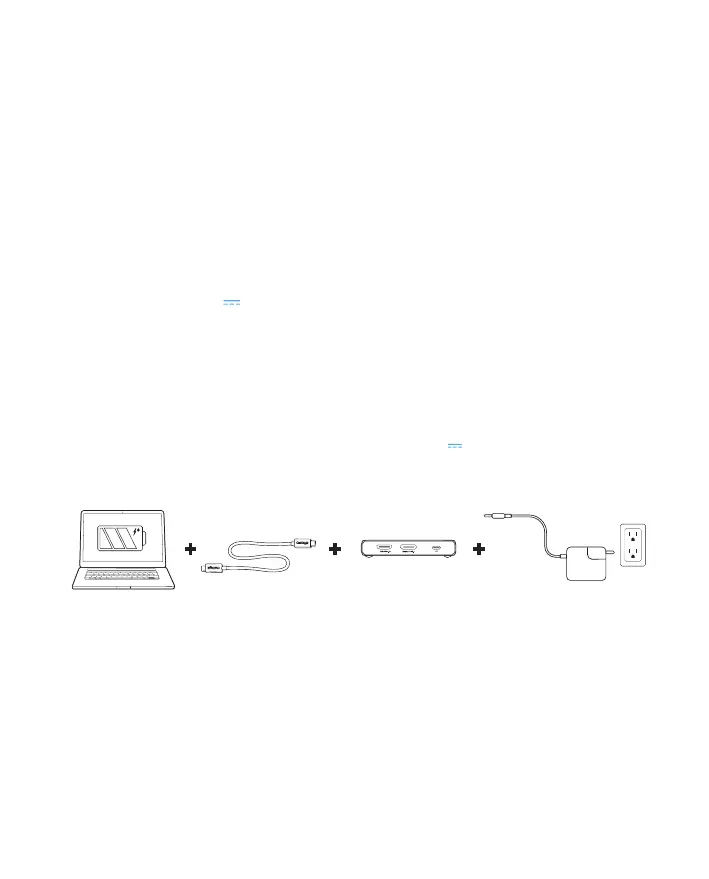
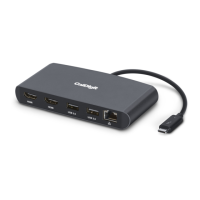
Connect one side of the supplied USB-C cable to the port labelled
[Computer] on the USB-C SOHO Dock.
Connect the other side of the USB-C cable to your computer’s USB-C,
Thunderbolt 3 or 4 port.
Connect your laptop’s USB-C charging cable to the dedicated Power
Delivery port [ ].
[2] [3]
The USB-C SOHO Dock will now be charging your laptop and is ready to
use.
1.
2.
3.
4.
[1] A 10Gb/s, 5A USB-C Cable is required if using 3rd party cables.
[2] USB-C charger not included. Windows laptops with proprietary charging, or ports without power
delivery, will not provide laptop charging.
[3] The USB-C charger must be connected to the Power Delivery Port[ ]. Type-C chargers with a
power delivery under 18W are not compatible.


 To Next Page