6
2. Using the Thunderbolt™ 3 mini Dock
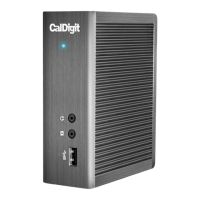
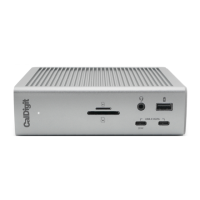
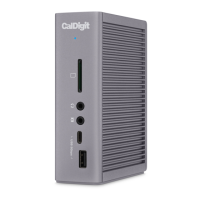
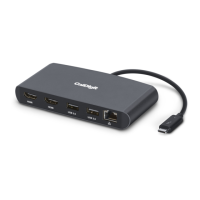
Plug the tethered Thunderbolt™ 3 cable from the Thunderbolt™ 3 mini Dock into your laptop’s
Thunderbolt™ 3 port.
Connect your monitor’s HDMI or DisplayPort cables into the HDMI or DisplayPort connectors on
the Thunderbolt™ 3 mini Dock.
Your monitors will be instantly recognized.
Plug your USB and Gigabit Ethernet cables into the appropriate ports on the Thunderbolt™3
mini Dock.
1.
2.
3.
4.
Using the Thunderbolt™ 3 mini Dock Dual HDMI or Thunderbolt™ 3 mini Dock
Dual DisplayPort
Compatibility
Conguring Dual Monitors
Thunderbolt™ 3
mini Dock Dual HDMI
Thunderbolt™ 3
mini Dock Dual DisplayPort
Thunderbolt™ 3 Mac
✓ ✓
Thunderbolt™ 3 PC
✓ ✓
USB-C Mac X X
USB-C PC X X
The Thunderbolt™ 3 mini Docks are compatible with the following computers.
You can add two external monitors to the Thunderbolt™ 3 mini Dock at up to 4K@60Hz resolution.
The dual monitors can be in both mirrored or extended modes.
Check your OS’s display settings on how to congure dual monitors
NOTE
The Thunderbolt 3 mini Dock supports dual display functionality. However,
the actual resolutions are limited by GPU, OS, Driver and Firmware. Please
refer to the tables below for general information.
Some Windows Thunderbolt 3 systems are limited to one external monitor
support through the Thunderbolt 3 port, please check with the system
manufacturer for more information.


 To Next Page