5.
Make sure that the Paper Feed Roller stops rotating. When the message appears,
load paper in the paper source you selected in the procedure of (3) in step 4.
Load three sheets of A4 or Letter-sized plain paper.
6.
Confirm the displayed message, and click OK.
The paper that is loaded in the printer will feed through the printer and be ejected.
Do not perform any other operations until the printer completes the cleaning of the Paper Feed Roller.
7.
When the completion message appears, click OK.
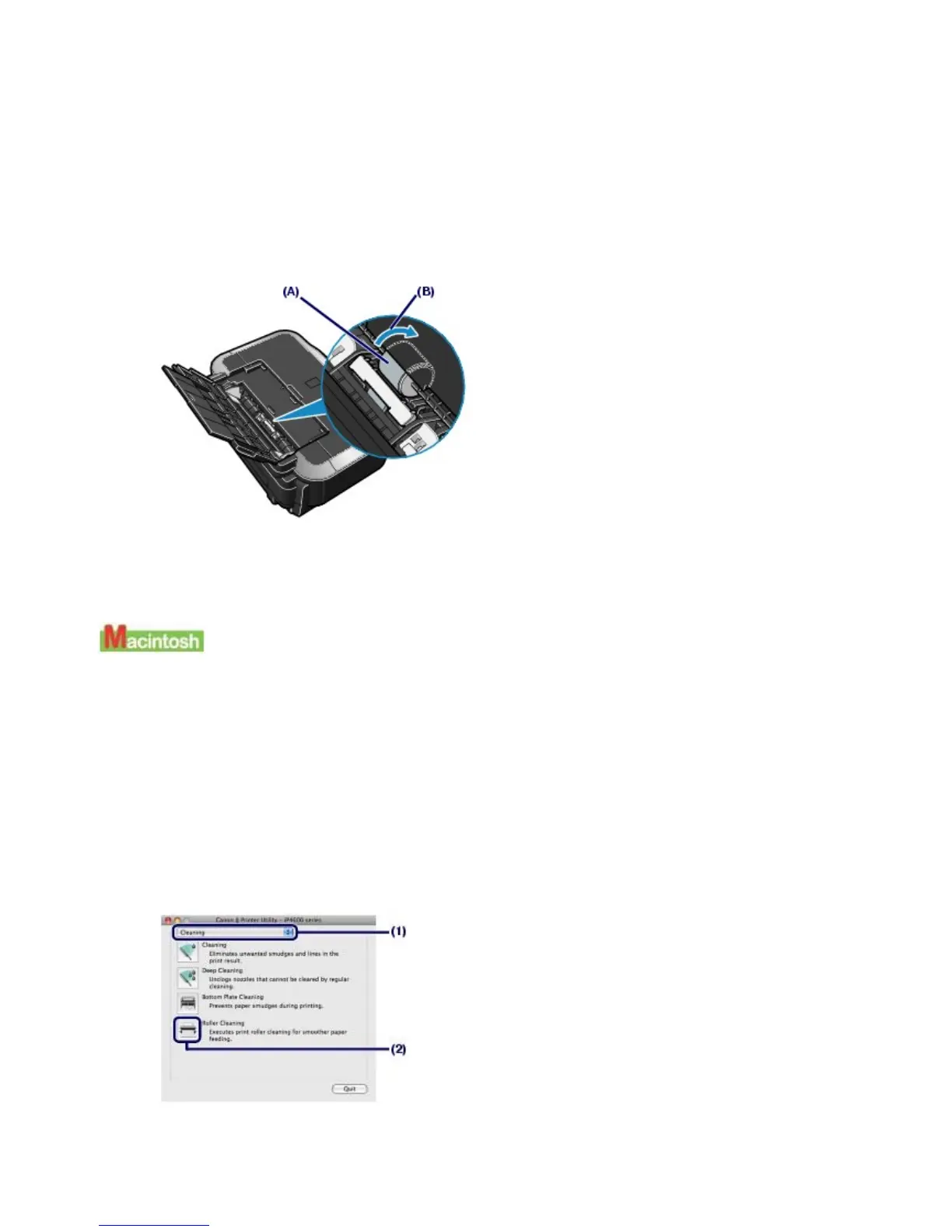
If the problem is not resolved after cleaning the Paper Feed Roller (A) in the Rear Tray as described
above, turn off the printer, unplug the power cord, and then wipe the Paper Feed Roller located in
the center inside the Rear Tray with a moistened cotton swab or the like. Rotate the roller manually
in the direction of the arrow (B) as you clean it. Do not touch the roller with your fingers; rotate it with
the cotton swab. If this does not solve the problem, contact your Canon service representative.
1.
Make sure that the power is turned on, and remove any paper in the printer.
2.
Open the Paper Output Tray gently, and extend to open the Output Tay Extension.
3.
Open the Canon IJ Printer Utility dialog box.
See
Opening the Canon IJ Printer Utility (Macintosh)
.
4.
Clean the Paper Feed Roller.
(1)
Make sure that Cleaning is selected in the pop-up menu.
(2)
Click Roller Cleaning.
(3)
Select the paper source to clean.
Стр. 64 из 396 стр.Cleaning the Paper Feed Roller



 To Next Page