Advanced Guide
Troubleshooting
Contents
>
Overview of the Printer
> Main Components
Main Components
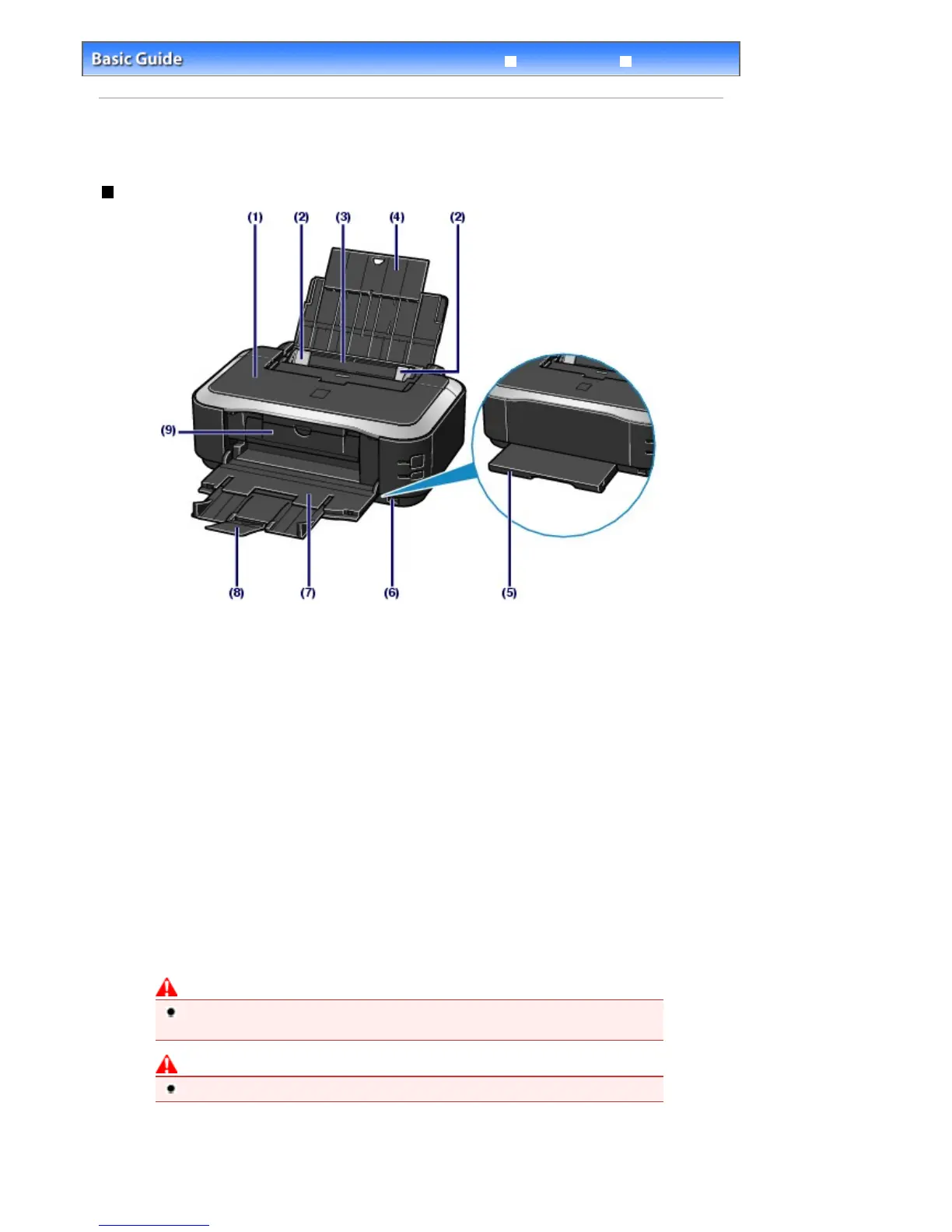
Front View
(1)
Top Cover
Open it when replacing the ink tanks or removing jammed paper inside the printer.
(2)
Paper Guides
Slide to align with both sides of the paper stack.
(3)
Rear Tray
Load various sizes or types of paper which you can use on the printer. Two or more sheets of the same
size and type of paper can be loaded at the same time, and fed automatically one sheet at a time.
See
Loading Paper
.
(4)
Paper Support
Open to pull out fully to support paper loaded in the Rear Tray.
(5)
Cassette
Load A4, B5, A5, or Letter-sized plain paper and insert it into the printer. Two or more sheets of the same
size of paper can be loaded at the same time, and fed automatically one sheet at a time.
See
Loading Paper
.
(6)
Direct Print Port
Connect a PictBridge compliant device such as a digital camera when printing directly.
See
Printing Photos from a PictBridge Compliant Device
.
Warning
Do not connect any equipment other than PictBridge compliant devices to the Direct Print
Port of the printer. This may cause fire, electric shock, or damage to the printer.
Caution
Do not touch the metal casing.
(7)
Paper Output Tray
Printed papers are ejected. Open it fully before printing.
(8)
Output Tray Extension
Стр. 4 из 396 стр.Main Components



 To Next Page