20
imagePRESS C850/C750/C650/C65
20
2
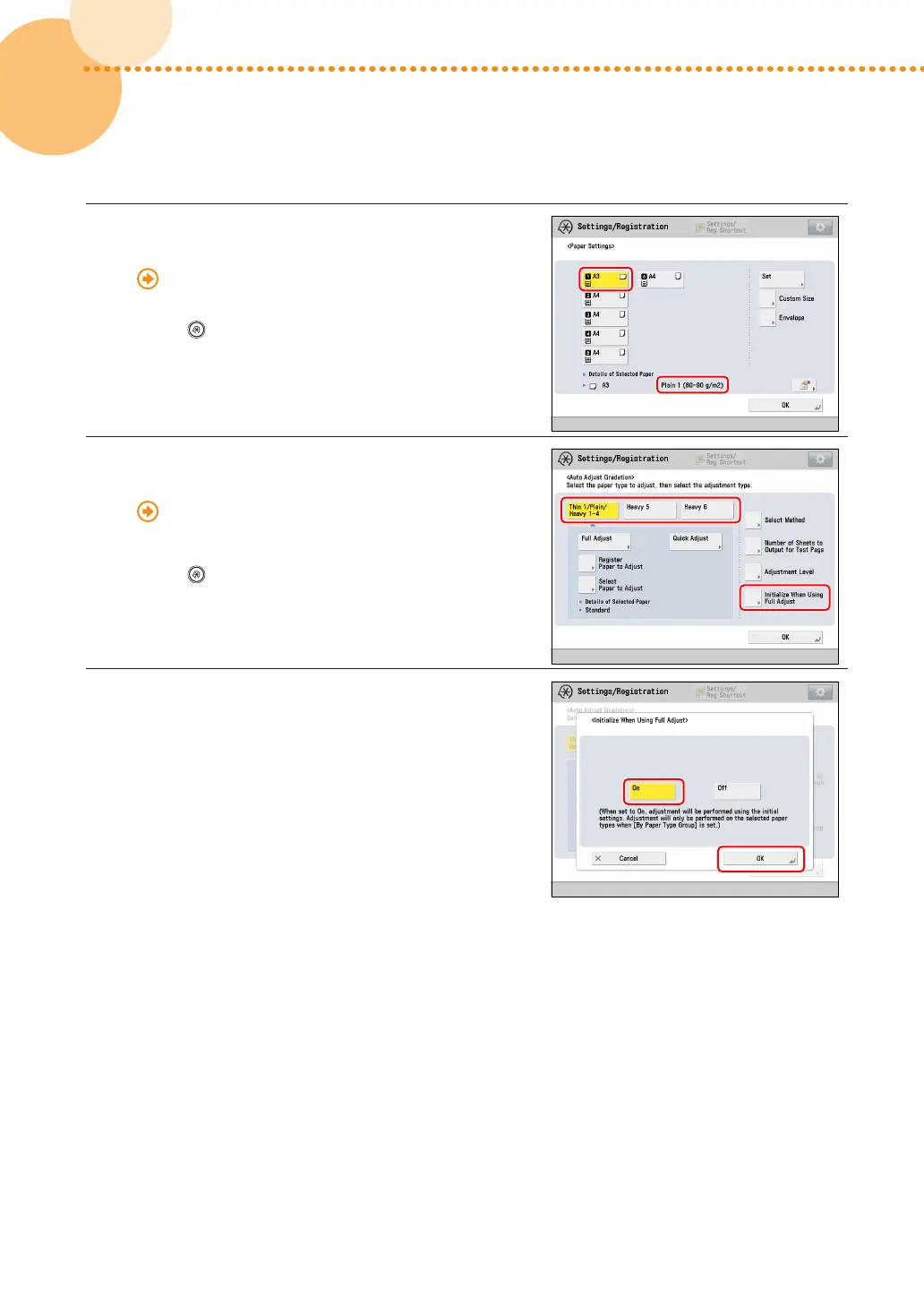
Make sure that the paper type in the paper drawer
is same as the loaded paper�
"Settings/Registration" > "Registering the Paper Size
and Type for a Paper Source" in the User's Guide
•
Press
→ [Preferences] → [Paper Settings] → [Paper
Settings] to check the paper type�
3
Select the paper that you want to correct, then
press [Initialize When Using Full Adjust]�
"Adjustment for Image Quality and Finishing
(Calibration)" > "Automatic Gradation Adjustment" >
"Selecting Paper for Calibration" in the User's Guide
•
Press
→ [Adjustment/Maintenance] → [Adjust Image
Quality] → [Auto Adjust Gradation] to select the paper�
•
The selected paper is displayed in yellow�
4
Press [On] → press [OK]�





 To Next Page