Contents
Recommended Types of Calibration � � � � � � � � � � � � � � � 2
Simple Calibration � � � � � � � � � � � � � � � � � � � � � � � � � � � � � � � � � � � � � � � � � � �4
Enhanced Calibration � � � � � � � � � � � � � � � � � � � � � � � � � � � � � � � � � � � � � � � �5
Getting the Best Colors from Your Machine � � � � � � �16
Calibration after Purchase � � � � � � � � � � � � � � � � � � � � � � � � � � � � � � � � � � 19
Calibration After the Machine Is in Operation � � � � � � � � � � � � � � 37
Calibration As Needed � � � � � � � � � � � � � � � � � � � � � � � � � � � � � � � � � � � � � 38
How to Get the Most Accurate Colors
Possible for Your Printouts � � � � � � � � � � � � � � � � � � � � � � � � 44
Step 1 Eliminating the Basic Causes � � � � � � � � � � � � � � � � � � � � � � � 44
Step 2 Changing Print Settings for a Job with the
imagePRESS Server � � � � � � � � � � � � � � � � � � � � � � � � � � � � � � � � � � � � � � � � 46
Smoothing Colors in Photographs, Figures,
Lines, and Text � � � � � � � � � � � � � � � � � � � � � � � � � � � � � � � � � � � 53
How to Print Clear Photos � � � � � � � � � � � � � � � � � � � � � � � � 55
Getting Clear Texts and Lines from Your
Machine � � � � � � � � � � � � � � � � � � � � � � � � � � � � � � � � � � � � � � � � �60
Step 1 Eliminating the Basic Causes � � � � � � � � � � � � � � � � � � � � � � � 60
Step 2 Changing Print Settings for a Job with the
imagePRESS Server � � � � � � � � � � � � � � � � � � � � � � � � � � � � � � � � � � � � � � � � 61
How to Make Transparency Effects Work As
Expected � � � � � � � � � � � � � � � � � � � � � � � � � � � � � � � � � � � � � � � � 68
For RGB Color Mode � � � � � � � � � � � � � � � � � � � � � � � � � � � � � � � � � � � � � � � 68
For CMYK Color Mode � � � � � � � � � � � � � � � � � � � � � � � � � � � � � � � � � � � � � 69
How to Solve the Overprint Problems � � � � � � � � � � � � � 72
How to Fix Misalignment of Images � � � � � � � � � � � � � � � 75
Step 1 Eliminating the Basic Causes of Misalignment � � � � � � 76
Step 2
Changing Settings on the Machine According to
Paper Characteristics � � � � � � � � � � � � � � � � � � � � � � � � � � � � � � � � � � � � � � � � � � � � � � 78
Step 3 Changing Print Settings on the Printer Driver � � � � � � � 86
How to Fix Curled Printouts � � � � � � � � � � � � � � � � � � � � � �90
Step 1 Eliminating the Basic Causes of Curled Paper � � � � � � � 90
Step 2
Changing Settings on the Machine According to
Paper Characteristics � � � � � � � � � � � � � � � � � � � � � � � � � � � � � � � � � � � � � � � � � � � � � � 91
How to Align and Staple Printouts � � � � � � � � � � � � � � � �93
How to Adjust the Saddle Stitch Position � � � � � � � � � � 95
Step 1
Adjusting the Saddle Stitch Position to the
Center of the Booklet � � � � � � � � � � � � � � � � � � � � � � � � � � � � � � � � � � � � � � � �95
Step 2
Adjusting the Saddle Stitch Fold Position to the
Center of the Booklet � � � � � � � � � � � � � � � � � � � � � � � � � � � � � � � � � � � � � � � � � � � � 97
Improving the Finish of Booklets � � � � � � � � � � � � � � � � � 98
Step 1 Confirming the Basic Settings � � � � � � � � � � � � � � � � � � � � � � 98
Step 2 Confirming the Position of Text and Images
on the Page � � � � � � � � � � � � � � � � � � � � � � � � � � � � � � � � � � � � � � � � � � � � � � 100
Step 3 Adjusting Margins with Creep Compensation � � � � � 102
Step 4 Checking the Cover Settings � � � � � � � � � � � � � � � � � � � � � � 103
How to Align Printouts � � � � � � � � � � � � � � � � � � � � � � � � � �108
Repeated Paper Jams Caused by Paper
Wrapping around the Fixing Belt � � � � � � � � � � � � � � � �110
Step 1
Understanding What Causes Paper to Wrap
around the Fixing Belt � � � � � � � � � � � � � � � � � � � � � � � � � � � � � � � � � � � � � � � 111
Step 2 Keeping the Paper’s Moisture Content at an
Appropriate Level � � � � � � � � � � � � � � � � � � � � � � � � � � � � � � � � � � � � � � � � 112
Step 3 Changing the Machine’s Settings � � � � � � � � � � � � � � � � � � 112
Step 4 Try This If You Still Have the Same Problems � � � � � � � 115
Improving Productivity � � � � � � � � � � � � � � � � � � � � � � � � � �116
Choosing Paper Wisely � � � � � � � � � � � � � � � � � � � � � � � � � � � � � � � � � � � � 116
Speeding Up a Print Job by Using Thin Paper First � � � � � � � � � 117
Replacing a Toner Cartridge without Stopping the
Print Job � � � � � � � � � � � � � � � � � � � � � � � � � � � � � � � � � � � � � � � � � � � � � � � � � � 118
Increasing a Paper Loading Capacity by Giving
Priority to the Lower Tray � � � � � � � � � � � � � � � � � � � � � � � � � � � � � � � � � 119
Using Auto Drawer Switching to Its Fullest � � � � � � � � � � � � � � � � 120
Increasing Print Speed by Giving Priority to Either
Thin Paper or Heavy Paper � � � � � � � � � � � � � � � � � � � � � � � � � � � � � � � � 125
Speeding Up a Print Job Manually When Printing on
Heavy 5/Heavy 6 Paper � � � � � � � � � � � � � � � � � � � � � � � � � � � � � � � � � � � 126
Speeding Up a Print Job by Giving Priority to
Productivity Rather Than Gloss � � � � � � � � � � � � � � � � � � � � � � � � � � � � 127
Problems with Printouts That Look Like the
Following Images � � � � � � � � � � � � � � � � � � � � � � � � � � � � � � �128
Types of Paper You Can Use for Calibration
•
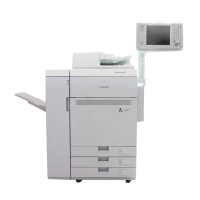
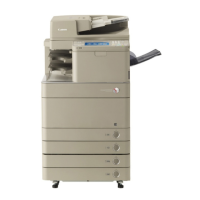
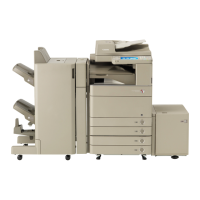
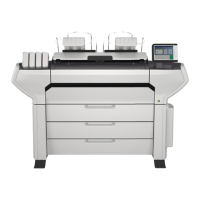
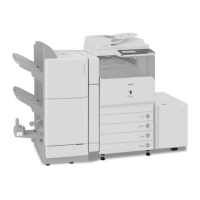
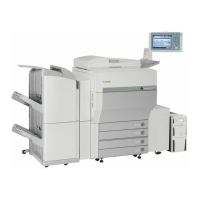
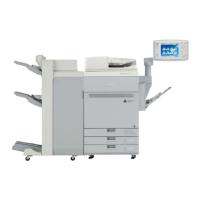
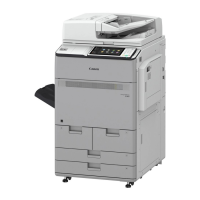
The shape of the machine and available functions may vary, depending on the machine you are using� Unauthorized
reproduction of the contents of this document is prohibited�
•
The information in this document is subject to change without notice�
•
Available models differ depending on your region and product release dates�





 To Next Page