Getting the Best Colors from Your Machine
39
imagePRESS C850/C750/C650/C65
2
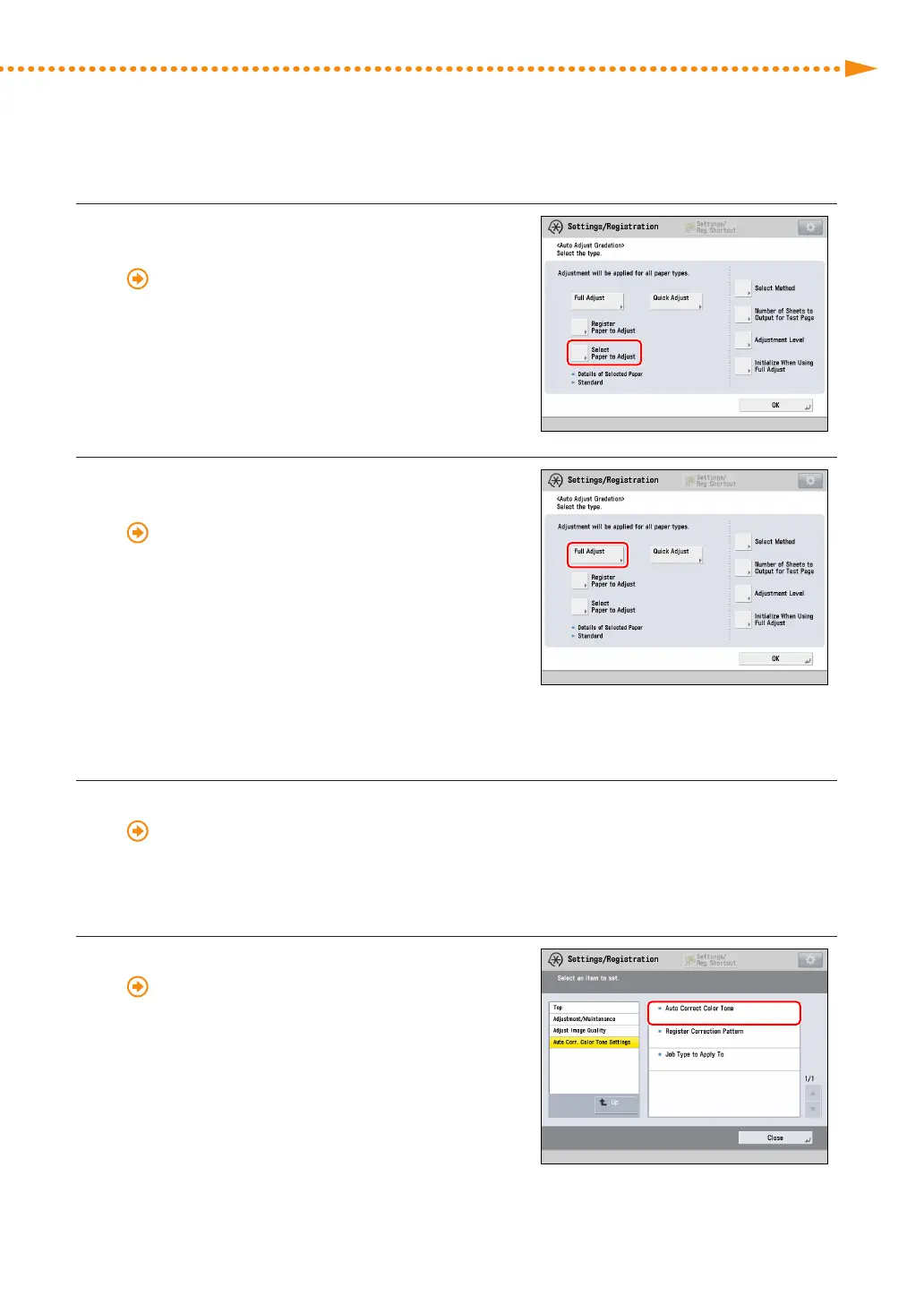
Select the paper type you loaded in step 1 for
[Select Paper to Adjust]�
"Adjustment for Image Quality and Finishing
(Calibration)" > "Automatic Gradation Adjustment" >
"Selecting Paper for Calibration" in the User's Guide
3
Perform automatic gradation calibration (full
calibration)�
"Adjustment for Image Quality and Finishing
(Calibration)" > "Automatic Gradation Adjustment" >
"Full Adjustment" in the User's Guide
•
Select the paper drawer where you loaded the paper in
step 1 as the paper source for test printing�
▀
Shading Correction
4
Perform shading correction�
"Adjustment for Image Quality and Finishing (Calibration)" > "Shading Correction" in the User's Guide
▀
Automatic Color Tone Correction
5
Perform automatic color tone correction�
"Adjustment for Image Quality and Finishing
(Calibration)" > "Automatic Color Tone Correction" >
"Automatic Color Tone Correction" in the User's Guide
•
Press [Change Corr� Pattern], and select the calibration
standard you created in "Calibration after Purchase�" (p� 19)
•
Select the paper drawer where you loaded the paper in
step 1 as the paper source for the paper for which you
are calibrating the machine�





 To Next Page