62
imagePRESS C850/C750/C650/C65
62
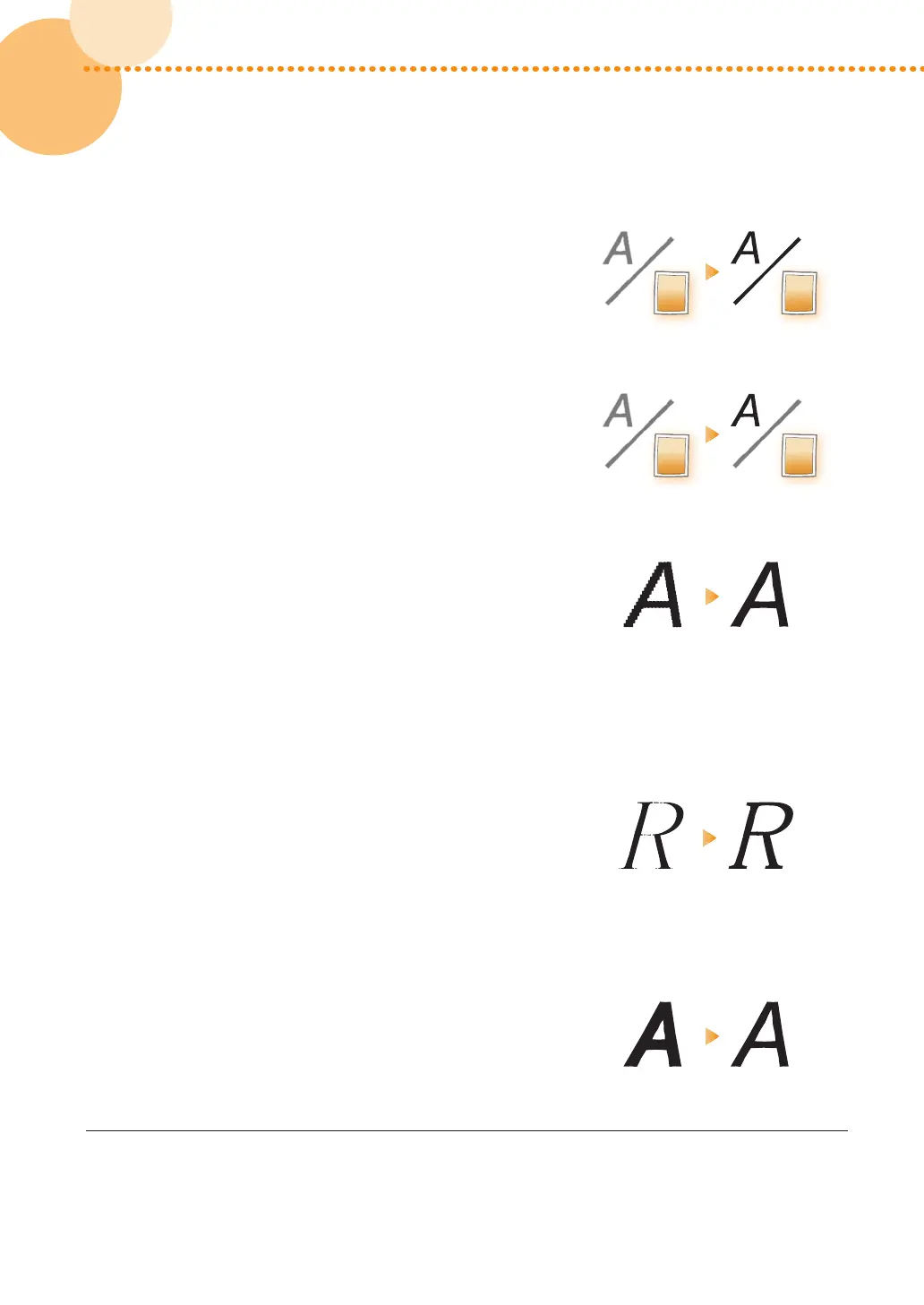
Printing figures, lines, and text with vivid clarity while
keeping the smooth gradation of photographs
We recommend you select [Pattern 2] or [Pattern 7] for
<Printer's halftone>�
•
If you want to keep the gradation of figures and lines, we
recommend you select [Pattern 7]�
Printing text with vivid clarity while keeping the smooth
gradation of photographs, figures, and lines
We recommend you select [Pattern 4] for <Printer's
halftone>�
Reducing jagged edges on text and lines
We recommend you select [Level 1] or [Level 2] for
<Advanced smoothing>�
•
To use this function, you need to specify the settings
for advanced smoothing in advance� For detailed
information, see "Specifying the Settings for the
Printout's Finish�" (p� 64)
•
If you use this function, colors of the edges on text and
lines and colors of the text and lines themselves may
look darker�
Printing text thicker because the thin lines of Roman
fonts appear faint
We recommend you select the check box for <Text width
adjustment>�
•
To use this function, you need to specify the thickness
and font color for the target text in advance� For
detailed information, see "Specifying the Settings for the
Printout's Finish�" (p� 64)
Reducing the thickness of outline fonts
We recommend you select [1200dpi] for <Resolution>�
•
In some cases, this may make lines too thin and faint
because it prints text and lines exactly as they are in the
data�
3
Click [OK]�
•
Print a test sheet to check the sharpness of text and lines� If you are satisfied with the result, you can print a
job�





 To Next Page