8
Printing on the CD-R/DVD-R
1
11
1
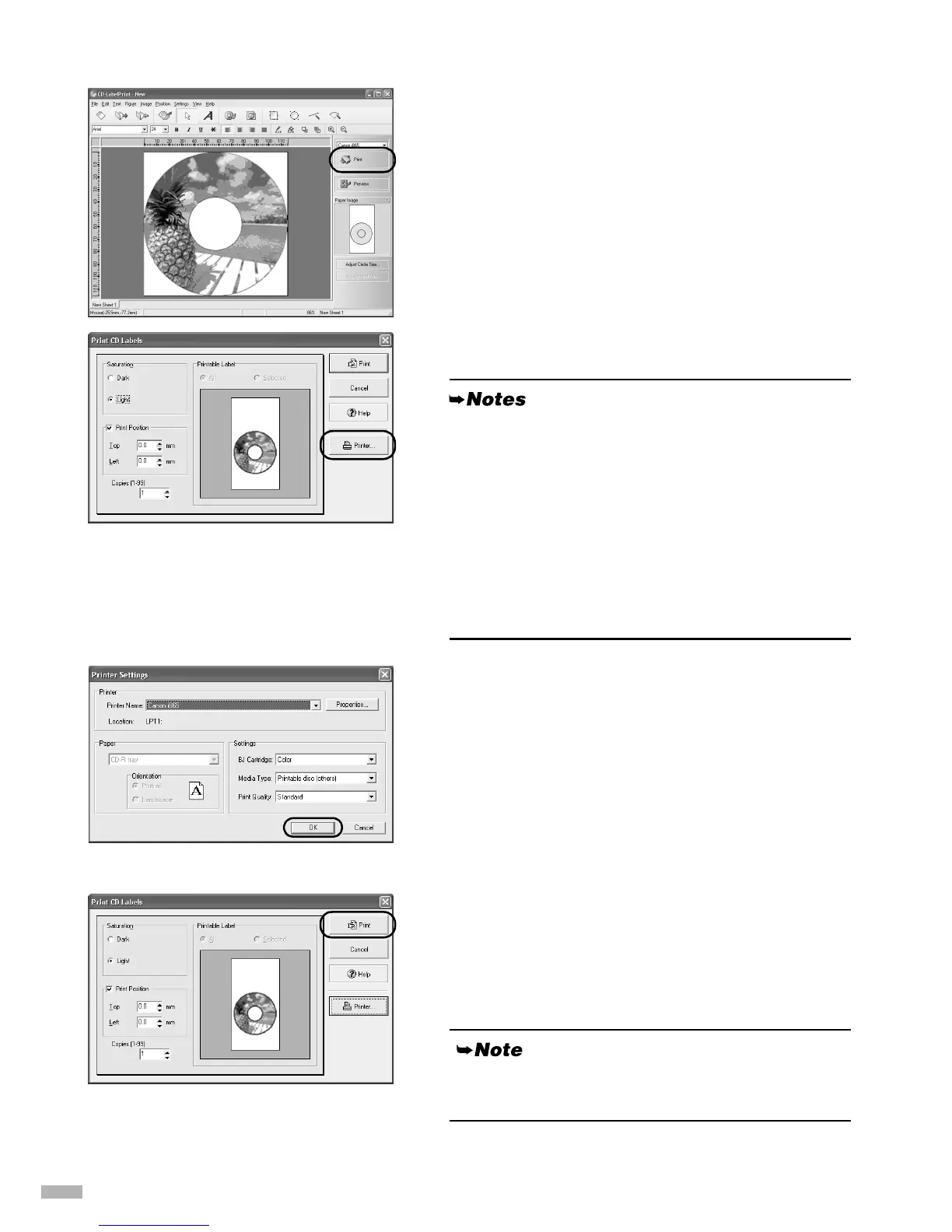
Click Print.
The
Print CD Labels
dialog box appears.
2
22
2
Click Printer....
3
33
3
Set these items to correspond with the
CD-R/DVD-R and printing data.
Cartridge: Color
Media Type: Printable disc
(recommended) or
Printable disc (others)
Print Quality:High, Standard or Draft
4
44
4
Click OK.
5
55
5
When the Print CD Labels dialog box
appears, click Print.
6
66
6
Read the message that appears and
then click OK.
•The Printable Label image on the Print CD
Labels dialog box shows the print image of the
CD-R tray (rectangle) and the CD-R (circles). The
leading edge of the CD-R tray is at the bottom of
the image.
• If the "[Dark]" setting produces unsatisfactory
results (e.g. if images are too dark or characters
appear blurred), select "[Light]". Print quality on
CD-R/DVD-R may vary depending on the media
you use.
Refer to the CD-LabelPrint’s manual for more
information about CD-LabelPrint.


 To Next Page