5
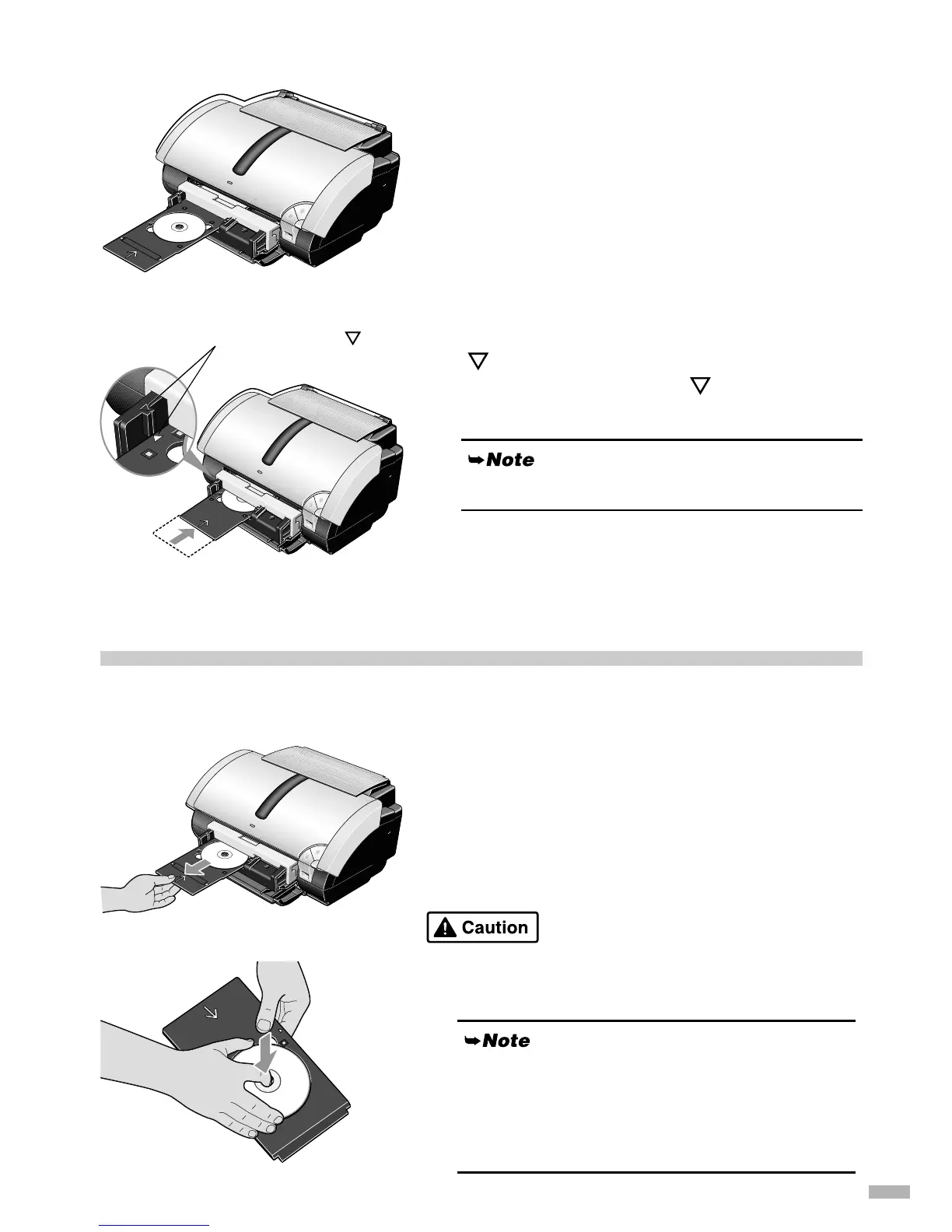
Placing the CD-R tray
1
11
1
Place the CD-R tray on the CD-R tray
feeder.
2
22
2
Insert the CD-R tray so that the arrow
( ) on the CD-R tray feeder is almost
aligned with the arrow ( ) on the CD-R
tray.
When printing on the CD-R, see "Printing on CD-Rs/
DVD-Rs." (See page 7 for Windows and page 9 for
Macintosh.)
Removing the CD-R Tray Feeder and CD-R Tray
Removing the CD-R tray
1
11
1
Pull out the CD-R tray to remove it.
2
22
2
Remove the CD-R/DVD-R.
Do not touch the printable surface when removing from the
tray.
Ensure that the CD-R tray does not exceed this point.
Align these two arrows ( ).
Allow the printing surface to dry sufficiently before
removing the disc. If printing on the CD-R tray, or on
the transparent sections on the inside and outside of the
CD-R/DVD-R, allow the printing surface to dry before
wiping.


 To Next Page