!
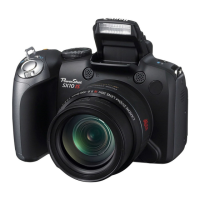
! A720IS ! Memory Card Benchmarks Example
!
! ! ! ! ! ! !
(Guide only, many variables to be considered)
A-DATA Speedy, 2GB (FAT16)
Transcend, SD 4GB, Standard (FAT16 fresh format)
Transcend, microSD 2GB, Standard speed, MLC
SanDisk, SD 1GB, Ultra II 60x
SanDisk, SD 2GB, Ultra II 60x (fresh format)
SanDisk, SDHC 4GB, Ultra II 60x (FAT16 fresh)
Sandisk, SD 2GB, Extreme III 133x (fresh format)
EMTEC, SD 2GB, 60x (FAT16 fresh)
•
Create card with two partitions (See Notes section at end for late news)
This option creates a 2 MB FAT partition on the SD card, that's fixed on the code for now. Copy
the CHDK firmware extensions to this partition and load them, (The DISKBOOT.BIN and
PS.FI2 files). Then select "Make card bootable" in "Main Menu > Miscellaneous stuff", so it does
not complain when you write-protect the card.
Next step is to select "Swap partitions" in "Main Menu > Miscellaneous stuff", this will hide this
small partition and make the larger FAT32 one visible. We need to format it, and copy CHDK
files DISKBOOT.BIN and PS.FI2 to it too, so we can perform "swap partitions" again. So
format it in FAT32, copy CHDK, insert it on the camera and load CHDK using "Firmware
Update", Select "Swap partitions" and "Make card bootable", write-protect the SD card, (lock
with slider on side of SD card) and power-cycle the camera. It should now load CHDK from the
small 2 MB partition, but have access to the larger FAT32 partition to store pictures, video and
the CHDK folders.
!! BEWARE: This can DELETE ALL data on the card#!
This feature is used with SDHC cards larger than 4GB, on supported cameras (needs
multi partition support) it will create a small FAT16 partition with a size of 2MB for
CHDK and a larger partition formatted as FAT32 to store the images. On such a
prepared card the camera boots up CHDK from the small partition, then the partitions
are automatically swapped, this way the full capacity of the FAT32 partition can be used. The
partitions are not shown correctly under MS Windows, only one of the two partitions is shown, to
access the other partition without a special system driver, the partitions should be swapped with
"Swap partitions"


 To Next Page