Selecting
an
Option
from
the
FUNC.
menu
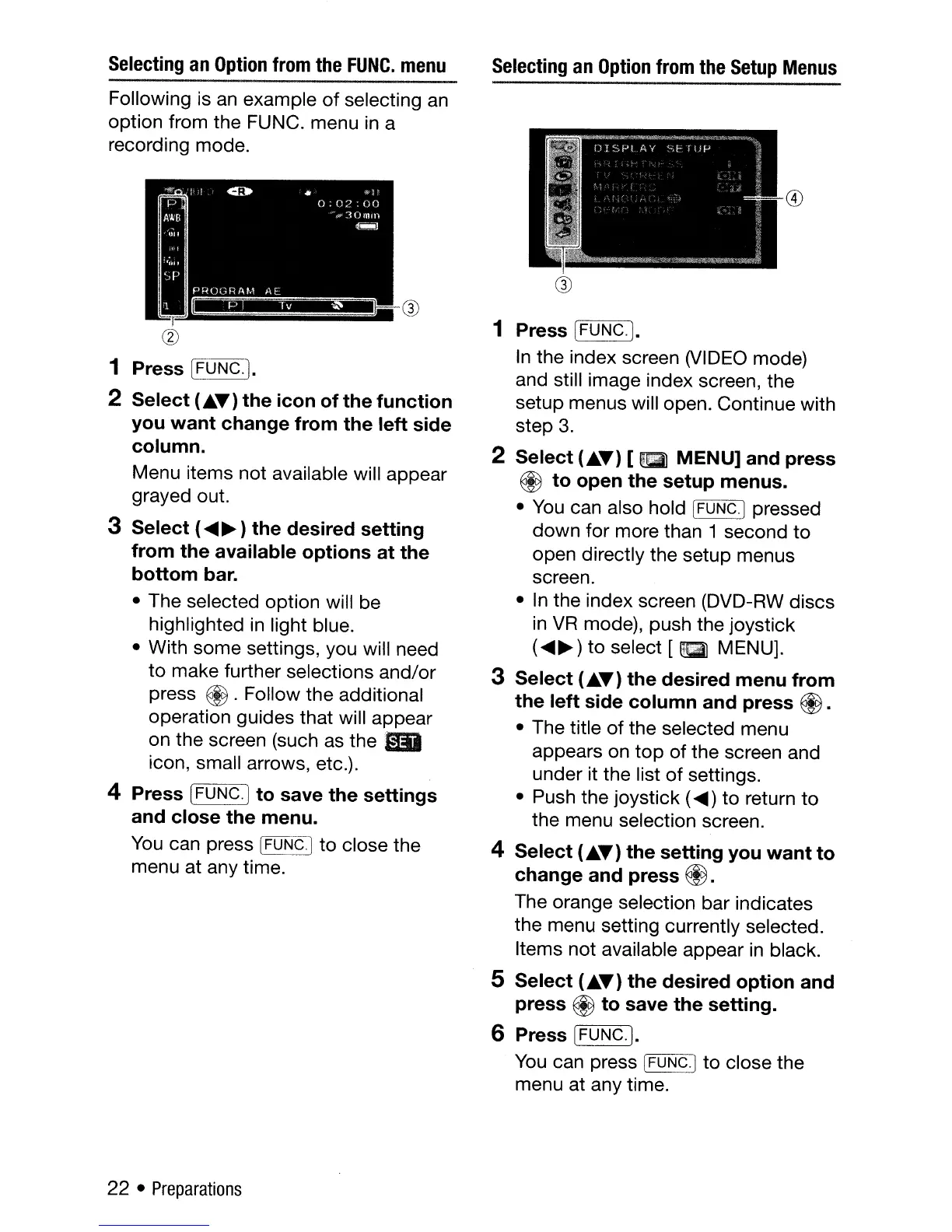
Following is
an
example
of
selecting
an
option from the FUNC. menu
in
a
recording mode.
cv
1 Press [FUNG. ].
2 Select
(.'Y)
the icon of the function
you want change from the left side
column.
Menu items not available will appear
grayed out.
3 Select (
....
~)
the desired setting
from the available options at the
bottom bar.
• The selected option will be
highlighted
in
light blue.
• With some settings, you will need
to make further selections and/or
press
@.
Follow the additional
operation guides that will appear
on the screen (such as the
lID
icon, small arrows, etc.).
4 Press [FUNG.] to save the settings
and close the menu.
You
can press [FUNC.]
to
close the
menu at any time.
22 •
Preparations
Selecting
an
Option
from
the
Setup
Menus
1 Press [FUNG.).
In
the index screen (VIDEO mode)
and still image index screen, the
setup menus will open. Continue with
step
3.
2 Select
(.'Y)
[
&!la1
MENU] and press
~
to open the setup menus.
•
You
can also hold I
FUNC.]
pressed
down for more than 1 second to
open directly the setup menus
screen.
•
In
the index screen (DVD-RW discs
in
VR
mode), push the joystick
(
....
~)
to select [
FEil
MENU].
3 Select
(.'Y)
the desired menu from
the left side column and press @ .
• The title of the selected menu
appears on
top
of the screen and
under it the list
of
settings.
• Push the joystick (
....
)
to
return
to
the menu selection screen.
4 Select
(.'Y)
the setting you want to
change and press
@.
The orange selection bar indicates
the menu setting currently selected.
Items not available appear
in
black.
5 Select
(.'Y)
the desired option and
press @ to save the setting.
6 Press [FUNG.).
You
can press!
<=F7":":UN:-:-:C::--O.j
to
close the
menu at any time.



 To Next Page