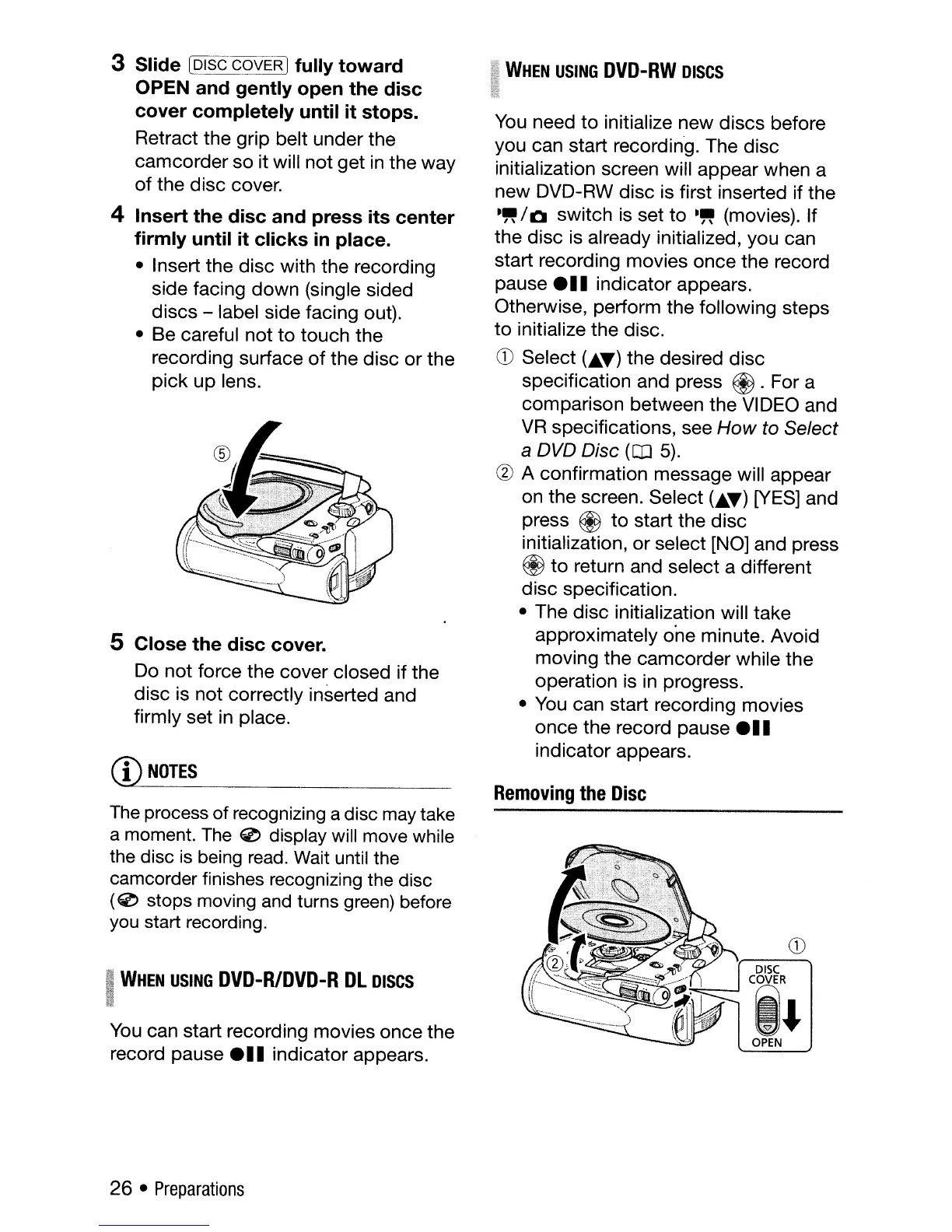
3 Slide (DISC COVER Ifully toward
OPEN and gently open the disc
cover completely until it stops.
Retract the grip belt under the
camcorder so it will not get
in
the way
of the disc cover.
4 Insert the disc and press its center
firmly until it clicks
in
place.
• Insert the disc with the recording
side facing down (single sided
discs - label side facing out).
• Be careful not to touch the
recording surface
of
the disc or the
pick up lens.
5 Close the disc cover.
Do not force the cover closed if the
disc is not correctly inserted and
firmly set
in
place.
CD
NOTES
The
process of recognizing a disc
may
take
a moment.
The
'1:>
display will move while
the disc
is
being
read.
Wait until the
camcorder finishes recognizing the disc
(0
stops moving
and
turns
green)
before
you
start recording.
i
WHEN
USING
DVD-R/DVD-R
Dl
DISCS
I
You
can start recording movies once the
record pause e
..
indicator appears.
26 •
Preparations
I
WHEN
USING
DVD-RW
DISCS
im
:~::f
You
need to initialize new discs before
you can start recording. The disc
initialization screen will appear when a
new DVD-RW disc is first inserted if the
-"
/ 0 switch
is
set
to
-"
(movies). If
the disc
is
already initialized, you can
start recording movies once the record
pause e
..
indicator appears.
Otherwise, perform the following steps
to
initialize the disc.
CD
Select
(.~)
the desired disc
specification and press
@.
For a
comparison between the VIDEO and
VR
specifications, see
How
to Select
a DVD Disc
(OJ
5).
@ A confirmation message will appear
on the screen. Select
(.~)
[YES]
and
press @ to start the disc
initialization, or select [NO] and press
@ to return and select a different
disc specification.
• The disc initialization will take
approximately
o'ne
minute. Avoid
moving the camcorder while the
operation is
in
progress.
•
You
can start recording movies
once the record pause e
••
indicator appears.
Removing
the
Disc
CD
DISC
Cit
OPEN



 To Next Page