CD
NOTES
Print setting options and
[DEFAULT]
settings vary depending on the printer
model. For details, refer to the printer's
instruction manual.
Printing
after
Changing
the
Print
settings
/
~
'\
.0
I
I~~
~~I
1 Press @
to
display
the
joystick
guide.
2 Push
the
joystick
(T)
toward
~.
The
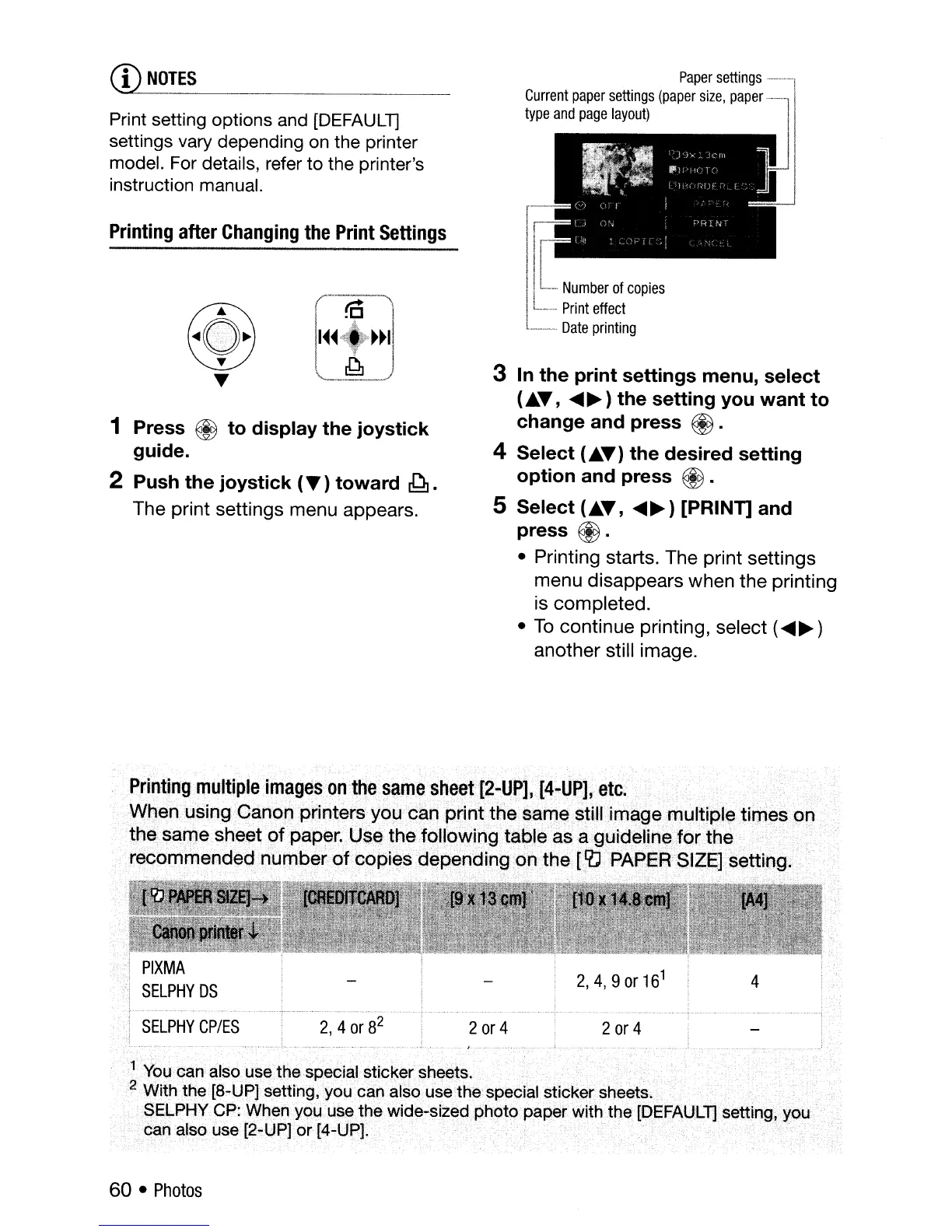
print settings menu appears.
Paper
settings
_._."
Current
paper
settings
(paper
size,
paper
···'l
type
and
page
layout)
f-··
II
II
L_
Number
of
copies
I
L_
...
Print
effect
!
L.......
Date
printing
3 In
the
print
settings
menu,
select
(AT,
~~)
the
setting
you
want
to
change
and
press
@.
4
Select
(AT)
the
desired
setting
option
and
press
@.
5
Select
(AT,
~~)
[PRINT]
and
press
@.
• Printing starts. The print
settings
menu
disappears
when
the
printing
is
completed.
•
To
continue
printing, select (
~~
)
another
still image.
2
or
4
2,
4,
9
or
16
1
4
2
or
4
2,4
or
8
2
SELPHY
CPIES
Printing
mUltiple
images
on
the
same
sheel[2-UP],I4
..
UP],etc... ..
..'
.
Whenusing Canon
print~rs
you can print the ssmestillimagemultiple
ti[)1~s'on'
..
'
thesame sheet
of
paper.
Us~
the following
table
as
aguidelihe,forth~
.recommended number
of
copies
dep~hding
art
thel~
PAPER
SIZE] setting.
.
',.
/ .
1
You
can
also
use
the special sticker
sheets.
. .
..
2 Withthe [8-lJP] setting,
you
can
also
use
the speCial sticker
sheets.
.'
..'
SELPHYCP:
When
yqu
use
thewide':sizedphoto paperwith'the
[DEFAULT]
setting, you.
c~f1a.lsouse
[2-UPlor[4·,up]. . .
60 •
Photos



 To Next Page