39
1
2
3
4
5
Introduction
Contents at
a Glance
Basic
Operation
Advanced
Operation
Advanced
Image Editing
and Printing
Editing
JPEG/TIFF
Images
Index
Processing
Large Numbers
of Images
Reference
4
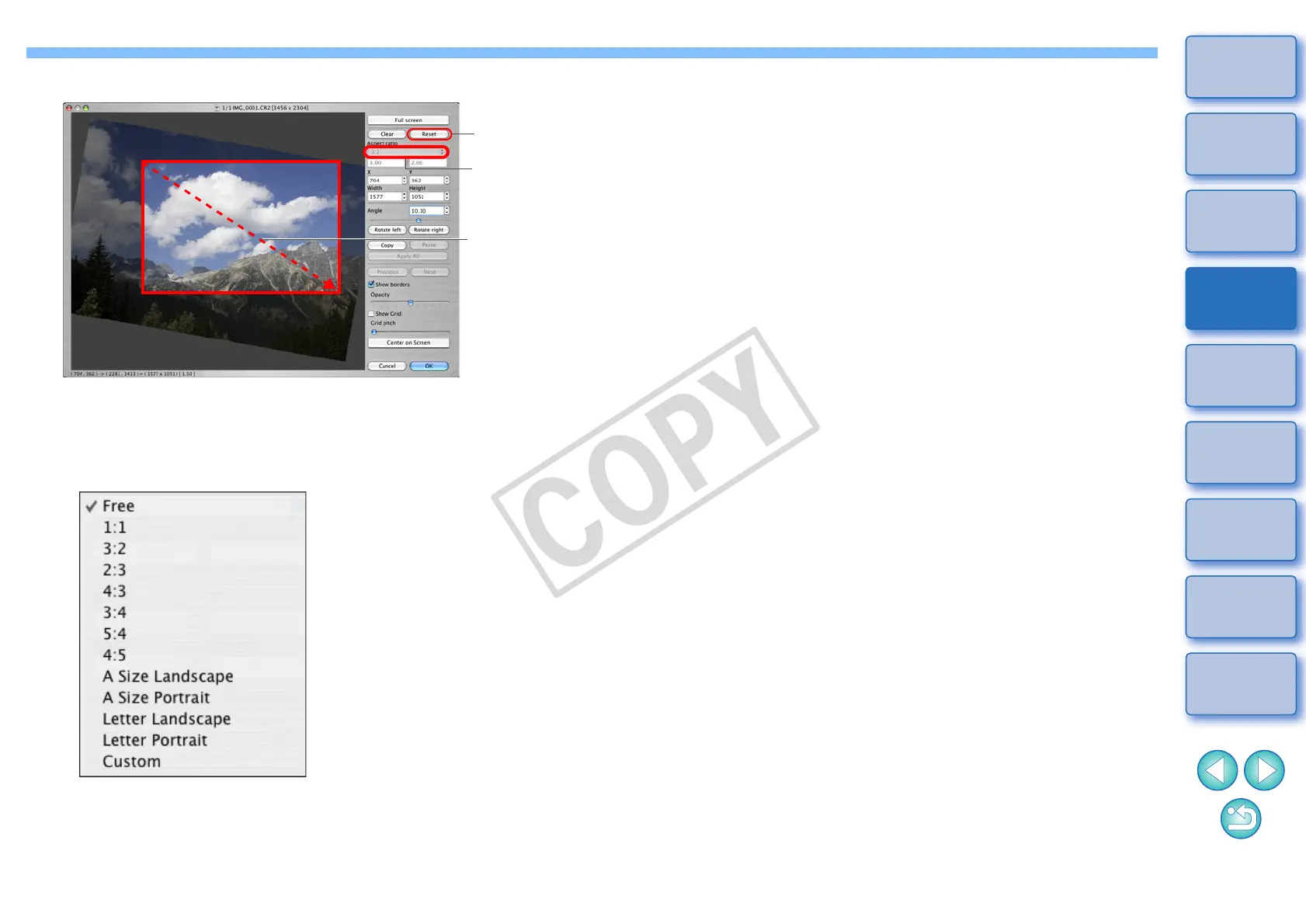
Select a ratio and drag the trimming range.
O The trimming range can be moved by dragging.
O You can enlarge or reduce the size of the trimming range by
dragging the four corners of the trimming range.
O List of aspect ratios (width : height)
[Free]: You can trim an image to any size, regardless of the
selectable ratio.
[Custom]: You can trim an image at the specified ratio.
Cancel
Select a
trimming
ratio
Drag the
trimming
range
5
Click the [OK] button to return to the main window.
¿ The trimming range frame is displayed in the trimmed image
(p.112).
¿ When the trimmed image is displayed in an edit window or the
edit image window, it is displayed in its trimmed form.




 To Next Page