49
1
2
3
4
5
Introduction
Contents at
a Glance
Basic
Operation
Advanced
Operation
Advanced
Image Editing
and Printing
Editing
JPEG/TIFF
Images
Index
Processing
Large Numbers
of Images
Reference
You can print one image on one sheet of paper.
1
Select the image to be printed.
2
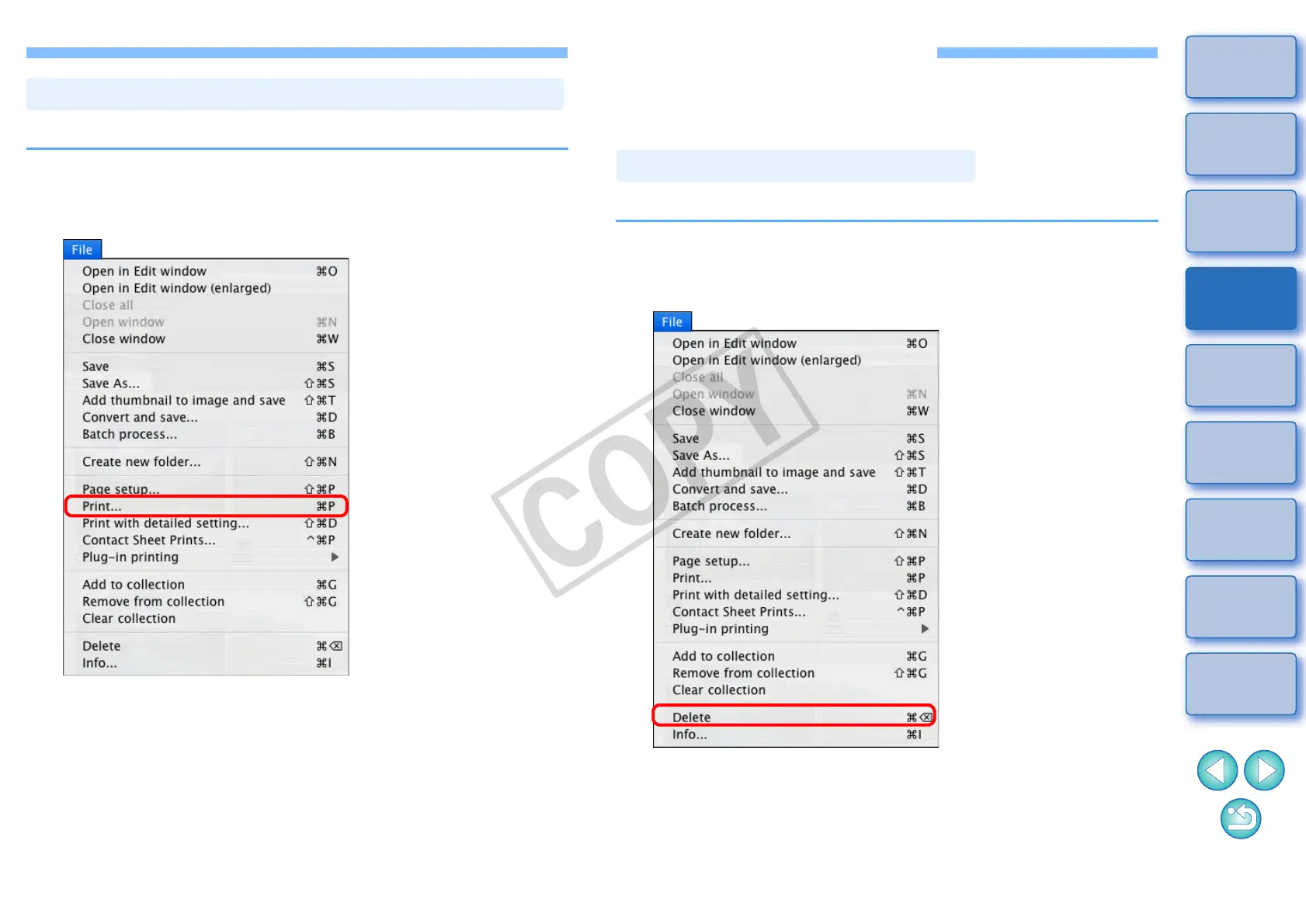
Select the [File] menu [Print].
¿ The [Print] dialog box appears.
3
Set to photograph printing and print.
O Specify the optimum settings for photograph printing in the
printer’s print settings dialog box and click the [Print] button.
¿ Printing begins.
Printing Photographs with a Printer other than Canon Inkjet Printers
Organizing Images
This section explains how to delete unwanted images, create folders for
saving images, move or copy images, etc., and organize your images.
Be aware that you cannot recover deleted images.
1
Select an unwanted image in the main window.
2
Select the [File] menu [Delete].
¿ The image is moved to the [Trash] and is deleted from DPP.
O The images are deleted completely from your computer by
selecting the [Finder] menu [Empty Trash] on the desktop.
Deleting an Unwanted Image




 To Next Page