27
• When Using a TCP/IP Network
TCP/IP Connection P. 28
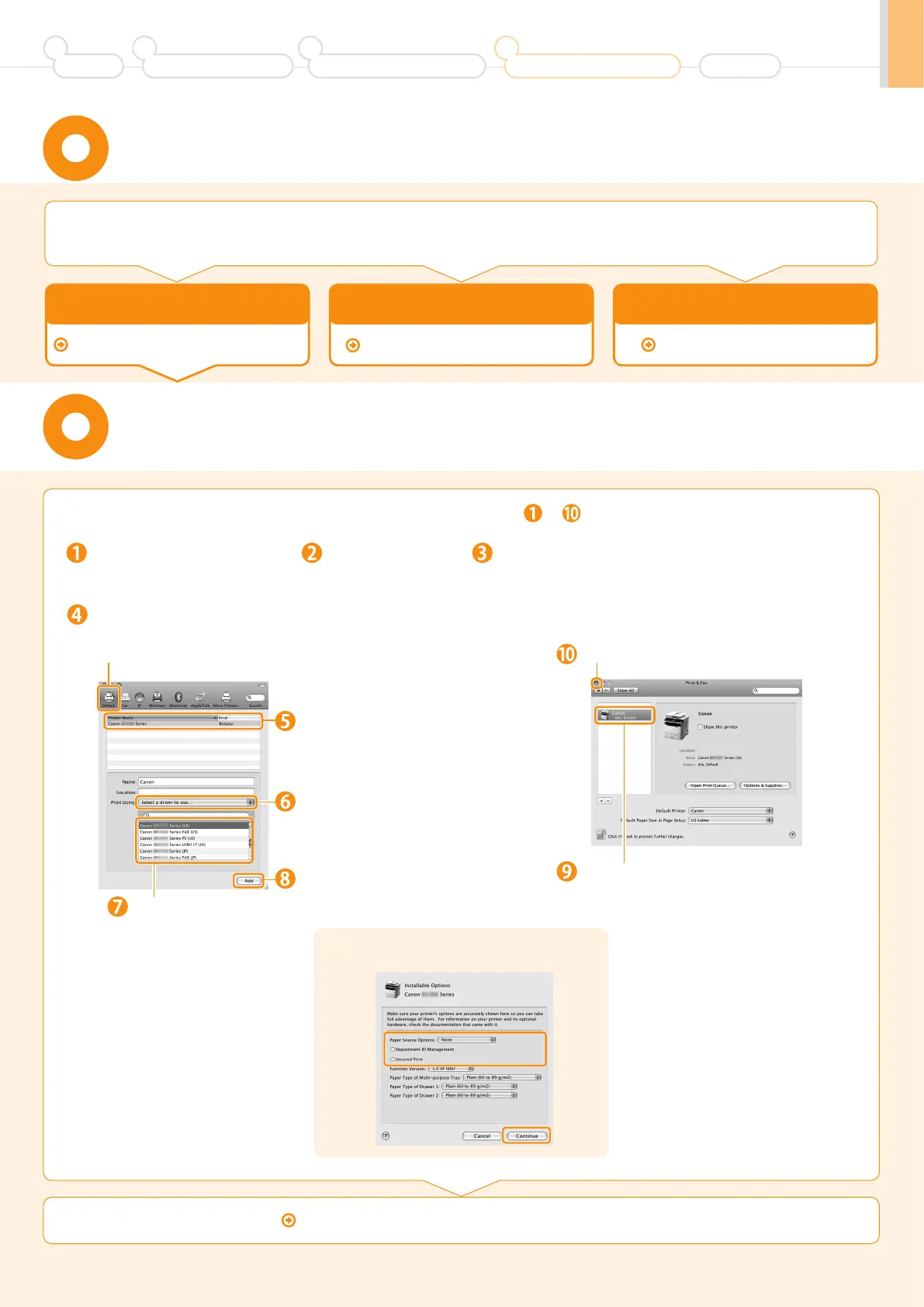
To print or send faxes from a Macintosh, you need to register this machine in the Macintosh.
The registration method varies depending on the connection type. Select a method according to your environment.
* The scanning function does not need to be registered.
• When Connecting with a USB Cable
• When Using Auto IP (Bonjour)
USB Connection P. 29
Bonjour Connection P. 27
Open [System Preferences]. Click [Print & Fax]. Click the [+] icon.
If you are using Mac OS X 10.4.x, click [Print] in the
[Print & Fax] dialog box to display the [Print] pane,
and then click the [+] icon.
Select.
If you are using Mac OS X 10.4.x,
select [Default Browser].
Check that this machine is added to
the [Print & Fax] dialog box.
Click.
Checking the Installation Results P. 29
Register the printer and fax respectively following the procedure from to .
Registering the Printer and Fax
(For Macintosh)
Bonjour Connection
If the following screen appears, specify the
optional settings, and then click [Continue].
(For Macintosh)
Select.
Select a printer name for which
[Bonjour] is displayed in the [Kind]
or [Connection] column.
If you are using Mac
OS X 10.6.x, select the
corresponding driver
from the separate
dialog box, and then
click [OK].
If you are using Mac OS X 10.4.x,
select [Canon] from [Print Using].
Select.
Select.
Click.
Preface
1
Installing the Machine
2
Configuring and Connecting the Fax
3
Connecting to a Computer and
Installing the Drivers
4
Appendix







 To Next Page