2-24
2
Installing the Canon Advanced Printing Technology
4 Enter the network path or print queue that you want to connect to, or use Browse… to open
the Browse for Printer dialog to select the printer.
NOTE
• Depending on your network environment, the installation of the driver may be
carried out automatically. In this case you needn’t perform steps 5 to 8 below.
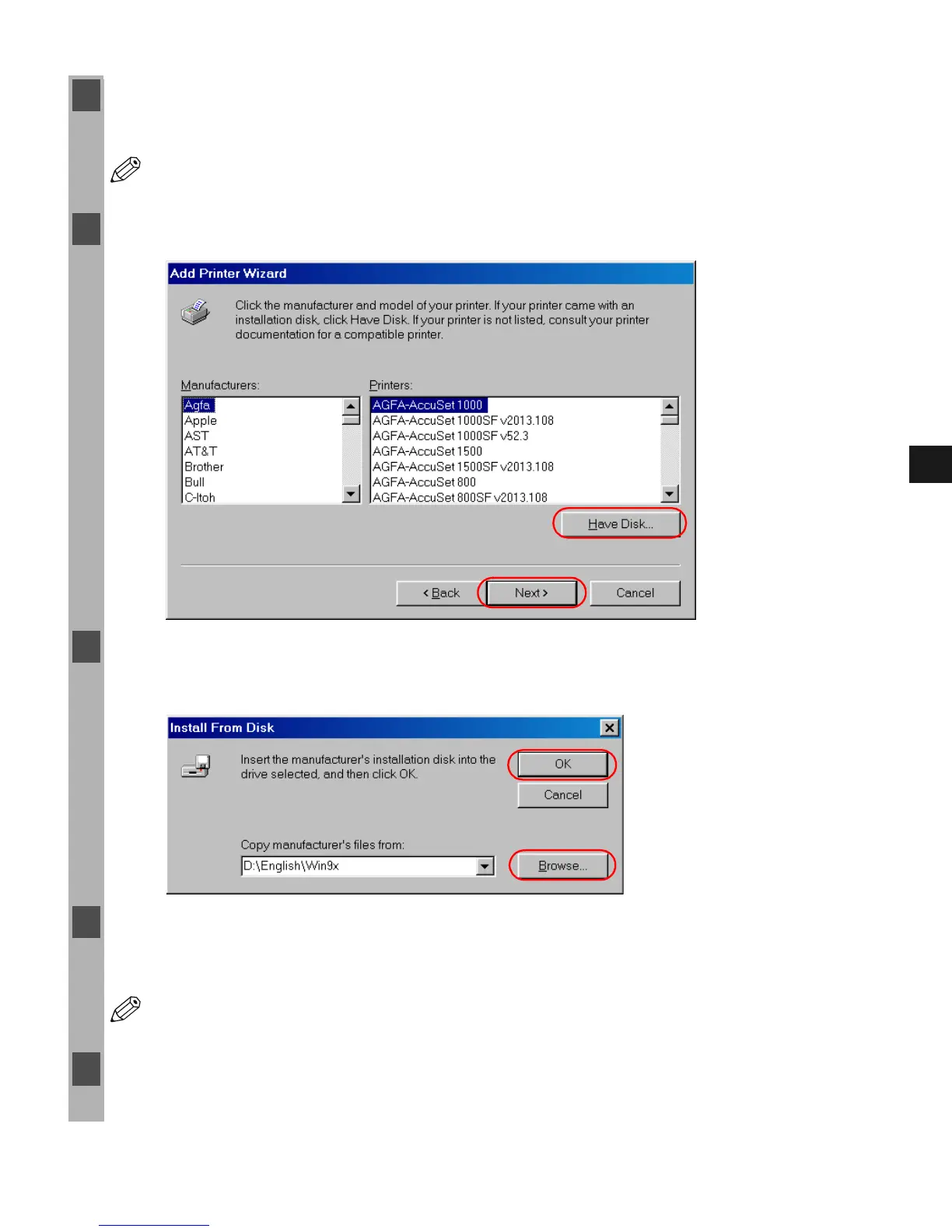
5 The Wizard displays a list of available printers. Click Have Disk….
6 The Install From Disk dialog box appears. Use Browse… to select the directory or enter the
path name that contains the printer software, then click OK.
7 If the server is a Windows 95/98/Me computer, you can enter a name for the printer, or
accept the default name and click Next >.
NOTE
• If the connection fails you’ll be able to install the printer but you will not be able to
use the printer until it comes back online.
8 Follow the instructions on screen to complete installation.














 To Next Page