4-2
4
Checking the Status of a Print Job
The Canon PC1200/iC D600/iR1200G Status Window opens automatically in the following
situations:
• When you print a document, provided “While Printing” is selected for “Display Printer
Status Window” the Option Settings dialog box of the Status Window.
• When an error occurs or user action is required.
• When Windows starts, if the Status Window was open the last time Windows was closed.
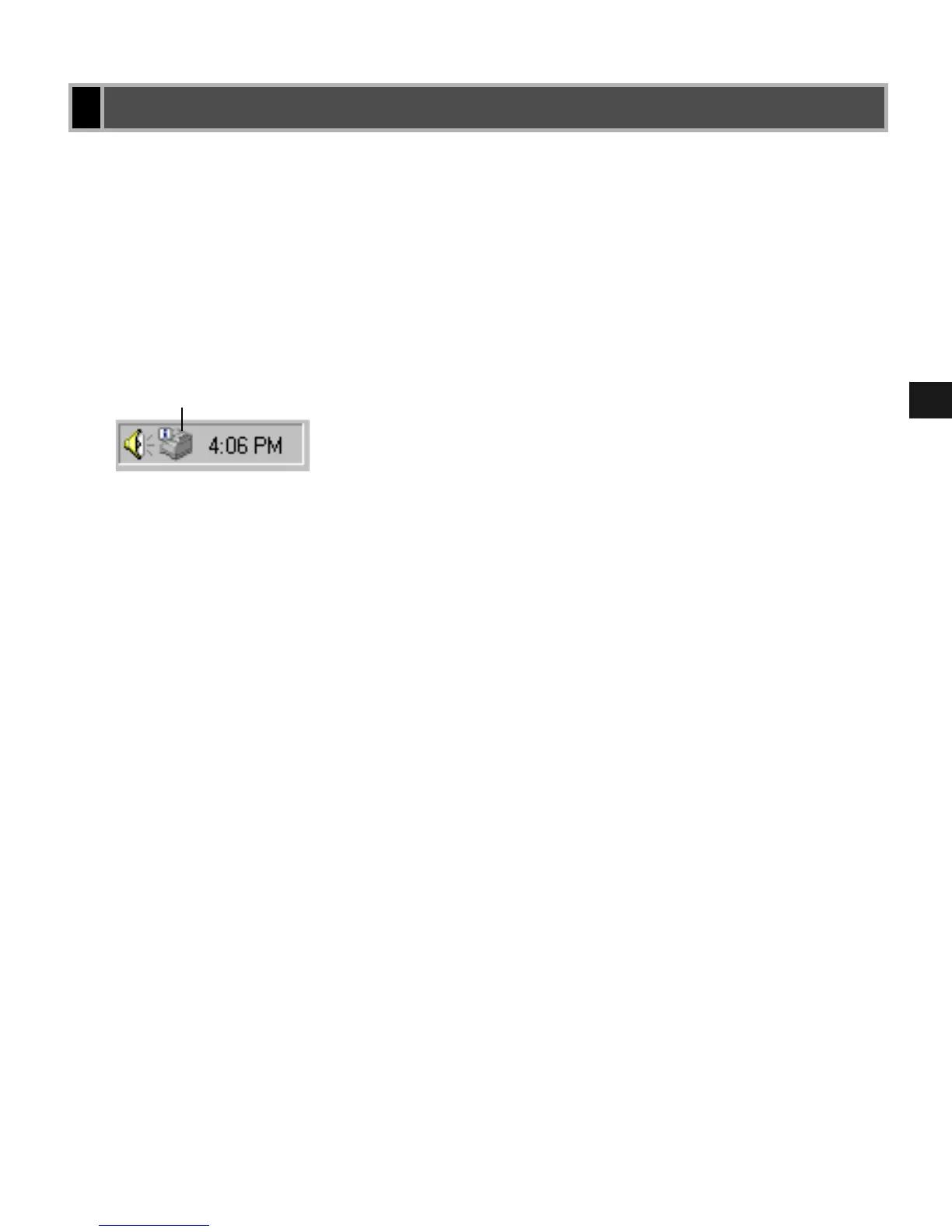
You can also open the Status Window by clicking on the Status Window icon in the Windows
taskbar and selecting the Canon PC1200/iC D600/iR1200G.
If multiple imageCLASS D600 series machines are connected, select a printer from the list.
The Status Window opens and displays information for the selected printer.
Opening the Status Window
Opening the Status WindowOpening the Status Window
Opening the Status Window
Status Window icon














 To Next Page