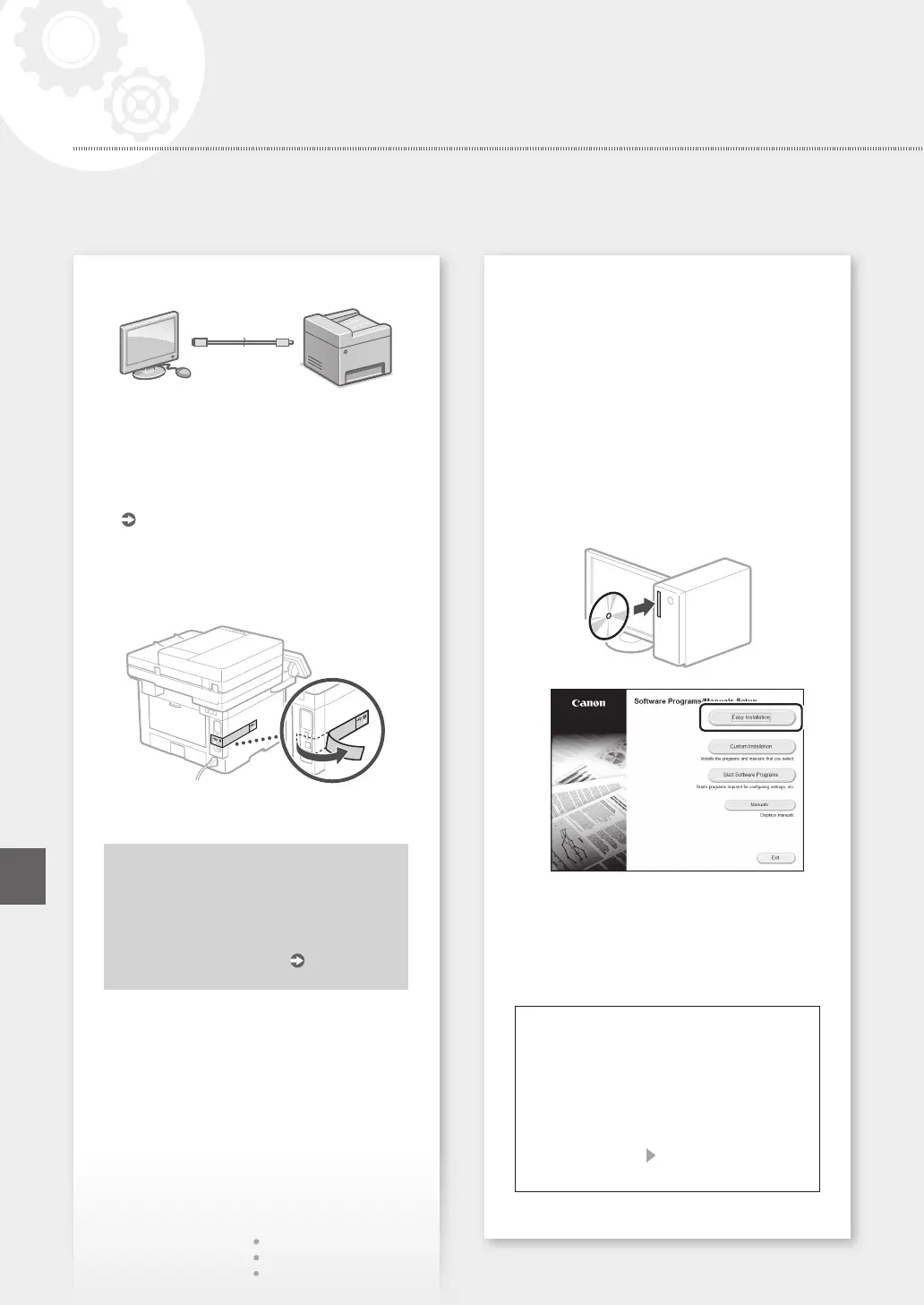
To connect via USB
DonotconnecttheUSBcablebeforeinstalling
the driver. If you did, disconnect the USB cable
from the computer, close the dialog box, and then
perform the following procedure from step 1.
1.
Install the driver and software.
P.10 "Installing the software"
•Whenascreenwithinstructionsfor
connecting the USB cable to the machine is
displayed, remove the sticker that covers the
USB port.
Now you are finished with the
configuration of the initial settings.
If your machine is provided with the fax
function, proceed to configuring
the fax settings.
P.11
Installing the software
•Theproceduredescribedhereisonlyapplicable
whenyourcomputerrunsontheWindowsOS.
For more details on the software installation
procedure, see the driver's manual.
•Fortheinstallationwhenyourcomputerrunson
themacOS,seethedriver'smanual.
•Yourmachinemaynotcomewiththedriverfor
themacOS,dependingonthetimeofpurchase.
New drivers are uploaded to the Canon website,
and you can download and use the latest one.
1.
2.
If the screen is not displayed properly, re-
inserttheCD-ROM/DVD-ROMorsearchfor
"D:\MInst.exe"ontheWindowsplatform(This
descriptionassumesthat"D:"istheCD-ROM/
DVD-ROMdrivename).
Using the scanner conveniently
Configuring the network settings with "Send
Function Setting Tool" allows you to directly
send scanned originals with e-mail or I-Fax
or store them in a shared folder or on the FTP
server.
In the screen displayed in step 2, select [Start
Software Programs] [Send Function Setting
Tool] to start the Send Function Setting Tool.
10
Conguring the Machine
Quick Setup
En





 To Next Page