Why do documents feed, but no scanned images are saved from my Canon Scanner?
- JJose GutierrezSep 23, 2025
If Panel-Feeding is selected as the feeding method, scanning does not occur until the scan button is clicked on the scan panel.
Why do documents feed, but no scanned images are saved from my Canon Scanner?
If Panel-Feeding is selected as the feeding method, scanning does not occur until the scan button is clicked on the scan panel.
What to do if documents jam (or double-feed) in my Canon Scanner?
If documents are jamming or double-feeding in your Canon Scanner, try cleaning the feed rollers. Additionally, fan the documents before loading them into the scanner.
Why are no scanned images saved when documents feed through my Canon Scanner?
If your Canon Scanner feeds documents but no scanned images are saved, and Panel-Feeding is selected as the feeding method on the scanner driver’s setting screen, scanning does not occur until the scan button is clicked on the scan panel after a document is fed.
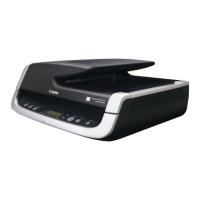
Why is my Canon imageFORMULA DR-2020U not recognized by my computer?
There are several reasons why your Canon Scanner might not be recognized: * Ensure the scanner is properly connected to the computer with a USB cable. * Confirm that the scanner is turned on. * The computer's USB interface may not support the scanner. The scanner cannot be guaranteed to work with all USB interfaces. * Make sure you are using the USB cable supplied with the scanner. * If you're using a USB hub, try connecting the scanner directly to the computer. * Try disconnecting and reconnecting the USB cable.
What to do if an error message is displayed on Canon imageFORMULA DR-2020U?
An error message may appear for several reasons: * A paper jam has occurred: Remove the jammed paper. * The scanner cover or upper unit is open: Close the scanner cover or upper unit. * The lock switch is locked: Unlock the lock switch. * The ADF connector is disconnected: Insert the ADF connector all the way. * Scanning stopped due to document double-feed: Check the scanned images to confirm how much of the document was scanned, and continue scanning accordingly.
Why does the “Warming up” message appears on my Canon Scanner?
When the “Warming up” message appears, scanning will begin after the scanner finishes warming up, which may take up to 30 seconds.
What to do if my Canon imageFORMULA DR-2020U Scanner is not turning on?
First, confirm that the power switch is set correctly. Then, check that the AC adapter is firmly plugged into a power outlet.
Why are documents feeding askew on my Canon imageFORMULA DR-2020U (scanned images are slanted)?
If your documents are feeding askew, align the document guides to fit the documents as closely as possible, and load the documents so that they feed straightly. You can also enable the [Deskew] scanner driver setting. If the issue continues, clean the rollers. If documents still feed askew, roller replacement or other maintenance may be needed.
How to fix an error message displayed on my Canon imageFORMULA DR-2020U Scanner?
If your Canon Scanner is displaying an error message, you should first confirm the nature of the error and attempt to resolve the problem. Some common error causes and solutions include: * Paper jammed in scanner: Remove the jammed paper. * The scanner cover or upper unit is open: Close the scanner cover or upper unit. * Lock switch is engaged: Unlock the lock switch. * Feeder is not connected: Insert the ADF connector all the way. * A double paper-feed has occurred: Check the scanned images to confirm how much of the document was scanned, and continue scanning accordingly.
What to do if white lines or streaks appear in scanned images from Canon imageFORMULA DR-2020U Scanner?
If you notice white lines or streaks, try cleaning both sides of the scanner glass and the rollers (both rubber and metal). If the issue persists and you find a sticky substance like glue, carefully wipe the affected area. If the internal glass is scratched, contact your local authorized Canon dealer.
Legal terms governing the use of scanner software and accompanying documentation.
Overview of provided documentation including Reference Guide and User Manual.
Critical safety warnings and precautions for scanner operation and installation.
Environmental requirements for optimal scanner performance and safety.
Guidelines for connecting and using the scanner's power adapter and cord safely.
Instructions for proper disposal of the scanner and AC adapter according to local regulations.
Describes using the feeder, flatbed, and business card feeder for scanning documents.
Details features like Auto Paper Size Detection, Text Orientation, and Deskew.
Covers scanning capabilities in color, grayscale, and monochrome with enhancement modes.
Lists compatible operating systems for scanner software installation and operation.
Specifies the minimum hardware requirements for CPU, memory, hard disk, and monitor.
Identifies and describes parts on the front of the scanner.
Explains the buttons and display panel for scanner operation.
Identifies and describes connectors on the rear of the scanner.
Details the three methods: feeder, flatbed, and business card feeder.
Guidelines for preventing paper jams and damage when using the document feeder.
Step-by-step instructions for loading documents into the document feeder.
Instructions for placing documents on the flatbed scanner glass for scanning.
Procedure for loading business cards into the dedicated feeder.
Lists and describes the scanning software included with the scanner.
Explains the role of the ISIS/TWAIN driver for scanner operation.
Highlights key functionalities and user interface of the CaptureOnTouch application.
Overview of configuring various scan settings like color mode, page size, and resolution.
Procedure for initiating scans using the scanner's START button with default settings.
How to use predefined or custom job buttons on the scanner for scanning operations.
Explains how to register and use custom scan jobs with the scanner's operation panel buttons.
How to initiate scans using the CaptureOnTouch icon in the Windows taskbar.
Describes launching CaptureOnTouch via its main screen for scanning.
Introduces CapturePerfect 3.0 and its available scanning methods.
How to scan multiple documents and save them as files to a specified folder.
Registering and executing scan configurations as jobs for automated scanning.
Overview of the ISIS/TWAIN driver interface and its four main tabs.
How to save and recall custom scanning configurations as user preferences.
Adjusting brightness and contrast settings for scanned images.
Configuring image enhancements like edge emphasis, color smoothing, and border removal.
Settings for double feed detection and prescan options.
Setting fundamental scanning parameters like Mode, Page Size, Dots per inch, and Scanning Side.
How to define a custom scanning area on the document.
Setting the scanner to skip blank pages in duplex scans.
Using color drop-out to omit specific colors from scanned images.
Adjusting the edge emphasis setting to improve image contours.
Using Advanced Text Enhancement modes to improve text readability.
Configuring double-feed detection to halt scanning automatically.
Steps to access the scanner's properties screen in Windows Vista.
Setting the wait time before the scanner enters sleep mode.
Linking scanner power ON/OFF with the computer's power status.
General instructions for regular cleaning to maintain scanning performance.
How to clean the exterior of the scanner using a damp cloth.
Cleaning dust and paper particles from the document feeder inlet.
Cleaning the glass and pressure board to prevent image streaks.
Cleaning internal parts to resolve image smearing issues.
A guide to resolving frequent issues encountered with the scanner.
Solutions for paper jams and double-feeding issues.
Troubleshooting steps for various error messages displayed by the scanner.
Instructions for saving scanned files to a network shared folder.
Guide for removing scanner software and drivers from the computer.
Technical specifications of the scanner, including dimensions, speed, and power.
Information on available replacement parts like roller units and separation pads.
Diagrams showing the physical dimensions of the scanner.
Legal terms governing the use of scanner software and accompanying documentation.
Overview of provided documentation including Reference Guide and User Manual.
Critical safety warnings and precautions for scanner operation and installation.
Environmental requirements for optimal scanner performance and safety.
Guidelines for connecting and using the scanner's power adapter and cord safely.
Instructions for proper disposal of the scanner and AC adapter according to local regulations.
Describes using the feeder, flatbed, and business card feeder for scanning documents.
Details features like Auto Paper Size Detection, Text Orientation, and Deskew.
Covers scanning capabilities in color, grayscale, and monochrome with enhancement modes.
Lists compatible operating systems for scanner software installation and operation.
Specifies the minimum hardware requirements for CPU, memory, hard disk, and monitor.
Identifies and describes parts on the front of the scanner.
Explains the buttons and display panel for scanner operation.
Identifies and describes connectors on the rear of the scanner.
Details the three methods: feeder, flatbed, and business card feeder.
Guidelines for preventing paper jams and damage when using the document feeder.
Step-by-step instructions for loading documents into the document feeder.
Instructions for placing documents on the flatbed scanner glass for scanning.
Procedure for loading business cards into the dedicated feeder.
Lists and describes the scanning software included with the scanner.
Explains the role of the ISIS/TWAIN driver for scanner operation.
Highlights key functionalities and user interface of the CaptureOnTouch application.
Overview of configuring various scan settings like color mode, page size, and resolution.
Procedure for initiating scans using the scanner's START button with default settings.
How to use predefined or custom job buttons on the scanner for scanning operations.
Explains how to register and use custom scan jobs with the scanner's operation panel buttons.
How to initiate scans using the CaptureOnTouch icon in the Windows taskbar.
Describes launching CaptureOnTouch via its main screen for scanning.
Introduces CapturePerfect 3.0 and its available scanning methods.
How to scan multiple documents and save them as files to a specified folder.
Registering and executing scan configurations as jobs for automated scanning.
Overview of the ISIS/TWAIN driver interface and its four main tabs.
How to save and recall custom scanning configurations as user preferences.
Adjusting brightness and contrast settings for scanned images.
Configuring image enhancements like edge emphasis, color smoothing, and border removal.
Settings for double feed detection and prescan options.
Setting fundamental scanning parameters like Mode, Page Size, Dots per inch, and Scanning Side.
How to define a custom scanning area on the document.
Setting the scanner to skip blank pages in duplex scans.
Using color drop-out to omit specific colors from scanned images.
Adjusting the edge emphasis setting to improve image contours.
Using Advanced Text Enhancement modes to improve text readability.
Configuring double-feed detection to halt scanning automatically.
Steps to access the scanner's properties screen in Windows Vista.
Setting the wait time before the scanner enters sleep mode.
Linking scanner power ON/OFF with the computer's power status.
General instructions for regular cleaning to maintain scanning performance.
How to clean the exterior of the scanner using a damp cloth.
Cleaning dust and paper particles from the document feeder inlet.
Cleaning the glass and pressure board to prevent image streaks.
Cleaning internal parts to resolve image smearing issues.
A guide to resolving frequent issues encountered with the scanner.
Solutions for paper jams and double-feeding issues.
Troubleshooting steps for various error messages displayed by the scanner.
Instructions for saving scanned files to a network shared folder.
Guide for removing scanner software and drivers from the computer.
Technical specifications of the scanner, including dimensions, speed, and power.
Information on available replacement parts like roller units and separation pads.
Diagrams showing the physical dimensions of the scanner.
| power consumption | 33W or Less |
|---|---|
| energy saving mode consumption | 3.7W or Less |
| light source | CCFL |
| adf width | 5.5” – 8.5” |
|---|---|
| adf length | 3.9” – 14” |
| document weight for adf | 13 – 34 lb. Bond |
| optical resolution | 1200 dpi |
|---|---|
| output resolution | 100/150/200/240/300/400/600 dpi |
| color depth | 24-bit |
| black and white simplex speed | 20 ppm |
|---|---|
| black and white duplex speed | 40 ipm |
| color simplex speed | 20 ppm |
| dimensions | 7.1” x 17.3” x 15.7” |
|---|---|
| weight | 17.2 lb. |
| flatbed dimensions | 8.5” x 11.7” (maximum) |