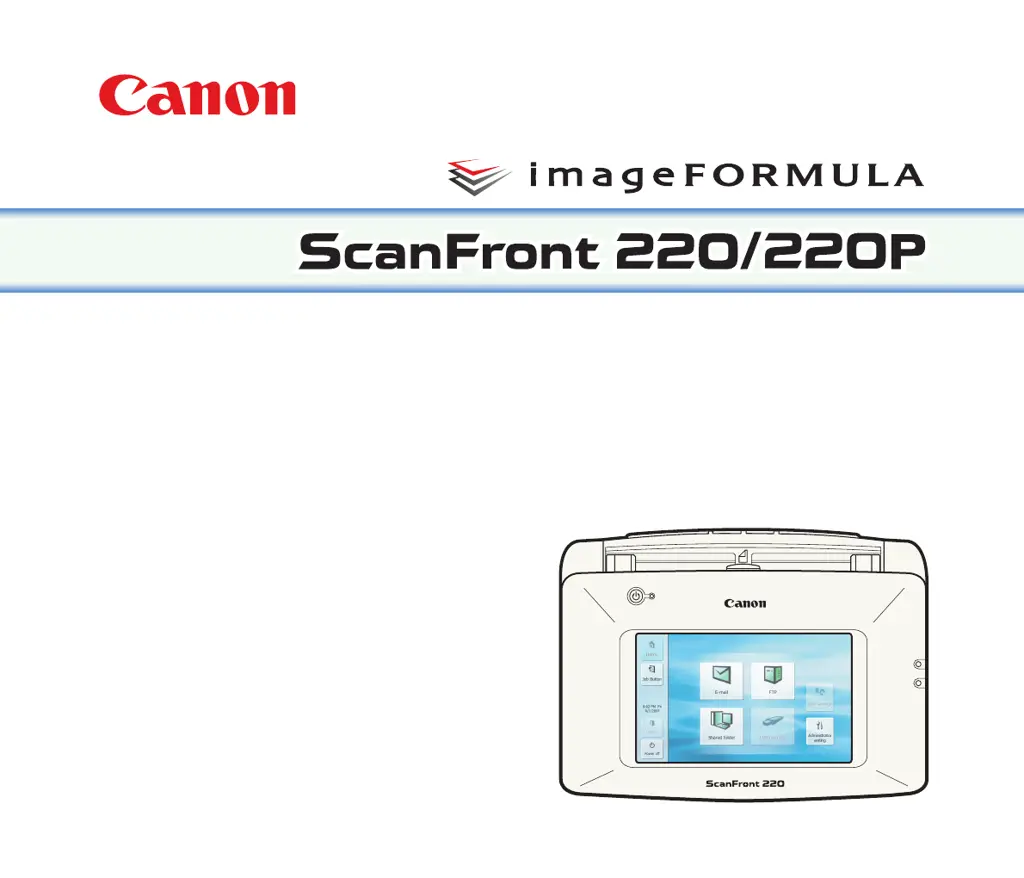
Why I cannot edit address book on Canon Scanner?
- MMolly ReynoldsSep 10, 2025
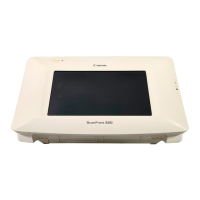
If you cannot edit the address book or job buttons on the Canon Scanner, the administrator has set user function restrictions. Contact the administrator of the ScanFront.
Why I cannot edit address book on Canon Scanner?
If you cannot edit the address book or job buttons on the Canon Scanner, the administrator has set user function restrictions. Contact the administrator of the ScanFront.
How to remove streaks from Canon Scanner images?
Streaks appearing in images from your Canon Scanner are likely due to a dirty scanning glass. Clean the scanning glass to resolve this. If there are scratches on a scanning glass, contact your local authorized Canon dealer.
What to do if Canon Imageformula scanfront 220 Scanner won't turn on?
If your Canon Scanner cannot turn on, verify that the AC adapter is correctly connected and the power plug is properly inserted. If, after checking the connections, the problem persists, contact your local authorized Canon dealer.
Why Canon Imageformula scanfront 220 cannot connect to network due to IP address conflict?
If your Canon Scanner cannot connect to the network due to an IP address conflict, the IP address you have set is already in use by another device. Contact the system administrator of the network and request a change to the IP address setting.
What to do if Canon Imageformula scanfront 220 Scanner double feeds documents because of paper type?
If your Canon Scanner is double feeding documents, the type of paper being used may be causing a paper feed error. Load no more than ten pages of documents at a time. Use bypass feeding to scan the pages one by one.
Why does Canon Scanner display the wrong send time for emails?
If the wrong send time is displayed for an email message received from your Canon Scanner, it may be due to incorrect date and time settings or an incorrect time zone setting. Contact the administrator and check the “Language/Timezone” setting.
Why Canon Imageformula scanfront 220 cannot connect to FTP server outside the company?
The scanner cannot connect to an FTP server that requires firewall settings to be configured. Use an FTP server that does not require firewall settings to be configured.
Why I can only select certain destinations on Canon Imageformula scanfront 220?
If you can only select certain destinations on the Canon Scanner, the administrator has set user function restrictions. Contact the administrator of the ScanFront.
Why I cannot use LDAP address book on Canon Scanner?
If you cannot use an LDAP address book on the Canon Scanner, the administrator has set user function restrictions. Contact the administrator of the ScanFront.
Why I cannot update settings in Canon Scanner Web menu?
If you cannot update the settings in the Web menu of the Canon Scanner, the ScanFront is being used, or a user has not logged out. Check the ScanFront status and then try again.
Lists the model names provided for safety regulations in each sales region of the Network Scanner.
Identifies registered trademarks and brands associated with Canon and other companies.
Details copyright notices for software components and the overall manual content.
Overview of the scanner's capabilities, including network connectivity and remote operation.
Lists the available manuals: Setup Guide, Operation Guide, and Electronic Manuals.
Explains symbols used in the manual for warnings, cautions, important information, and hints.
Critical safety precautions for installation, power, and general handling of the scanner.
Highlights key functionalities like network scanning, modes, and USB support.
Identifies and explains the components of the scanner's front, side, and rear.
Details network requirements and directory service support (AD, LDAP).
Environmental requirements for optimal scanner placement and performance.
Instructions for safe electrical connection and power handling of the scanner.
Precautions to take when physically moving the scanner unit.
Safety guidelines for using the scanner, including chemical and electrical hazards.
Actions that may damage or cause malfunction of the fingerprint sensor.
Procedures for safely disposing of the scanner according to regulations.
Information on document types, sizes, and thicknesses that can be scanned.
Steps for preparing the scanner, including feed trays, levers, and ports.
Procedures for correctly loading documents and cards into the scanner.
Steps to resolve paper jams or double feed detection errors.
Guidelines for handling and using the fingerprint sensor for authentication.
Details on size, thickness, and types of plain paper for scanning.
Size and thickness requirements for scanning business cards.
Size and thickness requirements for scanning cards, including insertion orientation.
Instructions for preparing the document feed and eject trays for scanning.
How to change the lever for page separation or bypass feeding.
Information on connecting USB devices for saving files or connecting peripherals.
Instructions for connecting PS/2 keyboards and mice to the scanner.
Step-by-step guide for loading documents into the feed tray correctly.
Procedure for loading cards into the scanner, including orientation and feed settings.
Warnings and precautions to prevent damage to the fingerprint sensor.
Steps for performing fingerprint authentication and factors affecting performance.
Prerequisites for setup, including moving the scanner and connecting cables.
Procedures for turning the scanner's power on and off safely.
Overview of settings available for scanner configuration.
Steps to access and modify administrator settings.
Environmental conditions required for scanner installation.
Description of the physical ports and connectors on the scanner.
Step-by-step guide for connecting the scanner's AC power adapter.
Instructions for connecting the scanner to a network using an RJ-45 cable.
How to power on the scanner and what indicators to expect.
Safe procedure for powering off the scanner using the touch panel.
Lists administrator settings like network, password, and login type.
Details settings configurable via the Web Menu in Administrator Mode.
Steps to log into the administrator settings for configuration.
How to set device name, IP address, and network parameters.
Setting and managing the administrator password for security.
Procedures for backing up and restoring scanner configuration settings.
Choosing the screen displayed for user login (list or key-in).
Resetting the roller counter after replacing feed rollers.
Initializing the scanner to factory defaults, erasing all data.
Calibrating the touch panel for accurate input.
Changing the language displayed on the scanner's touch panel.
Introduction to the Web Menu interface and its capabilities.
Procedure for accessing the Web Menu using a browser.
Managing user accounts, restrictions, and access rights.
Registering and managing shared and personal address book entries.
Configuring and managing job buttons for quick scan operations.
Settings related to network, language, time, and device operation.
Configuring mail, authentication, address book, FTP, and NTP servers.
Managing backup, version updates, and log settings for the scanner.
Overview of Administrator Mode functions like User Admin, Address Books, and Device Config.
Overview of User Mode functions like User Settings, Address Books, and Job Buttons.
Interface for managing users, including registration, restrictions, and editing.
Steps to add new users, including authentication methods and login screens.
Configuring originating email addresses and default login screens.
Setting limitations on what functions users can access.
Modifying existing user information such as restrictions and address books.
Limiting scanner operations to specific job buttons or destination restrictions.
Procedures for editing user-specific address books and job buttons.
Options for selecting, exporting, importing, and managing address book entries.
Procedures for adding new email, FTP, shared folder, or group addresses.
Copying addresses between address books or within the same book.
Backing up and restoring address books using CSV files.
Options for registering, exporting, importing, and managing job buttons.
Setting job button names, colors, and scan behavior.
Configuring email subjects, file names, and delivery actions for job buttons.
Configuring basic scan conditions like paper size, mode, resolution, and file format.
Advanced scan settings including feed detection, orientation, and bleed-through.
Selecting and configuring TIFF, JPEG, and PDF file formats.
Adjusting compression ratios and quality for JPEG and PDF files.
Configuring encryption, passwords, and permissions for PDF files.
Settings for double feed, orientation, deskew, and bleed-through reduction.
Adjusting backside brightness/contrast and color drop-out effects.
Copying job button settings to create new or modified job buttons.
Backing up and restoring job button settings using DAT files.
Step-by-step process from powering on to sending scanned images.
Procedures for turning the scanner's power on and off.
Explains different login screen types and server authentication.
Describes the Home and Job Button screens displayed after successful login.
How to change user passwords and register fingerprints.
Procedures for registering and using fingerprints for login on ScanFront 220P.
Steps for performing scans from the Home screen or Job Button screen.
Adding new addresses and modifying existing entries in the address book.
Setting scan parameters and delivery options for sending images.
How to power on the scanner and what to expect.
Safe procedure for powering off the scanner.
Explains list type and key-in type login screens.
How server authentication affects the login screen and user registration.
Steps for logging in using the list type selection method.
Steps for logging in by entering username and password.
Procedure for fingerprint authentication on models with a sensor.
Overview of the Home screen and its destination selection buttons.
Overview of the Job Button screen for selecting scan jobs.
How to change the current user password.
Introduction to fingerprint registration for authentication.
Detailed steps for performing fingerprint authentication.
Step-by-step guide to register a fingerprint for authentication.
How to initiate scanning from the Home screen by selecting destinations.
How to initiate scanning using pre-configured job buttons.
Selecting scan destinations and viewing address details.
Specifying folders on USB memory for saving scanned images.
Steps to select destinations, confirm addresses, and start scanning.
Configuring scan parameters and delivery options before starting.
Reviewing scanned images and navigating between pages.
Procedures for adding new email, FTP, shared folder, or group addresses.
Steps to edit existing address book entries.
Copying addresses between address books or within the same book.
Setting basic scan conditions like paper size, mode, resolution, and brightness.
Advanced scan settings including feed detection, orientation, and bleed-through.
Selecting and configuring TIFF, JPEG, and PDF file formats.
Setting email subjects, file names, and overwrite actions.
Detailed options for paper size, mode, resolution, scanning side, and brightness.
Advanced settings including feed detection, skip blank page, orientation, and deskew.
Adjusting image orientation and straightening skewed documents.
Reducing bleed-through and adjusting image contrast.
Adjusting backside brightness/contrast and color drop-out effects.
Configuring settings for TIFF, JPEG, and PDF file formats.
Configuring PDF compression, quality, OCR, and encryption.
Restricting PDF permissions and configuring delivery options for email.
Setting actions for same-named files, immediate sending, and screen after sending.
Regular cleaning of scanner unit, touch panel, fingerprint sensor, glass, and rollers.
Procedures for replacing consumable parts like rollers and guides.
Instructions for cleaning the exterior scanner unit and the touch panel.
How to clean the fingerprint sensor to ensure proper authentication.
Steps to clean the scanning glass and internal rollers to prevent streaks.
Procedure for removing, cleaning, and reattaching the retard roller.
Procedure for removing, cleaning, and reattaching the feed roller.
Details about the roller replacement kit and consumable parts.
Steps for replacing the document holding guide component.
How to check page counts and reset the roller counter after replacement.
Common problems and their solutions, categorized by issue.
Explains error messages displayed on the scanner and how to resolve them.
Explains error messages encountered in the Web Menu and their solutions.
Procedure for calibrating the touch panel if it's unresponsive.
Steps to reset the scanner to factory defaults, erasing all data.
Addresses problems like LDAP access, Web menu updates, network connectivity, and jams.
Solutions for specific error messages related to FTP, SMTP, paper jams, and password mismatches.
Solutions for Web Menu errors like duplicate usernames, busy scanner, and registration limits.
Steps to recalibrate the touch panel using a stylus or pen.
Steps to format the scanner, reset all data, and prepare for setup.
Technical details including unit, network, and interface specifications.
Detailed specifications for type, panel, document scanning, thickness, and feeding methods.
Details on network protocols, IP addressing, server support, and transfer destinations.
Information on the AC adapter model and replacement kits for rollers.
Physical dimensions and weight of the scanner unit.
Alphabetical listing of topics covered in the manual for quick reference.
Lists the model names provided for safety regulations in each sales region of the Network Scanner.
Identifies registered trademarks and brands associated with Canon and other companies.
Details copyright notices for software components and the overall manual content.
Overview of the scanner's capabilities, including network connectivity and remote operation.
Lists the available manuals: Setup Guide, Operation Guide, and Electronic Manuals.
Explains symbols used in the manual for warnings, cautions, important information, and hints.
Critical safety precautions for installation, power, and general handling of the scanner.
Highlights key functionalities like network scanning, modes, and USB support.
Identifies and explains the components of the scanner's front, side, and rear.
Details network requirements and directory service support (AD, LDAP).
Environmental requirements for optimal scanner placement and performance.
Instructions for safe electrical connection and power handling of the scanner.
Precautions to take when physically moving the scanner unit.
Safety guidelines for using the scanner, including chemical and electrical hazards.
Actions that may damage or cause malfunction of the fingerprint sensor.
Procedures for safely disposing of the scanner according to regulations.
Information on document types, sizes, and thicknesses that can be scanned.
Steps for preparing the scanner, including feed trays, levers, and ports.
Procedures for correctly loading documents and cards into the scanner.
Steps to resolve paper jams or double feed detection errors.
Guidelines for handling and using the fingerprint sensor for authentication.
Details on size, thickness, and types of plain paper for scanning.
Size and thickness requirements for scanning business cards.
Size and thickness requirements for scanning cards, including insertion orientation.
Instructions for preparing the document feed and eject trays for scanning.
How to change the lever for page separation or bypass feeding.
Information on connecting USB devices for saving files or connecting peripherals.
Instructions for connecting PS/2 keyboards and mice to the scanner.
Step-by-step guide for loading documents into the feed tray correctly.
Procedure for loading cards into the scanner, including orientation and feed settings.
Warnings and precautions to prevent damage to the fingerprint sensor.
Steps for performing fingerprint authentication and factors affecting performance.
Prerequisites for setup, including moving the scanner and connecting cables.
Procedures for turning the scanner's power on and off safely.
Overview of settings available for scanner configuration.
Steps to access and modify administrator settings.
Environmental conditions required for scanner installation.
Description of the physical ports and connectors on the scanner.
Step-by-step guide for connecting the scanner's AC power adapter.
Instructions for connecting the scanner to a network using an RJ-45 cable.
How to power on the scanner and what indicators to expect.
Safe procedure for powering off the scanner using the touch panel.
Lists administrator settings like network, password, and login type.
Details settings configurable via the Web Menu in Administrator Mode.
Steps to log into the administrator settings for configuration.
How to set device name, IP address, and network parameters.
Setting and managing the administrator password for security.
Procedures for backing up and restoring scanner configuration settings.
Choosing the screen displayed for user login (list or key-in).
Resetting the roller counter after replacing feed rollers.
Initializing the scanner to factory defaults, erasing all data.
Calibrating the touch panel for accurate input.
Changing the language displayed on the scanner's touch panel.
Introduction to the Web Menu interface and its capabilities.
Procedure for accessing the Web Menu using a browser.
Managing user accounts, restrictions, and access rights.
Registering and managing shared and personal address book entries.
Configuring and managing job buttons for quick scan operations.
Settings related to network, language, time, and device operation.
Configuring mail, authentication, address book, FTP, and NTP servers.
Managing backup, version updates, and log settings for the scanner.
Overview of Administrator Mode functions like User Admin, Address Books, and Device Config.
Overview of User Mode functions like User Settings, Address Books, and Job Buttons.
Interface for managing users, including registration, restrictions, and editing.
Steps to add new users, including authentication methods and login screens.
Configuring originating email addresses and default login screens.
Setting limitations on what functions users can access.
Modifying existing user information such as restrictions and address books.
Limiting scanner operations to specific job buttons or destination restrictions.
Procedures for editing user-specific address books and job buttons.
Options for selecting, exporting, importing, and managing address book entries.
Procedures for adding new email, FTP, shared folder, or group addresses.
Copying addresses between address books or within the same book.
Backing up and restoring address books using CSV files.
Options for registering, exporting, importing, and managing job buttons.
Setting job button names, colors, and scan behavior.
Configuring email subjects, file names, and delivery actions for job buttons.
Configuring basic scan conditions like paper size, mode, resolution, and file format.
Advanced scan settings including feed detection, orientation, and bleed-through.
Selecting and configuring TIFF, JPEG, and PDF file formats.
Adjusting compression ratios and quality for JPEG and PDF files.
Configuring encryption, passwords, and permissions for PDF files.
Settings for double feed, orientation, deskew, and bleed-through reduction.
Adjusting backside brightness/contrast and color drop-out effects.
Copying job button settings to create new or modified job buttons.
Backing up and restoring job button settings using DAT files.
Step-by-step process from powering on to sending scanned images.
Procedures for turning the scanner's power on and off.
Explains different login screen types and server authentication.
Describes the Home and Job Button screens displayed after successful login.
How to change user passwords and register fingerprints.
Procedures for registering and using fingerprints for login on ScanFront 220P.
Steps for performing scans from the Home screen or Job Button screen.
Adding new addresses and modifying existing entries in the address book.
Setting scan parameters and delivery options for sending images.
How to power on the scanner and what to expect.
Safe procedure for powering off the scanner.
Explains list type and key-in type login screens.
How server authentication affects the login screen and user registration.
Steps for logging in using the list type selection method.
Steps for logging in by entering username and password.
Procedure for fingerprint authentication on models with a sensor.
Overview of the Home screen and its destination selection buttons.
Overview of the Job Button screen for selecting scan jobs.
How to change the current user password.
Introduction to fingerprint registration for authentication.
Detailed steps for performing fingerprint authentication.
Step-by-step guide to register a fingerprint for authentication.
How to initiate scanning from the Home screen by selecting destinations.
How to initiate scanning using pre-configured job buttons.
Selecting scan destinations and viewing address details.
Specifying folders on USB memory for saving scanned images.
Steps to select destinations, confirm addresses, and start scanning.
Configuring scan parameters and delivery options before starting.
Reviewing scanned images and navigating between pages.
Procedures for adding new email, FTP, shared folder, or group addresses.
Steps to edit existing address book entries.
Copying addresses between address books or within the same book.
Setting basic scan conditions like paper size, mode, resolution, and brightness.
Advanced scan settings including feed detection, orientation, and bleed-through.
Selecting and configuring TIFF, JPEG, and PDF file formats.
Setting email subjects, file names, and overwrite actions.
Detailed options for paper size, mode, resolution, scanning side, and brightness.
Advanced settings including feed detection, skip blank page, orientation, and deskew.
Adjusting image orientation and straightening skewed documents.
Reducing bleed-through and adjusting image contrast.
Adjusting backside brightness/contrast and color drop-out effects.
Configuring settings for TIFF, JPEG, and PDF file formats.
Configuring PDF compression, quality, OCR, and encryption.
Restricting PDF permissions and configuring delivery options for email.
Setting actions for same-named files, immediate sending, and screen after sending.
Regular cleaning of scanner unit, touch panel, fingerprint sensor, glass, and rollers.
Procedures for replacing consumable parts like rollers and guides.
Instructions for cleaning the exterior scanner unit and the touch panel.
How to clean the fingerprint sensor to ensure proper authentication.
Steps to clean the scanning glass and internal rollers to prevent streaks.
Procedure for removing, cleaning, and reattaching the retard roller.
Procedure for removing, cleaning, and reattaching the feed roller.
Details about the roller replacement kit and consumable parts.
Steps for replacing the document holding guide component.
How to check page counts and reset the roller counter after replacement.
Common problems and their solutions, categorized by issue.
Explains error messages displayed on the scanner and how to resolve them.
Explains error messages encountered in the Web Menu and their solutions.
Procedure for calibrating the touch panel if it's unresponsive.
Steps to reset the scanner to factory defaults, erasing all data.
Addresses problems like LDAP access, Web menu updates, network connectivity, and jams.
Solutions for specific error messages related to FTP, SMTP, paper jams, and password mismatches.
Solutions for Web Menu errors like duplicate usernames, busy scanner, and registration limits.
Steps to recalibrate the touch panel using a stylus or pen.
Steps to format the scanner, reset all data, and prepare for setup.
Technical details including unit, network, and interface specifications.
Detailed specifications for type, panel, document scanning, thickness, and feeding methods.
Details on network protocols, IP addressing, server support, and transfer destinations.
Information on the AC adapter model and replacement kits for rollers.
Physical dimensions and weight of the scanner unit.
Alphabetical listing of topics covered in the manual for quick reference.