26
NOTE
· The meanings of the icons that appear on the left side of each paper type are described below:
:Paper that is registered from [Duplicate] or [Paper Database] with default settings.
:Paper that is registered from [Duplicate] or [Paper Database] with changed settings.
· You can select a paper type to display from the paper type selection drop-down list.
- [All]: Displays all paper types.
- [Standard]: Displays only standard paper types.
- [Custom]: Displays only custom paper types.
· You can sort the paper type list by registration date ([Regist.]), name ([Name]), or basis weight ([Weight]) from
the Sort List by drop-down list.
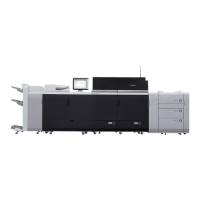
3 Press [Change] next to <Finish>.
4 Select the paper's finishing type → press [OK].
You can select the finishing type from [Uncoated], [Recycled], [1-Sided Coated], [2-Sided Coated],
[Embossed], [Vellum], [Film/Transparency], [Label], or [Cotton].
5 Press [Done].




 To Next Page