22
If the Tab Selection screen is not displayed, press the Menu button.•
1
2
5
6
3
4
On the Tab Selection screen of the Control Panel , press
◄ or ► to select the Paper tab (
).
Press the OK button.
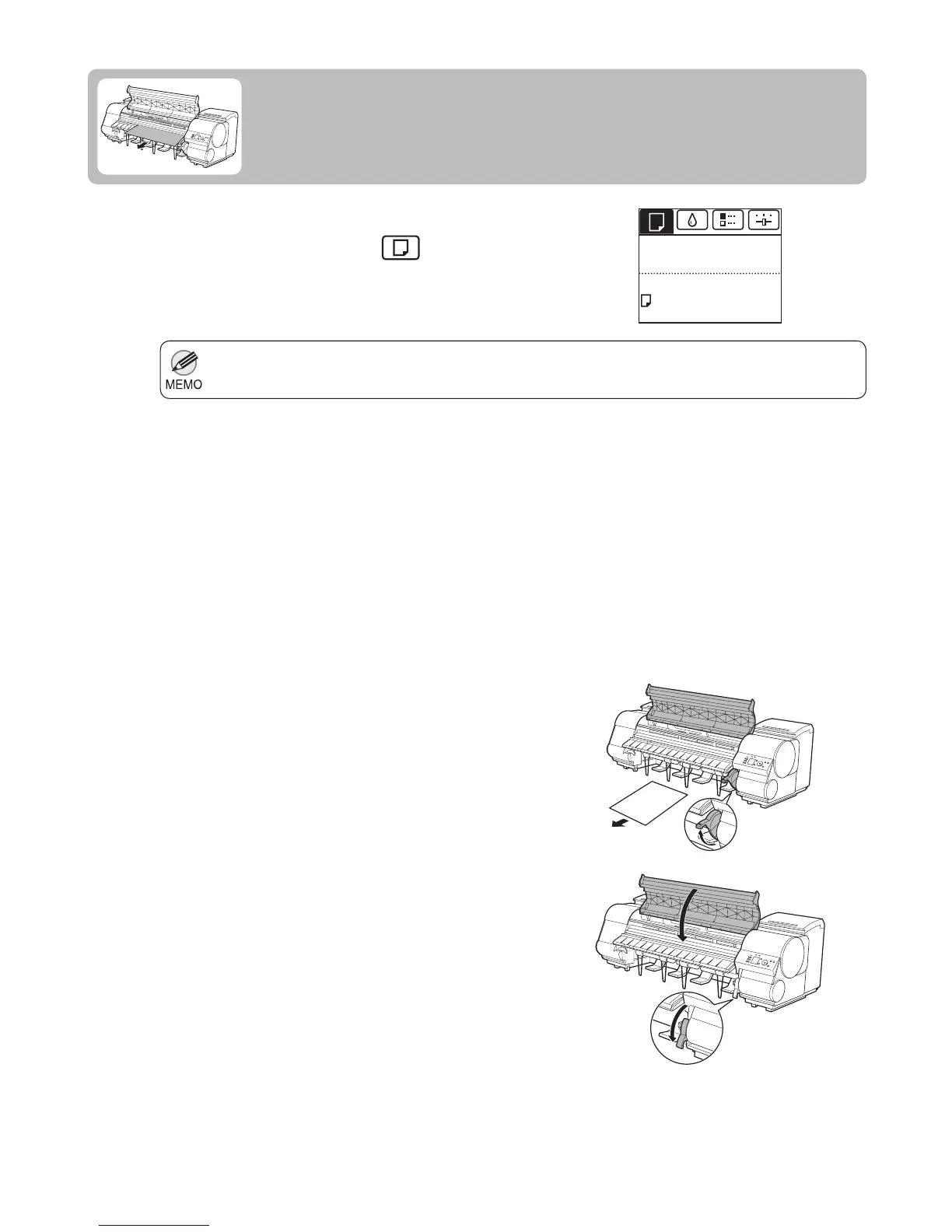
Open the Top Cover , lift the Release Lever , and remove
the sheet.
Lower the Release Lever and close the Top Cover .
The Paper Menu is displayed.
Removing Sheets
This section describes how to remove sheets from the printer.
Press ▲ or ▼ to select Eject Paper , and then press the
OK button.
The paper is ejected from the front of the printer.
Press ▲ or ▼ to select Yes , and then press the OK
button.
Ready
Plain Paper
ISO A2
OK: Paper Menu











 To Next Page