
 Need help?
Do you have a question about the Canon MF264dw II and is the answer not in the manual?
Details security measures to protect the machine from unauthorized network access and eavesdropping.
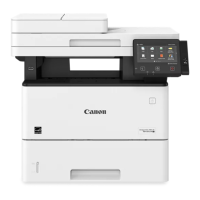
Identifies and explains the machine's components and their functions.
Details the types and sizes of paper that can be used with the machine, including precautions.
Guides initial machine setup via the touch panel, including language and network configuration.
Explains how to connect the machine to a network via wired or wireless LAN and configure network settings.
Describes the process of installing necessary software and drivers for the computer to use the machine's functions.
Explains how to use the machine's control panel for various operations and settings via buttons and touch screen.
Details the correct procedures for loading various paper types into the machine's drawers and trays for quality printing.
Guides on registering destinations for sending scanned data and faxes into the machine's address book.
Outlines the necessary steps and driver installations required to print documents from a computer.
Explains how to print documents and photos from a computer using the installed printer driver.
Provides instructions on how to cancel print jobs from the computer or the machine's control panel.
Guides on configuring the machine's e-mail server settings and preparing scanned data for email transmission.
Describes methods for saving scanned data to a computer, including using ScanGear MF or MF Scan Utility.
Explains how to register destination and scan settings to shortcut keys for one-touch scanning operations.
Provides steps to identify and clear paper jams from various locations within the machine, including important safety precautions.
Offers solutions for common printing issues like smudges, streaks, uneven printing, blank pages, and blurry text.
Guides users through troubleshooting steps for issues preventing printing or copying, including checking error codes and network status.
Lists the available manuals for the machine, including Safety Instructions, Setup Guide, and User's Guide.
Provides practical examples and steps for using the machine with a computer, covering tasks like shared folder creation.
Details environmental compliance, energy efficiency information, and relevant regulations for the product.
 General
| Print Technology | Laser |
|---|---|
| Functions | Print, Copy, Scan |
| Print Resolution | Up to 600 x 600 dpi |
| Duplex Printing | Yes |
| Paper Size | Letter, Legal, A4, A5, B5, Executive |
| Copy Resolution | Up to 600 x 600 dpi |
| Display | 5-line LCD |
| Print Speed | 30 ppm |
| Paper Handling Input | 250 sheets |
| Connectivity | USB, Ethernet, Wi-Fi |
| Mobile Printing | Apple AirPrint, Canon PRINT Business, Mopria |
| Scanner Type | Flatbed |
| Scan Resolution | 600 x 600 dpi |
| Copy Speed | Up to 30 cpm |
| Automatic Document Feeder | Yes |





 To Next Page