User authentication: the standard workflows
Introduction
Find below the standard workflow for printing and the standard workflow for scanning/copying
when the user authentication is activated and configured on the Océ system.
Standard workflow for print
Step Action
1- Logging on a work-
station
The user logs in with his/her credentials.
Example: 'user1' on 'domain.com' and the associated password.
2- Job submission The user submits jobs using a printer driver (e.g. Océ WPD2) or a job
submitter (example: Océ Publisher Select 2)
3- Authentication on
the printer
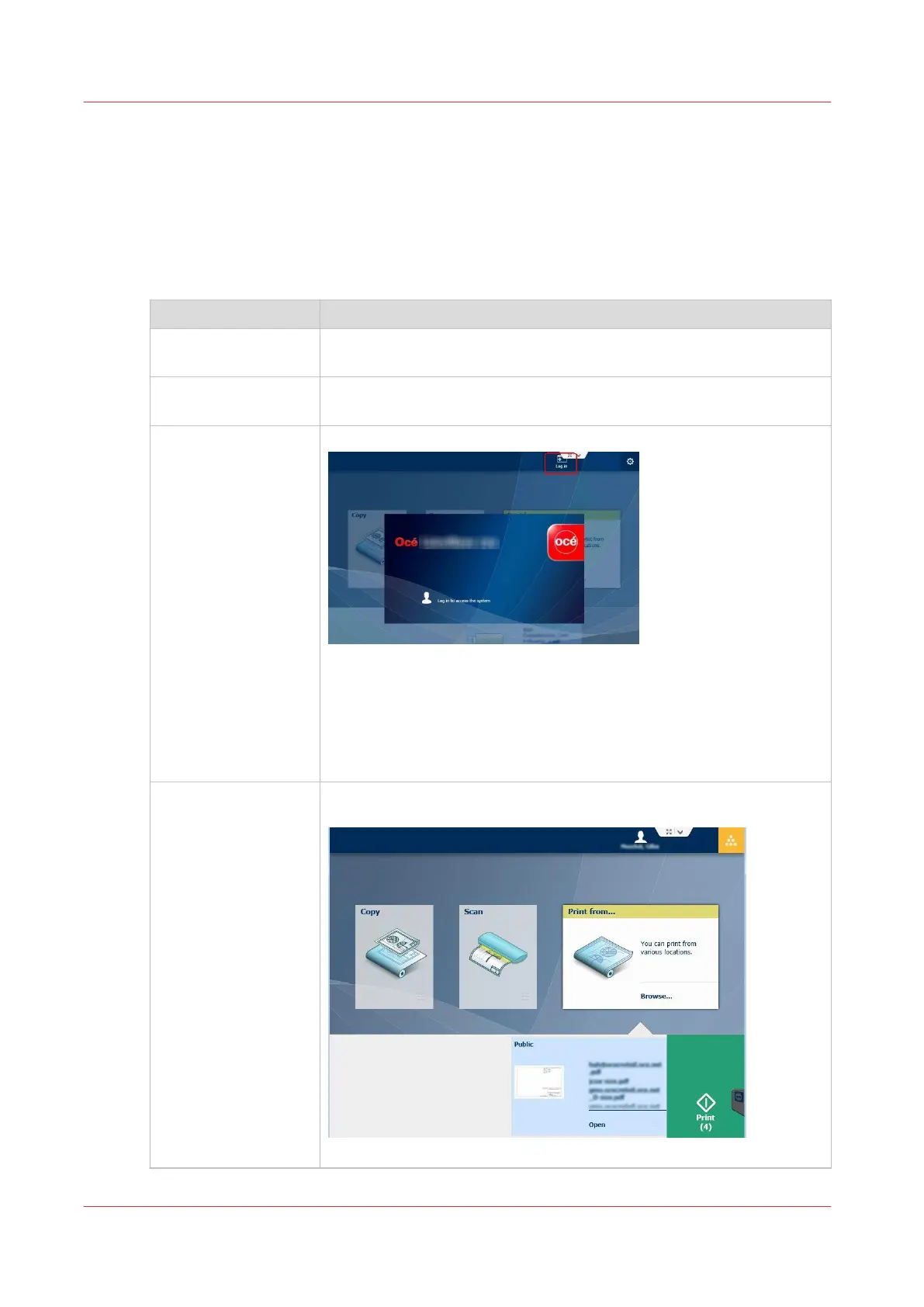
The user logs in on the printer:
• either by typing his/her user name and password on the printer pan-
el
• or by using his/her smart card
The credentials used on the printer must be the same as the ones used
at the job submission time.
Example: 'user1' belonging to the domain 'domain.com'.
4- Job management
On the bottom right part of the panel (Smart Access), the user can see
the jobs submitted with his/her user credentials.
The user can check the jobs and change the settings.
4
User authentication: the standard workflows
322
Chapter 6 - Security on Océ ColorWave 500 and Océ ColorWave 700










 To Next Page