Step Action
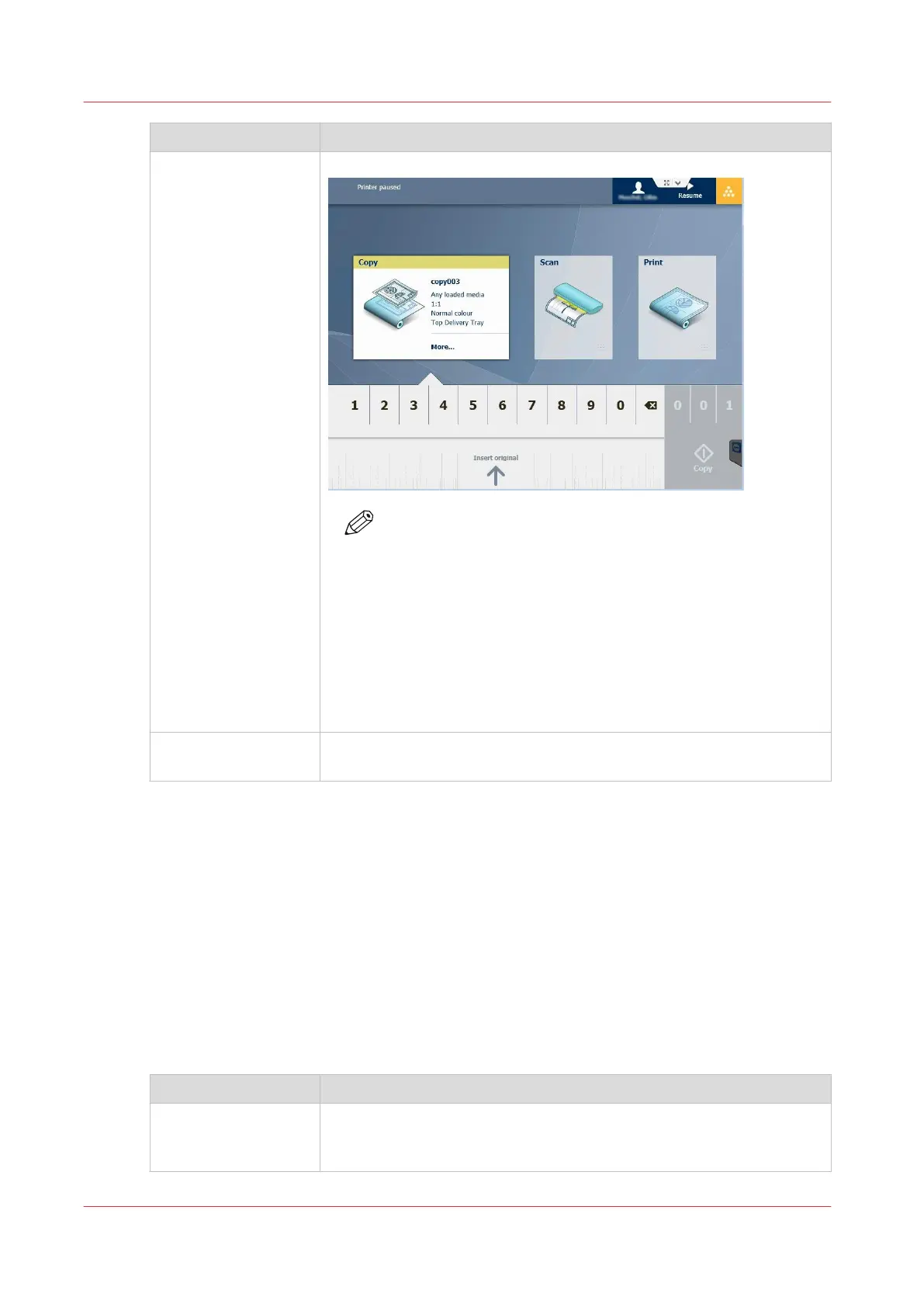
2- Workflow selection The user selects Copy or Scan in the menu.
NOTE
For scan operations, it is recommended to scan to an external
location (not locally on the controller).
When the user logs to an external location, the login name in
the top menu is replaced by the login name to the external lo-
cation. The 'User session time-out' set in the 'Security' - 'Con-
figuration' tab applies for both the user authentication on the
user panel and the authentication on the external locations.
The files scanned locally to the controller can be used only
for reprint purpose. They cannot be retrieved or saved from
the network.
3- Job copy or scan The user loads the file and starts the copy or scan the job to an external
location.
The user authentication in the main job submission workflows
Introduction
There are several ways to submit print jobs to the printer.
Find below the recommendations for benefiting from the protection by the user authentication in
the recommended job submission workflows:
• Job submission with Océ Publisher Select (from version 1.17)
• Job submission from an application with the Océ WPD2 driver (from version 2.11)
• Job submission from an application with the Océ PS3driver (from version 1.24)
Job submission with Océ Publisher Select
Steps
Recommendations / Remarks
1- Log in on a work-
station
Log in on the workstation with the same credentials as the ones you
will use to authenticate on the printer panel later on.
Example: 'user1' on domain 'domain.com'.
4
The user authentication in the main job submission workflows
324
Chapter 6 - Security on Océ ColorWave 500 and Océ ColorWave 700










 To Next Page