Configure the Smart card authentication
Introduction
Perform the following steps to activate the user authentication and configure the smart card
authentication.
Before you begin
The smart card and the smart card reader are compliant with the requirements.
Activate the smart card authentication
1. In a web browser, enter the URL or IP address of the printer to open Océ Express WebTools
2. Open the 'Security' - 'Configuration' page.
Log in as a system administrator if requested.
3. In the 'User access mode' section, select 'Smart card' as the 'User authentication':
4. The restart is required. Select 'Restart now'.
When 'User access mode' is set to 'Smart card' or 'User name and password', the system
must be restarted to guarantee the data confidentiality of future incoming jobs. Do not select
'Restart later'.
Configure the smart card settings
Configure:
• The trusted certificates.
• The user access settings.
Procedure
1.
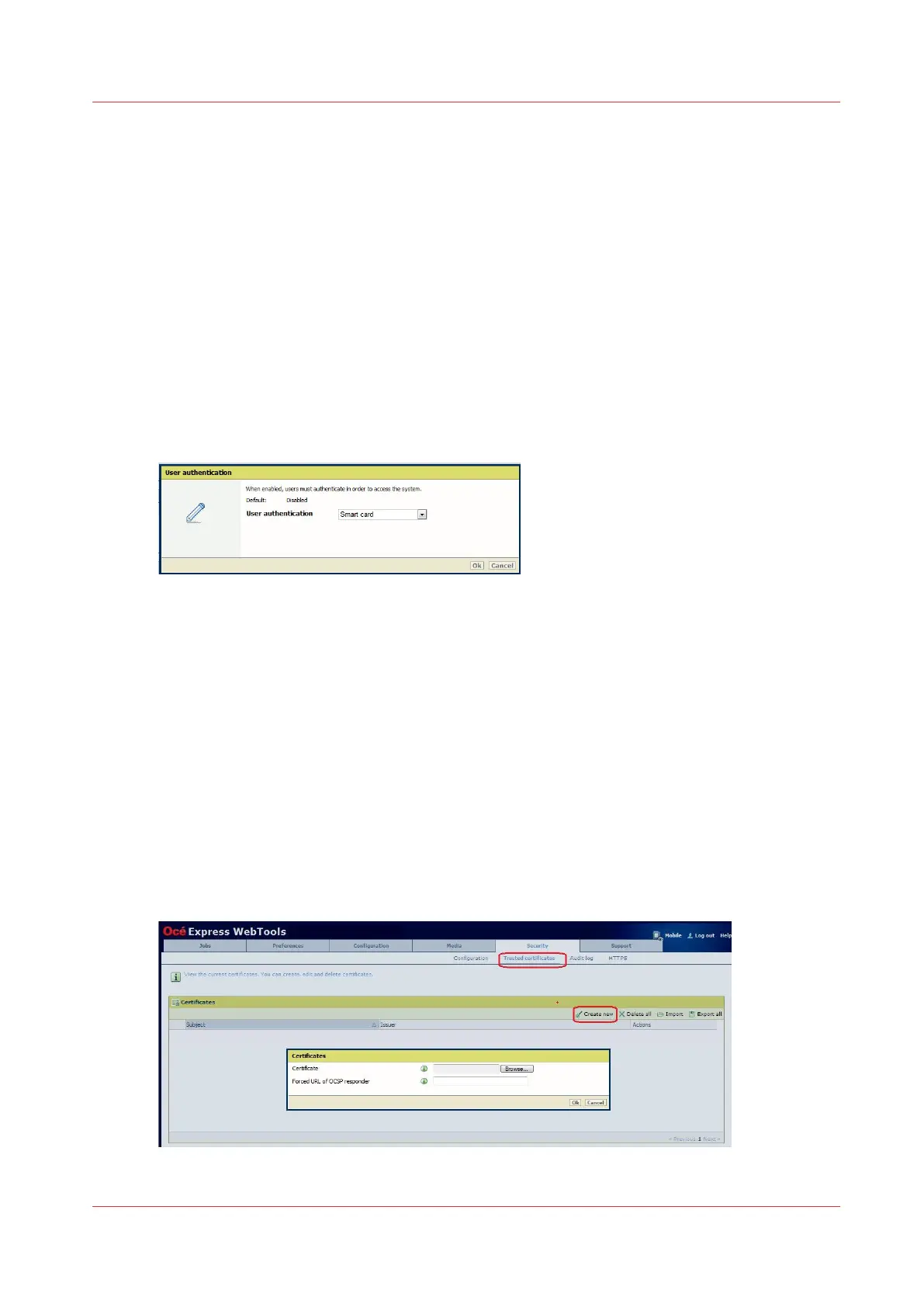
Open the 'Security' - 'Trusted certificates' page.
2.
Click 'Create new' to create one certificate for each of the root and intermediate certificates used
in the certificate chain for the authentication.
Configure the Smart card authentication
Chapter 6 - Security on Océ ColorWave 500 and Océ ColorWave 700
329










 To Next Page