Table of
Contents
Chapter 1
What is
ImageBrowser?
Chapter 2
Downloading and
Printing Images
Chapter 3
What You Can Do with
a Camera Connected
Chapter 4
Viewing Images
Chapter 5
Organizing Images
Chapter 6
Using Supplementary
Features
Appendices Index
ImageBrowser Software User Guide 13
Back Next
This section explains how to print images downloaded to a computer. It
describes the procedures for printing a single image on a single page. It
is easy to print images like photo prints.
○○○○○○○○○○○○○○○○○○○○○○○○○○○○○○○○○○○○○○○○○○
REFERENCE
• The procedural explanation for printing indexes and the layout
and print function are explained in the Chapter 6 topics,
“Printing Indexes” and “Layout and Print.”
1.
Click an image in the Browser Window to print.
A blue frame appears around the image.
○○○○○○○○○○○○○○○○○○○○○○○○○○○○○○○○○○○○○○○○○○
REFERENCE
•You can select multiple images by pressing and holding the
[shift] key or [ ] (command) key while clicking on images. If
you hold down the [option] and [shift] keys together and click
on two images, you can select all the images between them.
2.
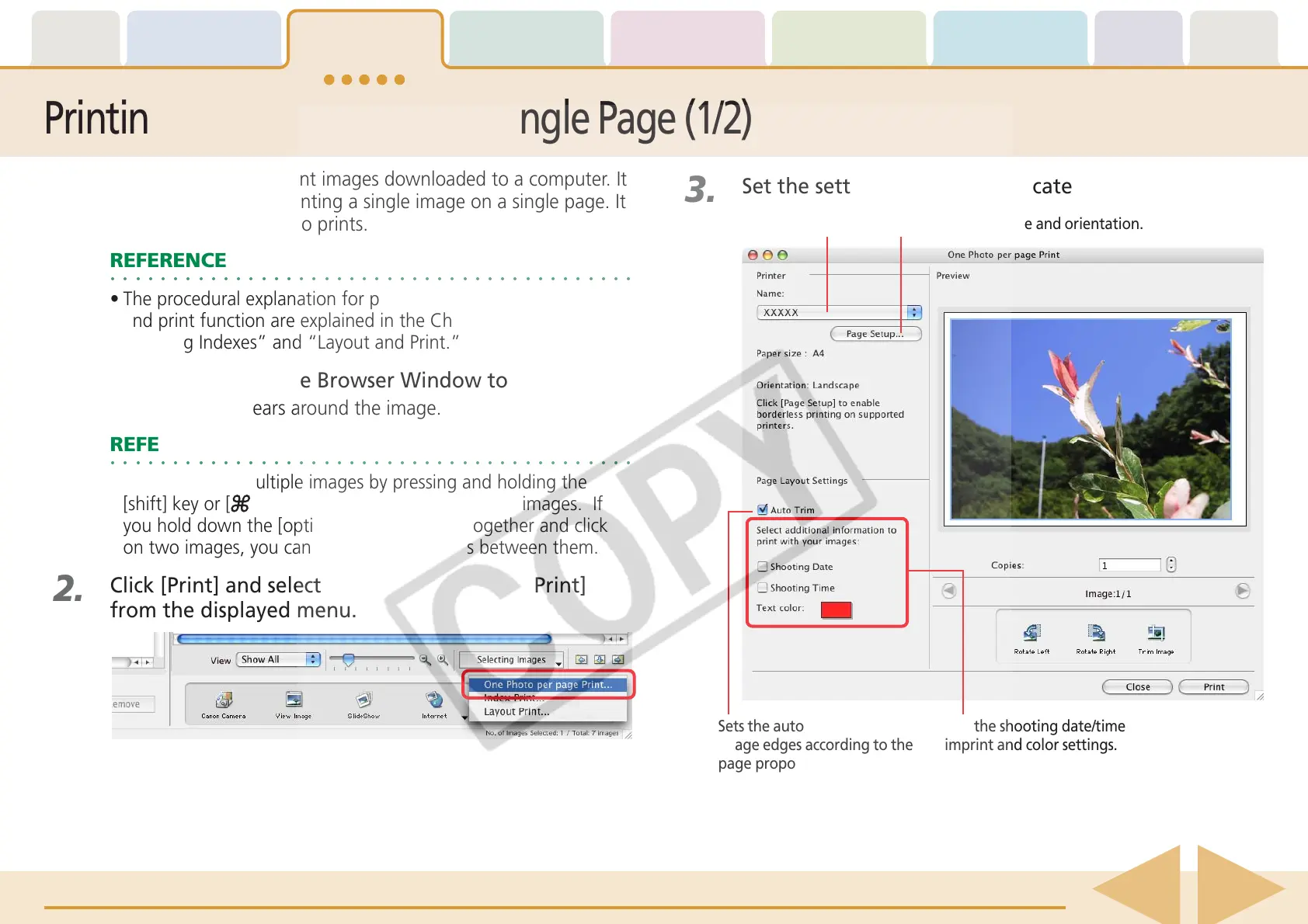
Click [Print] and select [One Photo per page Print]
from the displayed menu.
Printing a Single Image on a Single Page (1/2)
3.
Set the settings in the desired categories.
Selects a printer. Selects the paper size and orientation.
Sets the auto trim (crops
image edges according to the
page proportions) settings.
Sets the shooting date/time
imprint and color settings.



 To Next Page