Table of
Contents
Chapter 1
What is
ImageBrowser?
Chapter 2
Downloading and
Printing Images
Chapter 3
What You Can Do with
a Camera Connected
Chapter 4
Viewing Images
Chapter 5
Organizing Images
Chapter 6
Using Supplementary
Features
Appendices Index
ImageBrowser Software User Guide 19
Back Next
Downloading Images Automatically—Computer Operations (2/3)
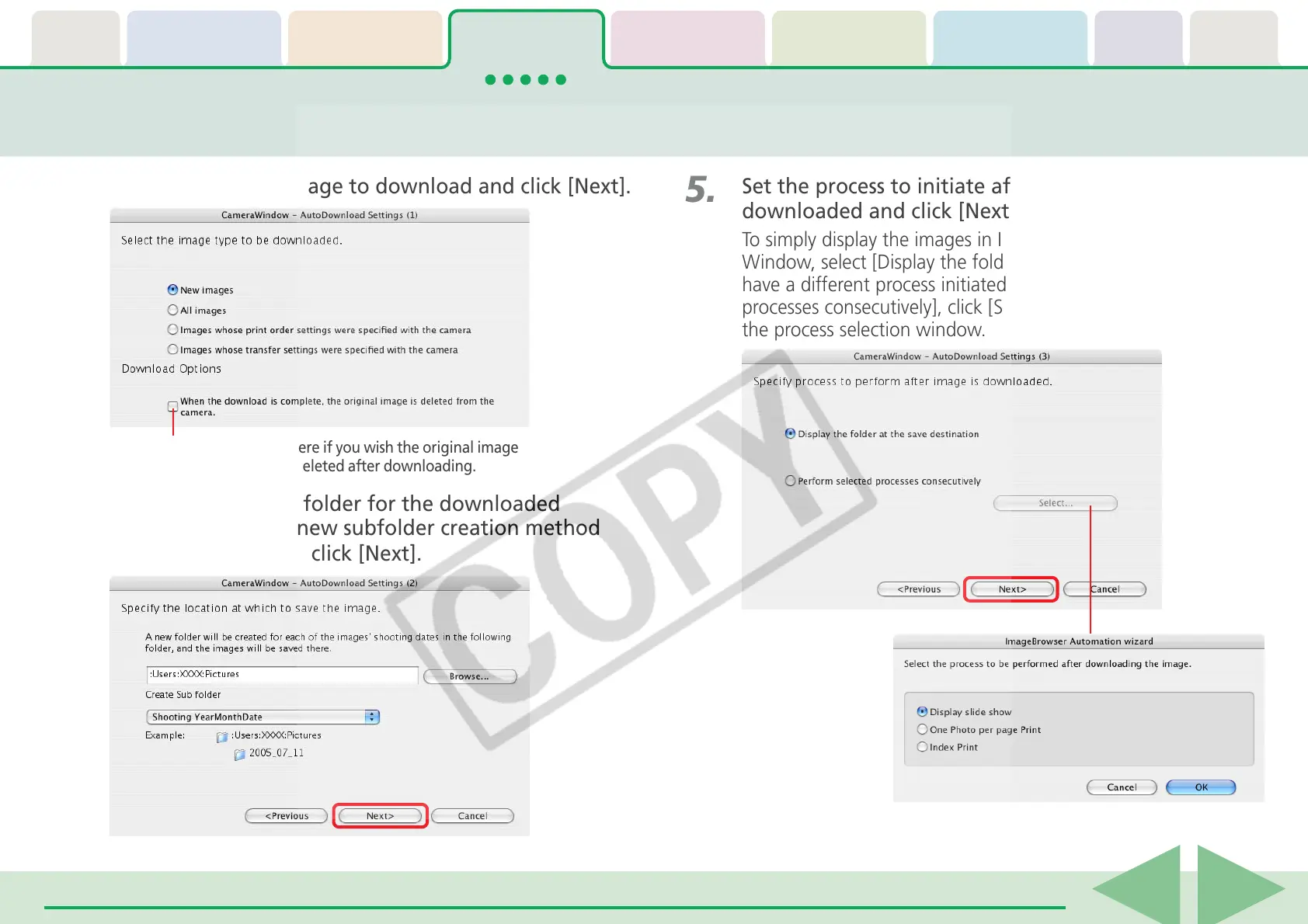
3.
Select the type of image to download and click [Next].
4.
Select a destination folder for the downloaded
images and set the new subfolder creation method
for downloads, then click [Next].
5.
Set the process to initiate after the images are
downloaded and click [Next].
To simply display the images in ImageBrowser's Browser
Window, select [Display the folder at the save destination]. To
have a different process initiated, select [Perform selected
processes consecutively], click [Select] and select a process in
the process selection window.
Place a check mark here if you wish the original image
in the camera to be deleted after downloading.



 To Next Page