Table of
Contents
Chapter 1
What is
ImageBrowser?
Chapter 2
Downloading and
Printing Images
Chapter 3
What You Can Do with
a Camera Connected
Chapter 4
Viewing Images
Chapter 5
Organizing Images
Chapter 6
Using Supplementary
Features
Appendices Index
ImageBrowser Software User Guide 49
Back Next
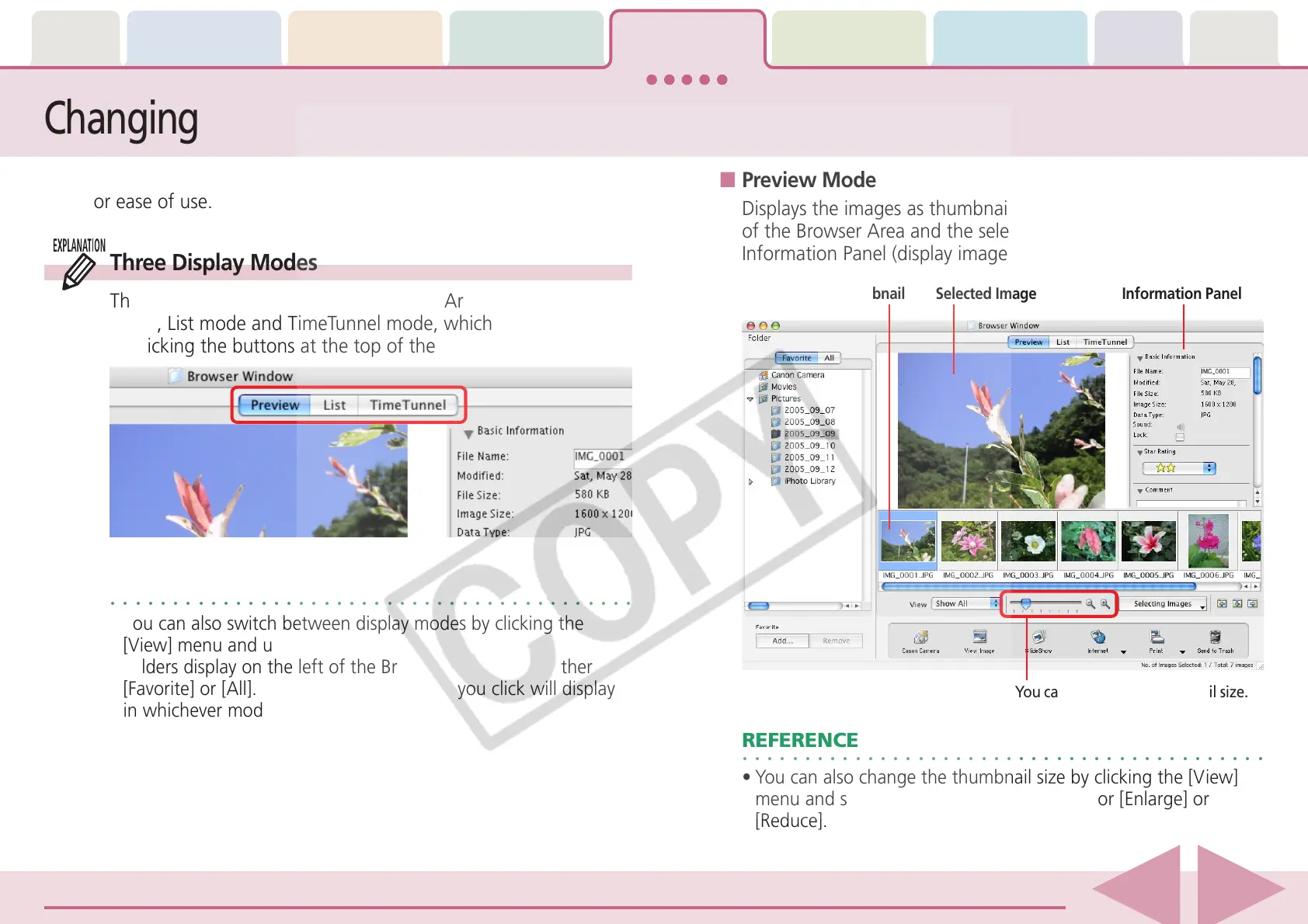
■ Preview Mode
Displays the images as thumbnails (tiny versions) at the bottom
of the Browser Area and the selected thumbnail and the
Information Panel (display image information) in the upper part.
○○○○○○○○○○○○○○○○○○○○○○○○○○○○○○○○○○○○○○○○○○
REFERENCE
•You can also change the thumbnail size by clicking the [View]
menu and selecting the [Display] submenu, or [Enlarge] or
[Reduce].
Changing the Display Mode (1/2)
You can change the display mode in the Browser Window and Browser
Area for ease of use.
Three Display Modes
The three display modes for the Browser Area are the Preview
mode, List mode and TimeTunnel mode, which can be switched
by clicking the buttons at the top of the Browser Area.
○○○○○○○○○○○○○○○○○○○○○○○○○○○○○○○○○○○○○○○○○○
REFERENCE
•You can also switch between display modes by clicking the
[View] menu and using the [View Mode] submenu.
• Folders display on the left of the Browser Area. Select either
[Favorite] or [All]. The images in the folder you click will display
in whichever mode you select.
Selected Thumbnail Selected Image Information Panel
You can change the thumbnail size.



 To Next Page