Table of
Contents
Chapter 1
What is
ImageBrowser?
Chapter 2
Downloading and
Printing Images
Chapter 3
What You Can Do with
a Camera Connected
Chapter 4
Viewing Images
Chapter 5
Organizing Images
Chapter 6
Using Supplementary
Features
Appendices Index
ImageBrowser Software User Guide 79
Back Next
Editing Images (3/10)
Adjusting Color and Brightness
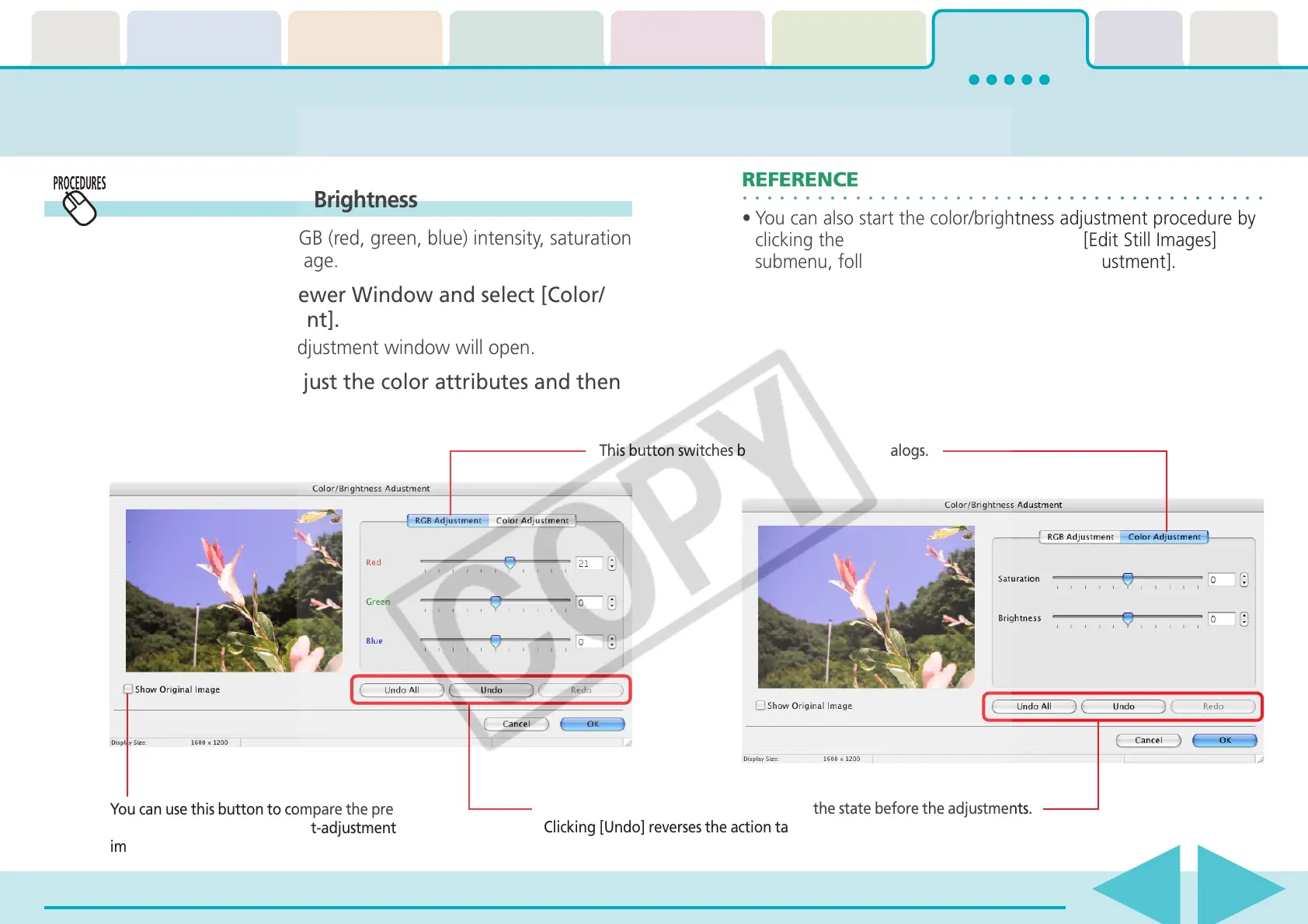
Use this to adjust the RGB (red, green, blue) intensity, saturation
and brightness of an image.
1.
Click [Edit] in the Viewer Window and select [Color/
Brightness Adjustment].
The Color/Brightness Adjustment window will open.
2.
Use the sliders to adjust the color attributes and then
click [OK].
○○○○○○○○○○○○○○○○○○○○○○○○○○○○○○○○○○○○○○○○○○
REFERENCE
•You can also start the color/brightness adjustment procedure by
clicking the [Edit] menu and selecting the [Edit Still Images]
submenu, followed by [Color/Brightness Adjustment].
This button switches between adjustment dialogs.
You can use this button to compare the pre-
adjustment image and the post-adjustment
image by placing a check mark here.
Clicking [Undo All] restores the image to the state before the adjustments.
Clicking [Undo] reverses the action taken immediately prior.
Clicking [Redo] restores the action cancelled by clicking Undo.



 To Next Page