2. Select Applications from Go menu of Finder, double-click Canon Utilities folder and Inkjet
Extended Survey Program folder.
3. Move Canon Inkjet Printer/Scanner/Fax Extended Survey Program.app file to Trash.
4. Restart computer.
Empty Trash and restart your computer.
• Changing setting:
To display the confirmation screen every time the printer usage information is sent or to resume
surveying, follow the procedure below.
1. Select Applications from Go menu of Finder, double-click Canon Utilities folder and Inkjet
Extended Survey Program folder.
2. Double-click Canon Inkjet Printer/Scanner/Fax Extended Survey Program icon.
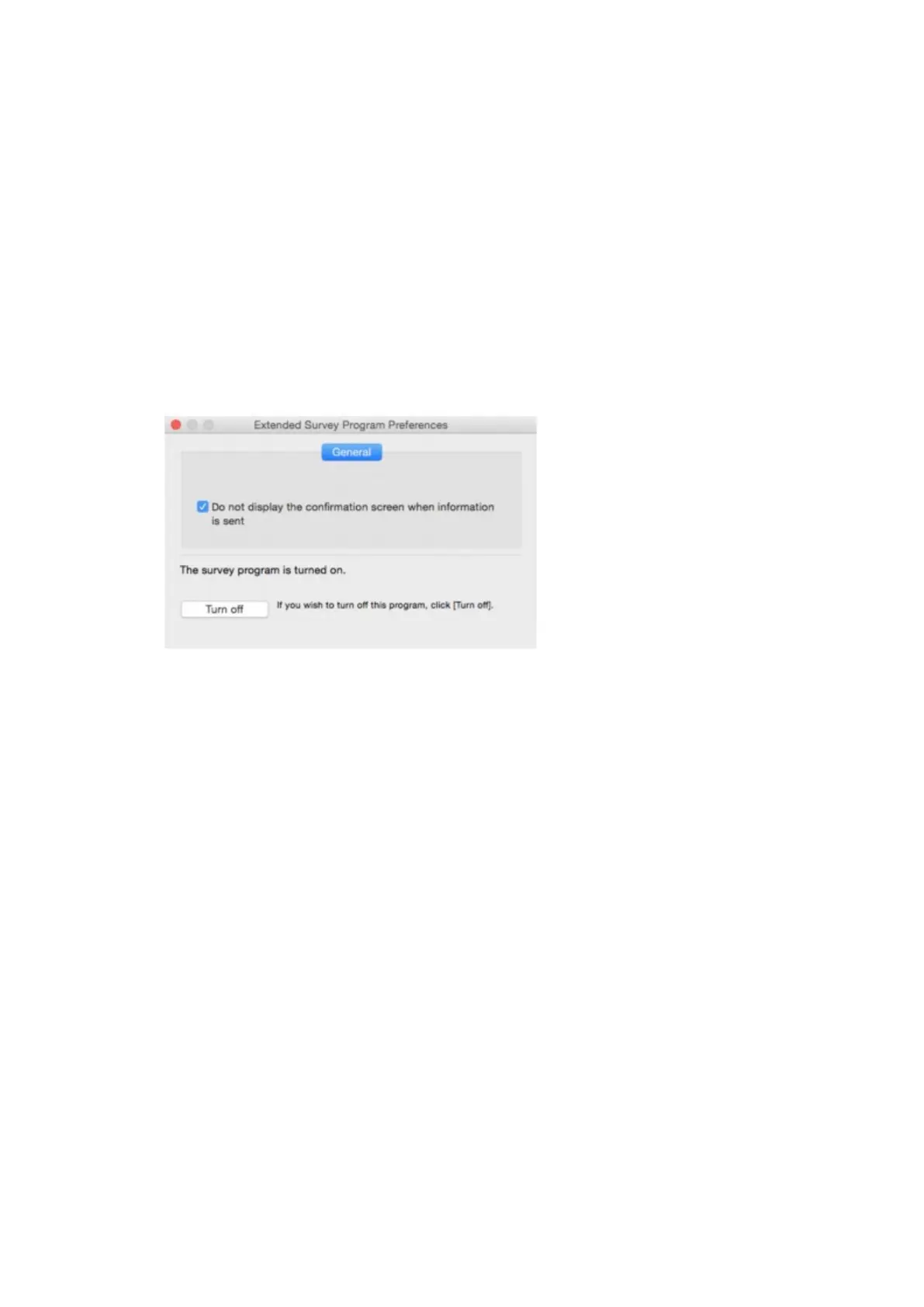
◦ Do not display the confirmation screen when information is sent:
If the check box is selected, the information will be sent automatically.
If the check box is not selected, Inkjet Printer/Scanner/Fax Extended Survey Program
icon will appear in the Dock at the time of the next survey. Click the icon and follow the on-
screen instructions.
◦ Turn off/Turn on button:
Click the Turn off button to stop the Inkjet Printer/Scanner/Fax Extended Survey Program.
Click the Turn on button to restart the Inkjet Printer/Scanner/Fax Extended Survey Program.
412




 To Next Page