Maintenance Procedure
If print results are blurred, colors are not printed correctly, or print results are unsatisfactory (e.g. misaligned
printed ruled lines), perform the maintenance procedure below.
Important
• Do not rinse or wipe the print head and ink tank. This can cause trouble with the print head and ink
tank.
Note
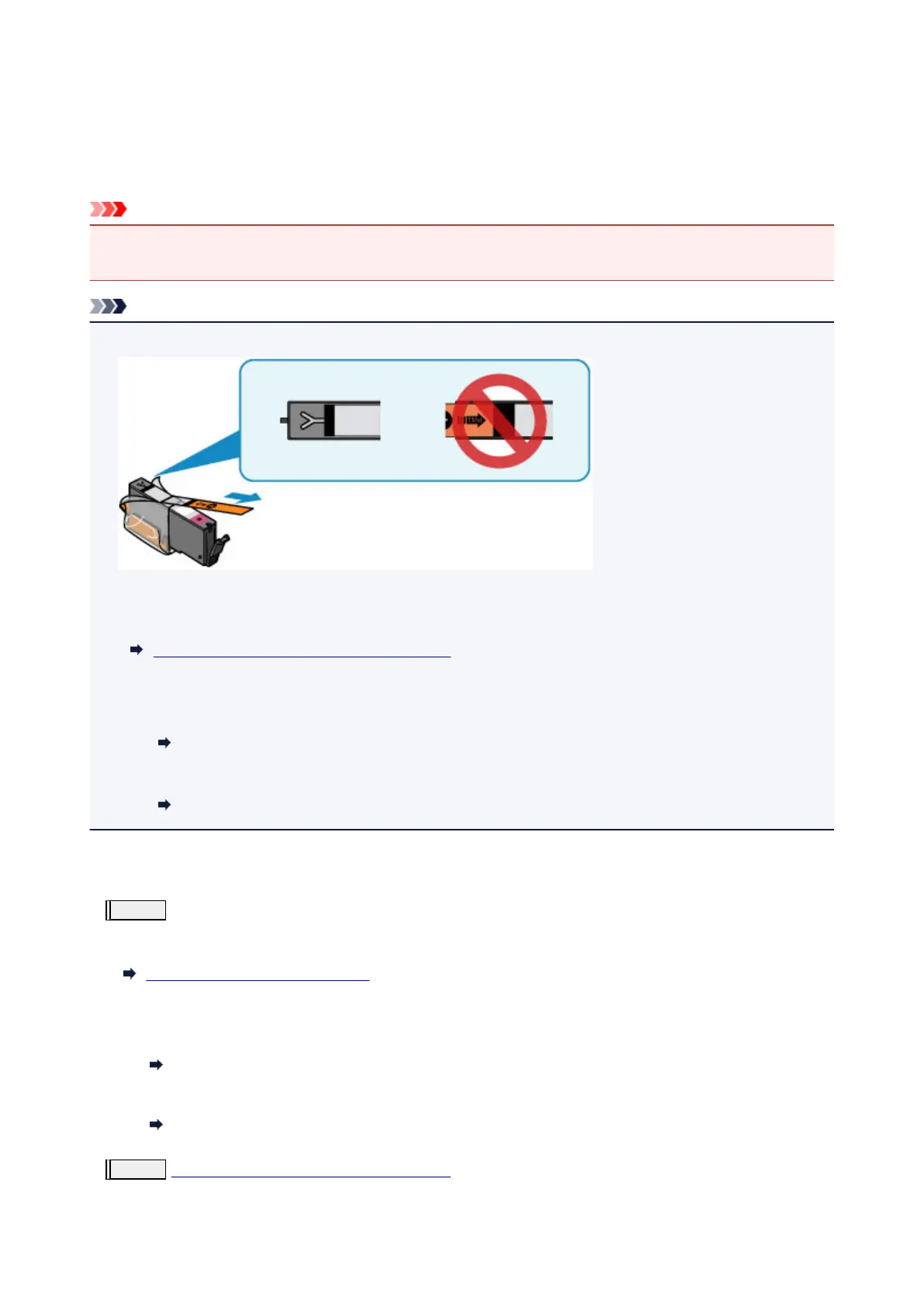
• Make sure that the orange protective tape does not remain on the ink tank.
• Open the scanning unit / cover and make sure that the lamp on the ink tank is lit. If the lamp is flashing
or off, take appropriate action.
Checking the Ink Status with the Ink Lamps
• Increasing the print quality setting in the printer driver may improve the print result.
• For Windows:
Changing the Print Quality and Correcting Image Data
• For Mac OS:
Changing the Print Quality and Correcting Image Data
When the Print Results Are Blurred or Uneven:
Step1
Print the nozzle check pattern.
From the printer
Printing the Nozzle Check Pattern
From the computer
•
For Windows:
Printing a Nozzle Check Pattern
• For Mac OS:
Printing a Nozzle Check Pattern
Step2
Examine the nozzle check pattern.
89




 To Next Page